How to Test a Shopify Store Before Launch: 21 Checks
Before launching a Shopify store, test the complete customer and order journey: find a product, choose a variant, add it to the cart, apply any valid promotion, calculate shipping and tax, complete both successful and failed payment attempts, receive notifications, process the order and test cancellation or refund handling.
Do not stop when the checkout confirmation page appears. A store can accept an order while sending the wrong email, reducing the wrong stock location, applying an invalid shipping rate or leaving staff unsure how to fulfil it.
Shopify recommends placing at least one test order before launch and whenever payment settings change. A dependable launch test goes further by recording the expected result for every important scenario and checking the storefront on devices and accounts that were not used to build it.
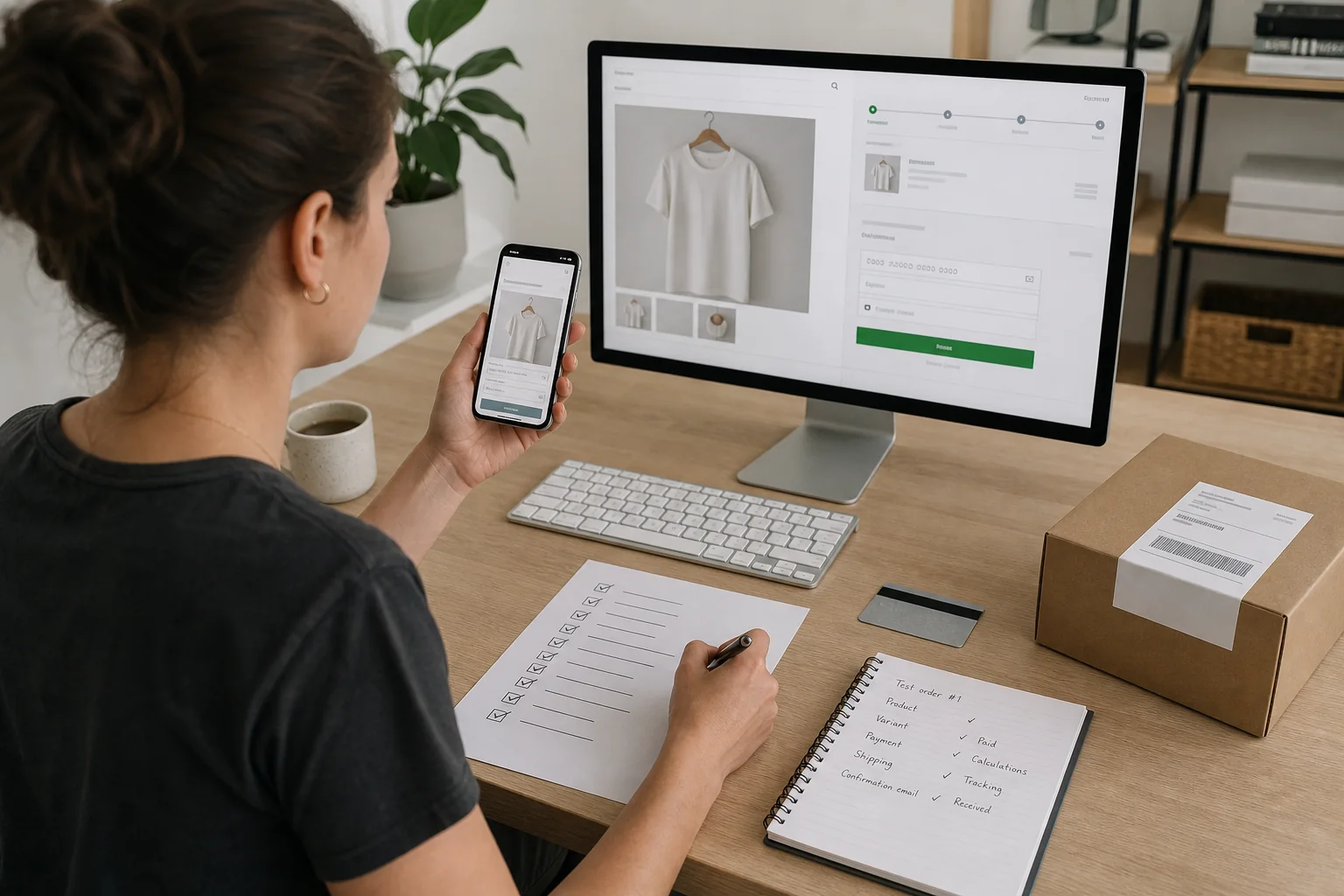
A proper pre-launch test checks the complete order journey on more than one device and records evidence for every result.
Eight common Shopify mistakes this checklist prevents
The most damaging Shopify launch mistakes are rarely dramatic design failures. They are gaps between what the storefront appears to promise and what happens when a real customer searches, pays, receives an email, requests help or needs a refund.
| Common mistake | What the customer experiences | Where this checklist tests it |
|---|---|---|
| Testing only the homepage | Product, collection or policy pages contain broken or inconsistent information | Navigation and storefront content |
| Approving desktop but not a real phone | Small controls, cropped content or an awkward mobile checkout | Mobile usability, accessibility and performance |
| Testing only a successful payment | Declines, duplicate attempts or failed redirects create confusing order states | Successful and failed payments |
| Using one address and one easy product | Shipping, tax or market rules fail for other locations and product combinations | Shipping, taxes, duties and markets |
| Treating the order confirmation as the finish line | Inventory, emails, fulfilment, cancellation or refunds behave incorrectly | The test order beyond checkout |
| Leaving delivery and return terms vague | Customers discover conditions too late or contact support for basic answers | Core information pages and contact routes |
| Adding apps without retesting the journey | Storefront speed, cart behaviour or analytics change unexpectedly | Change freeze, mobile performance and analytics |
| Assuming the owner will notice every problem | Familiarity hides confusing labels, missing context and dead ends | Independent soft launch |
The most common pattern is testing the happy path only. A successful order proves that one combination worked once; it does not prove that a declined card, excluded postcode, unavailable variant, discount conflict or refund will be handled correctly.
For that reason, every important test needs an expected result. It gives the store team a clear basis for deciding whether a result passed or failed.

A proper pre-launch test checks the complete order journey on more than one device and records evidence for every result.
Create a Shopify testing sheet before changing anything
A checklist records that someone looked at an area. A test case records what should happen and whether it did.
Use a sheet with these fields:
| Field | What to record |
|---|---|
| Test ID | A stable reference, such as PAY-02 or SHIP-04 |
| Scenario | What the customer is trying to do |
| Starting conditions | Product, market, customer status, device and stock state |
| Action | Exact steps the tester performs |
| Expected result | What should happen if the setup is correct |
| Actual result | What happened |
| Status | Pass, fail or blocked |
| Evidence | Screenshot, order number or event record |
| Owner | Person responsible for fixing a failure |
| Retest date | When the corrected scenario was checked again |
For example:
| Test ID | Scenario | Expected result |
|---|---|---|
| PROD-01 | Select an in-stock blue medium variant | Image, price, availability and add-to-cart state match that variant |
| SHIP-02 | Checkout to an excluded postcode | Checkout explains that delivery is unavailable; it does not silently offer the wrong rate |
| PAY-03 | Submit a declined test card | No paid order is created and the customer receives a useful failure message |
| ORDER-04 | Cancel an unfulfilled test order | Order status, stock treatment and customer notification match the store’s process |
Write the expected result before running the test. Otherwise, the team may accept whatever the store happens to do.
Freeze major changes and duplicate the theme
Testing becomes unreliable when several people continue changing products, shipping rules, theme code and apps while the test is running.
Set a short change freeze:
- Record the theme version being tested.
- Duplicate the current theme before significant edits.
- List the apps and custom scripts active during the test.
- Decide who can change payments, shipping, taxes and markets.
- Record any change made after testing begins.
If a critical setting changes, rerun the affected tests. A payment-provider change requires payment and notification retesting. A theme change may require navigation, accessibility and analytics retesting.
The broader ecommerce startup checklist covers the business decisions and store-building work that come before this test. This article focuses on proving that the configured Shopify system behaves as intended.
Run Shopify Launch Check
Shopify Launch Check scans areas including store data, Shopify admin settings, storefront elements and, where relevant, B2B or POS configuration. Shopify says the tool provides assessments such as Ready, Not ready, Confirm set up and Check manually. Review the underlying finding instead of treating a Ready label as final approval.
Use the current Shopify Launch Check instructions to run the scan and review each task.
Launch Check is useful for identifying configuration gaps. It cannot decide whether:
- Product descriptions answer real customer questions
- Photographs represent the products accurately
- Shipping promises are operationally realistic
- The refund policy complies with the business’s market
- Staff can recognise and process an unusual order
- Analytics data matches the order record
- A mobile page feels clear to an independent shopper
Treat the automated scan as one test input, not the entire quality-assurance process. After correcting findings, rerun it and keep the earlier result for reference.
Test navigation and storefront content
Begin as a customer who does not know the store structure.
Header, menus and search
Check:
- The logo returns to the intended homepage.
- Every primary menu item opens the correct destination.
- Drop-down menus work with mouse, keyboard and touch.
- Collection links do not lead to empty or unrelated groups.
- Site search finds products using normal customer language.
- No important page is accessible only through the footer or search.
Search for:
- The exact product name
- A product category
- A common synonym
- A misspelling the search function is expected to handle
- A query that should return no result
The no-result page should offer a useful next step rather than a dead end.
Homepage and promotional content
Verify that:
- Headlines explain what the store sells.
- Banners lead to the correct collection or product.
- Promotion dates and conditions are current.
- Out-of-stock products are not used as the only route from a campaign.
- Email or SMS forms connect to the intended list and consent process.
Core information pages
Open the contact, delivery, returns, privacy, terms and About pages. Confirm that names, addresses, response routes, delivery areas and policy details are consistent.
Policy templates are starting points, not legal approval. Have the appropriate local professional review obligations that depend on the business, products and markets.
Broken links and redirects
Check internal links, footer links, social profiles and external policy references. If the store replaced an earlier site or changed product handles, test important redirects individually.
Test products, variants and inventory
Choose a test set that represents the catalogue’s complexity, not only the simplest item.
Include:
- A single-variant product
- A multi-variant product
- A discounted product
- A low-stock product
- An out-of-stock product
- A product with a different shipping profile
- A subscription, pre-order or digital product if offered
- A product available only in a particular market
Product-page checks
For each representative product, verify:
- Title, description and price
- Images and gallery order
- Variant names and combinations
- Variant-specific image, price and availability changes
- Quantity rules
- Unit price or other required information where applicable
- Shipping, delivery and return information
- Add-to-cart button state
- Product recommendations
- Structured specifications
Do not assume a disabled combination is obvious. If blue is unavailable in medium, the interface should not let a shopper believe the combination can be purchased.
Inventory checks
Place a test order and confirm:
- The correct location’s inventory changes.
- The correct variant changes, not the parent product or another option.
- The out-of-stock behaviour matches the store’s policy.
- Back-order or continue-selling rules are deliberate.
- Cancelling or refunding affects inventory according to the chosen action.
Test simultaneous or near-simultaneous carts for scarce stock when overselling would cause a serious problem. Shopify revalidates inventory during checkout, but the business still needs to understand the chosen stock and fulfilment rules.
Test the cart, discounts and gift cards
The cart must handle normal and edge cases.
Test:
- Add one item.
- Change the quantity.
- Remove the item.
- Add two variants of one product.
- Add products from different shipping profiles.
- Leave and return to the cart.
- Open the cart from another supported device or browser.
- Continue to checkout.
If the theme uses a cart drawer, test keyboard access, closing behaviour and small mobile screens. Check that floating chat, cookie and promotion elements do not cover cart controls.
Discount tests
Create scenarios for:
- A valid code
- An expired code
- A code below its minimum spend
- A code for an excluded product
- A code restricted to eligible customers
- Two offers that should or should not combine
- Free shipping at, below and above the threshold
The customer-facing message should explain why an offer failed without exposing private configuration.
Gift-card tests
If gift cards are sold, test:
- Purchase and delivery
- Partial redemption
- A balance lower than the order total
- A balance higher than the order total
- Cancellation or refund behaviour
- Recipient information where supported
Do not assume gift-card behaviour matches ordinary product discounts.
Test shipping for real order combinations
Testing one local address is not enough. Build a small address matrix representing the places the store intends—and does not intend—to serve.
| Scenario | What to verify |
|---|---|
| Main domestic city | Normal rate, service name and delivery expectation |
| Remote domestic area | Surcharge, exclusion or longer service |
| Free-shipping threshold | Exact boundary below and above the threshold |
| International target market | Available products, currency, duties information and rate |
| Excluded country or postcode | Checkout blocks the order clearly |
| Mixed shipping profiles | Combined rate and fulfilment logic |
| Local delivery or pickup | Eligibility radius, location, instructions and timing |
| Oversize or heavy product | Correct package and special rate |
Verify that product weights, package sizes, fulfilment locations and shipping profiles support the result. A rate appearing at checkout does not prove the business can fulfil the promise profitably or on time.
If a third-party carrier or fulfilment app supplies rates, test its unavailable and timeout behaviour as well as the normal response.
Test taxes, duties and markets carefully
Tax and duty configuration depends on the business’s registrations, products and customer locations. Shopify provides tools, but the merchant remains responsible for determining the correct setup.
Use representative test orders to inspect:
- Taxable and non-taxable products
- Domestic and relevant regional addresses
- Prices shown with or without included tax
- Shipping tax treatment
- Exempt customer handling where applicable
- International duties or import-tax presentation
- Currency and price display across active markets
Compare the checkout result with the setup approved for the business. Do not use a generic online checklist as tax advice.
If changing these settings after the test, rerun every affected order scenario.
Test successful and failed payments
Shopify Payments test mode can simulate successful and failed payment flows without capturing real money. Shopify warns not to use test mode on a production store and to disable it when testing is complete.
Follow Shopify’s current Shopify Payments testing instructions, including the documented test credentials and limitations. If the store uses another provider, use its supported test method or Shopify’s Test payment gateway where appropriate.
Test at least:
- Successful card payment
- Declined card
- Incorrect card details
- Authentication or verification flow where supported
- Abandoned checkout
- Alternative payment method used by the target market
- Manual payment method if offered
For each scenario, confirm:
- The message shown to the customer
- Whether an order was created
- Financial status in Shopify admin
- Inventory effect
- Customer email or other notification
- Analytics events
- Any fraud or review indicators relevant to the plan and provider
Some wallets and local methods are unavailable in Shopify Payments test mode. Record what was not testable and create a controlled post-launch monitoring plan rather than pretending the path was verified.
If an app automatically fulfils orders, disable or safely configure it before creating test orders. Shopify cautions that test orders should not accidentally trigger fulfilment or paid shipping labels.
For a detailed configuration walkthrough, use the separate guide to setting up Shopify payments.
Watch Out
The checkout confirmation page is not the end of the test. A successful payment can still trigger the wrong email template, deduct stock from the wrong location, apply an incorrect tax calculation or leave your fulfilment team with incomplete order details. Follow every test order through to fulfilment and any post-purchase communication.

Follow a test order beyond checkout
A successful payment is the middle of the test, not the end.
Check the order record
Verify:
- Customer and delivery details
- Product, variant, quantity and price
- Discount allocation
- Tax and shipping lines
- Payment and fraud status
- Inventory location
- Tags or automations
- Notes and consent information where applicable
Test notifications
Check the actual messages received by the customer:
- Order confirmation
- Payment or pending-payment notice
- Fulfilment and tracking message
- Local pickup or delivery instructions
- Cancellation
- Refund
Review sender identity, subject line, brand details, product data, addresses, links and mobile rendering. Send to more than one major mailbox provider if email deliverability is important, and confirm the sender domain has been configured correctly.
Test fulfilment
Test full and, if the business supports it, partial fulfilment. Confirm:
- The correct items are fulfilled.
- Tracking is recorded correctly.
- The customer receives the intended notification.
- Remaining items retain the correct status.
- The fulfilment team can understand the order without private knowledge.
Do not purchase a real shipping label for a test order unless the team has deliberately approved that cost and process.
Test cancellation, return and refund
Use scenarios such as:
- Cancel before fulfilment
- Cancel after authorisation but before capture where relevant
- Full refund
- Partial refund
- Return one item from a multi-item order
- Restock and do-not-restock choices
- Exchange workflow if offered
Confirm the financial status, inventory, notification and internal next step. If the published return policy promises an action the team cannot execute cleanly, fix the process or policy before launch.
Shopify’s general store checklist specifically includes testing successful and failed transactions, refunds, cancellations and fulfilment.
Test customer accounts and contact routes
If customer accounts are enabled, test:
- Account creation or sign-in
- Verification messages
- Password or access-code flow
- Address management
- Order history
- Subscription management where applicable
- Sign-out
- Behaviour for a guest order
Use a new customer address rather than the store owner’s account. Existing administrator sessions can hide problems a normal visitor will encounter.
Also test:
- Contact form delivery
- Reply-to address
- Telephone links on mobile
- Email links
- Website chat
- WhatsApp or social-contact buttons
- Support availability wording
Submit a genuine test enquiry and follow it into the inbox. A form displaying “sent” is not enough if the message never reaches the team.
Pro Tip
Use a device that was not involved in building the store. Development browsers cache aggressively. A fresh device in a private browsing window on a different network shows the store that a first-time customer sees, not the cached version your team tested during build.

Test mobile usability, accessibility and performance
Most theme editing happens on a large screen. Test on real mobile devices as well as browser resizing.
Mobile customer journey
Complete the full journey on:
- A current iPhone or iOS device available to the team
- A current Android device available to the team
- At least one desktop browser
- A private or signed-out browser session
Check:
- Menu and search
- Product gallery and zoom
- Variant controls
- Sticky add-to-cart elements
- Cart drawer
- Discount field
- Form keyboard behaviour
- Payment options
- Confirmation page
Accessibility checks
Manually review:
- Keyboard navigation
- Visible keyboard focus
- Form labels and error messages
- Alternative text for informative images
- Colour contrast
- Heading order
- Link and button names
- Zoom and text resizing
- Motion controls where relevant
Automated tools can identify some problems but cannot confirm that the entire buying journey makes sense with a keyboard or assistive technology.
Performance checks
Test representative product, collection and homepage templates. Look for:
- Oversized images
- Layout shifts
- Apps loading on pages where they are not needed
- Blocking pop-ups
- Duplicate scripts
- Delayed cart response
- Mobile controls hidden by widgets
Test on a normal mobile connection, not only office broadband. Record the theme, device, page and date so results can be compared after a fix.
Validate analytics and advertising events
Do not assume that an app status saying “connected” means revenue data is correct.
For Google Analytics 4, inspect the customer journey from product view through purchase. Google documents ecommerce events such as view_item, add_to_cart, begin_checkout and purchase, and recommends using DebugView for real-time troubleshooting. See the current GA4 ecommerce setup guidance.
Verify:
- Each expected event fires at the correct point.
- A single action does not create duplicate events.
- Product ID, name, price and quantity match Shopify.
- Currency matches the order.
- Purchase value follows the chosen reporting definition.
- Transaction ID matches the order reference used for deduplication.
- Test or refunded orders are handled according to the reporting process.
- Consent choices affect tracking as intended.
Run comparable checks for advertising pixels or server-side connections used by the store. Use each platform’s official test and diagnostic tools.
The goal is reconciliation: the event record should describe the same purchase as the Shopify order. A green connection indicator is not proof.
Run an independent soft launch
The person who built the store already knows where everything is. Give several independent testers a task without explaining the interface.
Example tasks:
- Find a product suitable for a stated need.
- Choose a specific size or variant.
- Check whether delivery is available to an address.
- Find the return conditions.
- Complete a test order.
- Ask a pre-purchase question.
- Find the tracking information after fulfilment.
Ask testers to describe:
- Where they hesitated
- What they expected to happen
- Which information was missing
- What felt inconsistent
- What would have stopped the purchase
Observe behaviour where consent and circumstances allow, but do not coach the tester through a problem. The hesitation is the evidence.
Prioritise failures that block purchase, misstate price or policy, create an inaccessible path or break fulfilment. Cosmetic preferences come later.
Complete the final Shopify go-live sequence
Use this sequence after all critical tests pass:
- Resolve failed and blocked test cases.
- Retest each correction.
- Rerun Shopify Launch Check.
- Confirm the published theme and its backup.
- Confirm the production domain and redirects.
- Confirm payment providers are in production configuration.
- Disable Shopify Payments test mode.
- Confirm shipping, taxes, markets and policies one final time.
- Check live contact routes and notifications.
- Confirm analytics and advertising events.
- Remove test products, codes and customer records where appropriate.
- Assign launch-day owners for orders, support and technical problems.
- Remove the storefront password when ready.
- Place or monitor a controlled real order where the business has approved the cost.
- Watch the first orders closely and record unexpected behaviour.
Shopify’s current store launch instructions explain test orders, storefront preview and password removal. A subscription plan may be required to remove the password during a trial.
Once the store is technically ready, the separate ecommerce launch marketing plan covers audience building, promotion and the first 30 days. Do not spend heavily on launch traffic until the purchase and measurement paths have passed.
Should AeroChat be installed before a Shopify launch?
AeroChat is not required to launch a Shopify store. A new merchant should first ensure that products, checkout, fulfilment, policies and a manageable customer-contact route work correctly.
AeroChat is generally a growth-stage support investment rather than a required launch cost. It becomes more relevant when enquiries increase or the business begins managing customer conversations across several channels.
If AeroChat is part of the chosen setup, test it like any other customer-facing system:
- Ask questions using approved product information.
- Test an out-of-stock and variant-specific question.
- Ask about delivery and returns.
- Check that unsupported answers are not invented.
- Test human handover.
- Test the widget on mobile.
- Confirm it does not cover cart or accessibility controls.
- Update the knowledge source when a policy changes and retest.
AeroChat is an AI agent platform that helps Shopify merchants run customer service on autopilot. Its Shopify chatbot integration can support product, delivery, return and order conversations after the store’s underlying information is accurate.
Final Shopify pre-launch test checklist
Storefront:
- Navigation, search and links pass.
- Product and policy content is accurate.
- Promotions lead to eligible products.
- Forms reach the intended inbox or list.
Products and orders:
- Variants and inventory behave correctly.
- Cart and discounts handle edge cases.
- Representative shipping addresses return the intended result.
- Tax and market display matches the approved setup.
- Successful and failed payment paths pass.
- Notifications, fulfilment, cancellation and refund pass.
Experience and measurement:
- Mobile and keyboard journeys are usable.
- Customer accounts and contact routes work.
- Performance is acceptable on representative pages and connections.
- Analytics and advertising events reconcile with Shopify orders.
- Independent testers completed the assigned tasks.
Go-live:
- Shopify Launch Check has been reviewed and rerun.
- Critical failures are closed and retested.
- Test mode is disabled.
- The production theme and domain are confirmed.
- Launch-day responsibilities are assigned.
- Password protection is removed only when the store is ready.
A successful pre-launch test does not prove that nothing will ever fail. It proves that the business has checked its most important customer and operational paths, knows what the correct result looks like and has assigned someone to respond when reality differs.