Telegram AI Bot Not Working? 12 Checks Before Reconnecting It
If a Telegram AI bot is not responding, first establish whether the failure is in Telegram delivery, the bot application or the AI service. Test the bot in a private chat, send /start, confirm the token with Telegram’s getMe method, and inspect webhook or polling status before replacing credentials.
Do not paste a bot token into a public “checker” or forum. A Telegram bot token authorises control of the bot and should be treated like a password. If it has been exposed, revoke and replace it through BotFather.
The checks below move from simple user-side problems to connection and application faults. Stop when the failed layer is identified; repeatedly reconnecting everything can erase the evidence that would have shown what broke.
Diagnose the symptom before changing settings
| Symptom | Most likely layer | Start with |
|---|---|---|
| Bot cannot be found | Username or bot creation | Checks 1–2 |
| Bot opens but never replies | Chat initiation, token, webhook or application | Checks 3–8 |
| Private chat works but group does not | Group membership, privacy mode or permissions | Checks 9–10 |
| Commands work but AI answers fail | Model, knowledge or application connection | Check 11 |
| Replies are slow or intermittent | Queues, provider errors or rate limits | Check 12 |
Keep one controlled test message, its time and the chat type. That makes server logs and Telegram error timestamps much easier to match.
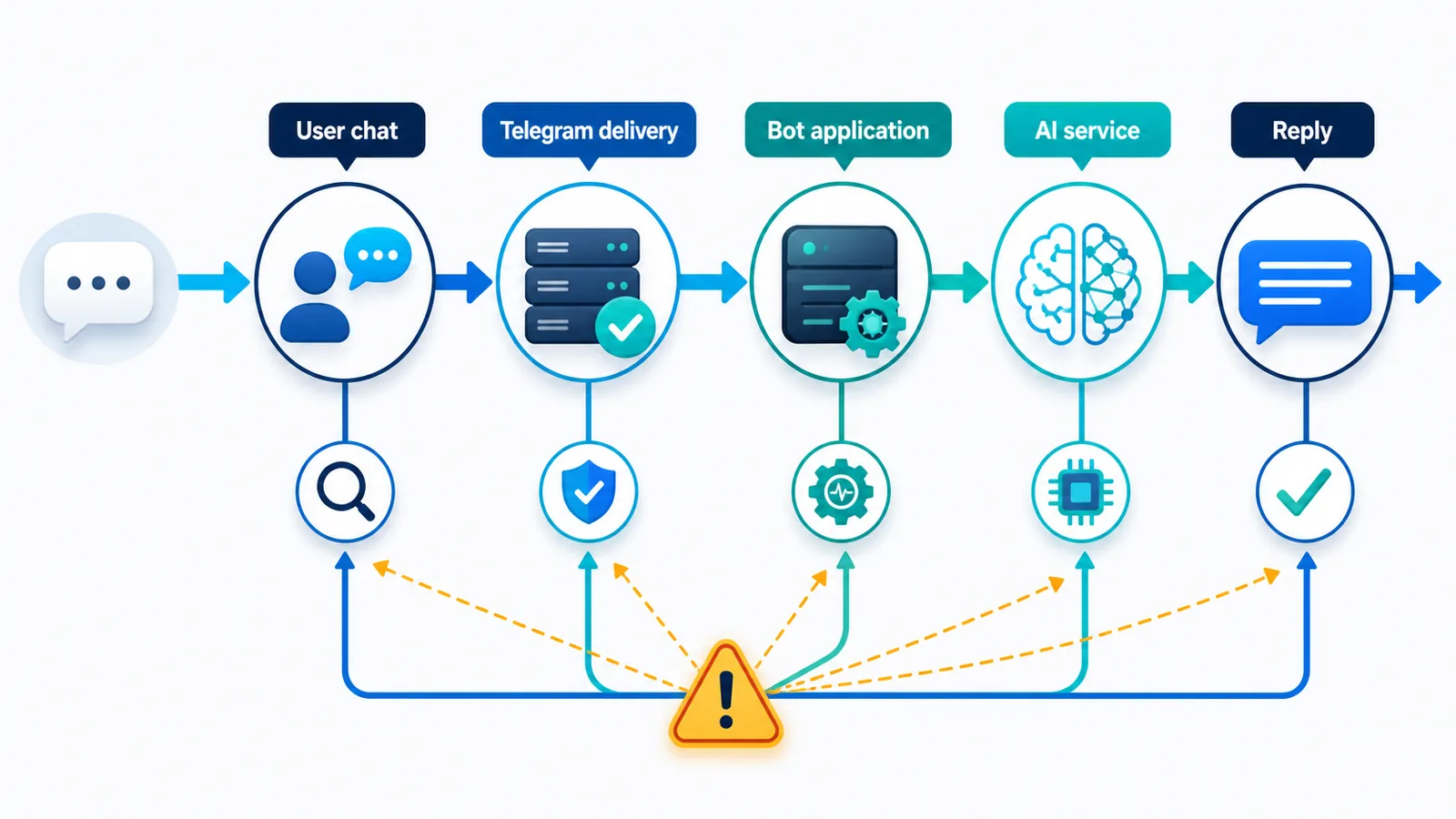
12 checks for a Telegram AI bot that is not responding
1. Confirm you are opening the correct bot
Telegram usernames are easy to mistype, especially when a test bot and production bot have similar names. Open the bot from BotFather’s bot list or from the exact link supplied by the owner.
Bot usernames normally end in bot, but the display name can be different. Check the username shown beneath the name rather than trusting the avatar or conversation title.
2. Check that the bot still exists and the username has not changed
If Telegram reports that the user cannot be found, return to BotFather and review the bot. Confirm that it was not deleted and that the shared link matches its current username. If you are setting up a new connection rather than fixing one, follow the connection instructions supplied by your chatbot platform. This troubleshooting guide assumes the bot has already been created.
3. Open the private chat and send /start
A bot cannot begin a private conversation with a user who has never contacted it. Open the bot, select Start or send /start, then send a short plain-text message such as “test”.
If the bot works in this new private chat, the core connection is alive and the problem may be specific to a group, message type or earlier conversation state.
4. Make sure the bot is not blocked
Open the chat settings and check whether the bot has been blocked. Unblock it, send /start again and retry the same simple message.
Also check whether an administrator or automation rule has restricted the customer on the application side. Do not assume a successful Telegram send means the AI application will accept the request.
5. Test the token safely with getMe
Telegram’s Bot API provides getMe as a simple authentication test. Run it from a secure terminal or a trusted application environment using the bot’s current token. A successful response should identify the expected bot.
If Telegram reports an unauthorised request, the token is wrong, revoked or incomplete. Copy the current token again from BotFather and update the application that uses it. Never include the token in screenshots, logs shared publicly or support tickets unless the provider offers a protected secret field.
Telegram’s official Bot API reference documents getMe, webhook inspection and the response fields mentioned in this guide.
6. Check whether two services are using the same token
A common failure appears when a developer tool, old server and chatbot platform all try to receive updates for one bot. One service may consume or redirect messages before the intended application sees them.
List every place where the token was installed. Stop obsolete test scripts and remove old connections. After the intended receiver is the only active one, send a new message rather than waiting for an earlier update to reappear.
7. Decide whether the bot uses webhooks or long polling
Telegram supports two mutually exclusive ways to receive updates: getUpdates for long polling or an outgoing webhook. Telegram’s official Bots FAQ states that getUpdates does not work while a webhook is set.
If the application polls, remove an unintended webhook with Telegram’s deleteWebhook method. If it uses webhooks, do not run a competing polling process. Confirm the expected method from the platform or code you actually deployed.
8. Inspect getWebhookInfo
For a webhook bot, getWebhookInfo reveals the configured URL and useful diagnostics, including pending updates and the most recent delivery error. Compare the URL with the currently deployed endpoint.
Check these items:
- the URL is the expected HTTPS endpoint;
- its certificate is valid;
- the endpoint returns promptly;
- a firewall accepts Telegram delivery;
- no redirect is required;
- the configured port is supported by Telegram;
- the pending-update count is not growing continuously.
Telegram currently documents webhook support on ports 443, 80, 88 and 8443 and does not support redirects for webhook delivery. Verify the current Bot API documentation if your infrastructure changes.
9. Check whether the failure occurs only in groups
Add the bot to a test group and send a direct command that includes its username if appropriate. If private chat works but ordinary group messages do not, privacy mode is a likely explanation rather than an AI failure.
In privacy mode, a bot receives a limited set of relevant messages instead of every group message. That reduces unnecessary access and is often the correct default. Change it only if the group use case genuinely requires broader visibility.
10. Review group permissions and administrator rights
A bot may receive a message but be unable to perform the requested action. Check whether it may send messages, read the needed update type, manage topics or carry out an administrative operation.
Grant only the permissions required for the task. Making a bot a full administrator can hide the original issue and expands risk. Test one permission-dependent action after each deliberate change.
11. Separate Telegram delivery from the AI response
If Telegram commands work but natural-language answers fail, the problem is probably beyond Telegram. Check the chatbot application, AI provider, knowledge connection and response formatter.
Use a three-part test:
- Confirm the inbound Telegram update reached the application.
- Confirm the application produced an AI response or a clear error.
- Confirm the reply was sent back through Telegram successfully.
An empty knowledge source may produce weak answers, but it should not be confused with a broken message connection. AeroChat’s guide to enabling AI features in Telegram explains this distinction for non-technical users.
12. Check queues, rate limits, payloads and recent changes
Intermittent faults need timestamps. Record when a message was sent, when the application received it, when the AI completed it and when Telegram accepted the reply.
Then review:
- recent deployments or setting changes;
- provider-status incidents;
- application timeouts;
- Telegram API error codes and retry guidance;
- unusually large messages or unsupported attachments;
- a growing queue or repeated update;
- rate-limit responses.
Do not build a fixed retry loop that ignores Telegram’s response. Respect any retry interval supplied by the API and prevent duplicate replies.
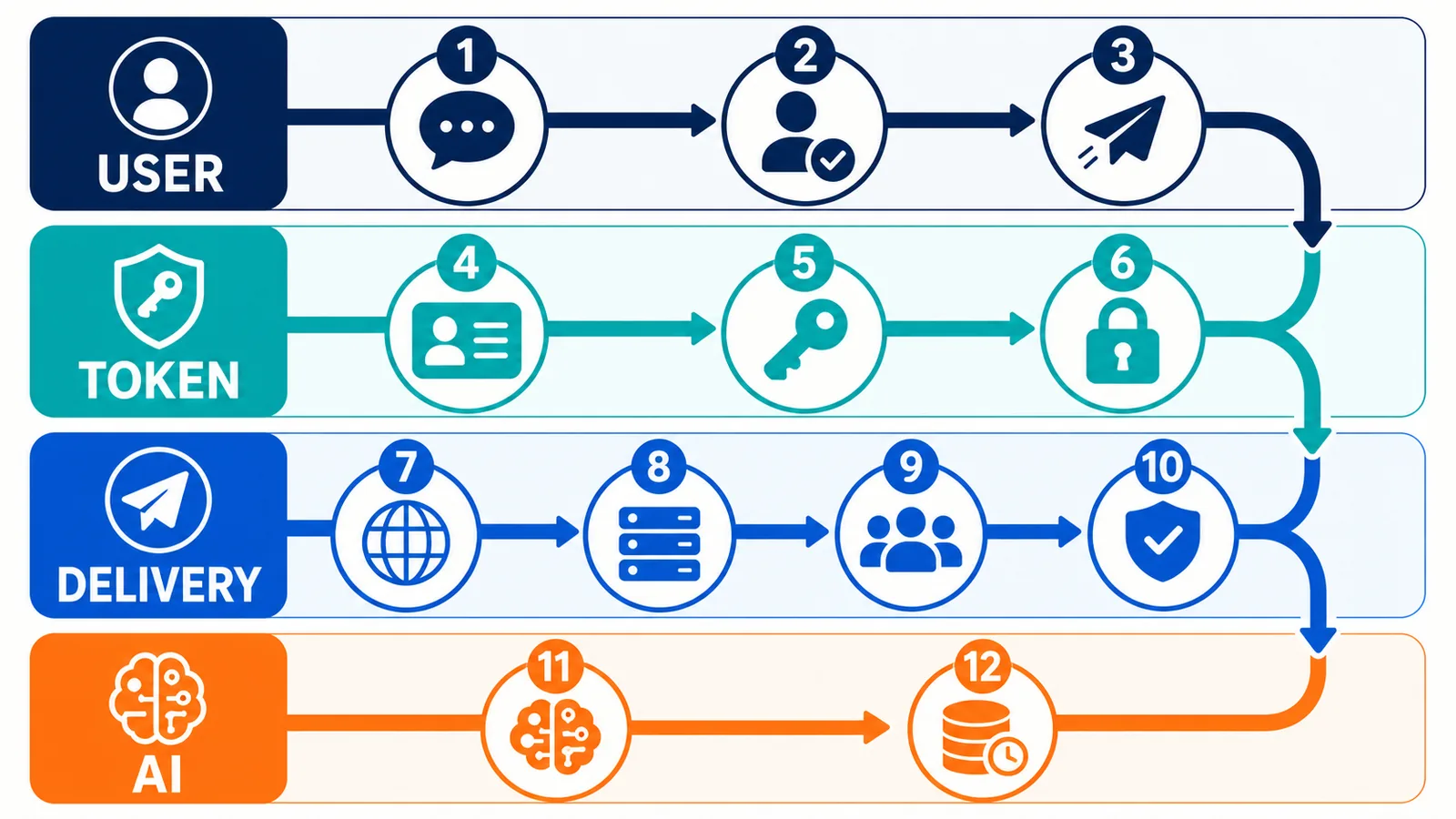
What each Telegram diagnostic tells you
| Diagnostic | A healthy result suggests | A failed result points towards |
|---|---|---|
Private /start test |
User can reach the bot | Wrong bot, block or service outage |
getMe |
Token is accepted and identifies the expected bot | Revoked or incorrect token |
getWebhookInfo |
Webhook target and delivery state are visible | Wrong URL, certificate, network or application error |
| Private works, group fails | Core bot is running | Privacy mode or group permissions |
| Inbound update visible, no AI output | Telegram delivery is working | AI provider, prompt, knowledge or application logic |
| AI output visible, no Telegram reply | Model is working | Send API, payload, permission or rate-limit issue |
This isolation process is faster than deleting the bot and starting again. It also preserves the old token and webhook state long enough to understand the failure.
How AeroChat helps Telegram users manage the connection
AeroChat is an AI agent platform that helps online businesses run customer service on autopilot. Its Telegram AI chatbot connection allows a business to connect a BotFather token and use Telegram as a supported customer-conversation channel.
For an AeroChat-connected bot, start with the same boundary test: does Telegram recognise the token, does the user message reach the connected service, and can the service return a reply? Use the official connection guide for the supported setup steps rather than guessing at dashboard controls that may have changed.
When a conversation needs personal attention, AeroChat can pass it to a human agent with the preceding context. That human-handover route helps with difficult customer questions, but it is not a fix for a broken Telegram connection; the message must reach the platform first.
For a quick initial build, see the separate guide to creating a Telegram AI chatbot for a business. For product selection rather than repair, compare the best Telegram AI chatbot options. Keeping setup, troubleshooting and comparison intents on separate pages makes each guide easier to use.
When should you reconnect the bot?
Reconnect or replace credentials only when the evidence points to the connection:
getMerejects the stored token;- the application is using a different token from BotFather;
- the webhook points to an obsolete service;
- two services compete for the same updates;
- the platform connection was intentionally removed.
If Telegram receives the token and the application receives the update, reconnecting is unlikely to fix an AI-model, knowledge or reply-formatting error.
When should you contact support?
Prepare a safe diagnostic package rather than sending secrets. Include:
- bot username, but not the token;
- private chat or group;
- test-message time with timezone;
- whether
/startworks; - sanitised
getMeresult; - sanitised webhook error and pending-update count;
- relevant API error code;
- last known working time and recent changes.
Redact customer data, tokens, private webhook secrets and full message content unless the support process specifically requires them through a protected channel.
The shortest reliable fix path
Start in a private chat, confirm /start, test the token with getMe, identify webhook or polling mode, inspect delivery errors, and then test the AI layer separately. Check group privacy and permissions only if the fault is group-specific.
This sequence protects credentials and tells you which system is failing. Reconnect the bot only after the diagnostics show that the connection—not the customer message, permission or AI application—is the broken layer.