How to Set Up Shopify Payments: A Complete Step-by-Step Guide
Setting up Shopify Payments takes around 15 minutes once you have your business details and banking information ready. It is the built-in payment processor for Shopify stores and, where available, is the simplest way to start accepting card payments — enabling it removes the platform transaction fee Shopify charges when you use a third-party gateway.
This guide covers everything from eligibility and required documents through to configuring payouts, enabling digital wallets, and understanding when a third-party gateway might suit your situation better.
If you are setting up your store for the first time, the ecommerce startup checklist covers all the decisions to make before you launch — including payment setup, shipping, and tax configuration.
What is Shopify Payments?
Shopify Payments is Shopify's own payment processing service, built on Stripe's infrastructure. It allows your store to accept debit and credit card payments directly, without needing to sign up for a separate payment gateway account.
How is Shopify Payments different from third-party gateways?
With a third-party gateway such as PayPal or Stripe connected directly to your Shopify store, you manage two separate accounts — your Shopify account and your gateway account. You also pay Shopify an additional transaction fee on top of the gateway's processing fees.
With Shopify Payments, the processing is handled within Shopify. There is no third-party gateway account to manage, and the platform transaction fee disappears from your billing entirely.
Why does Shopify Payments remove transaction fees?
Shopify's transaction fees — which range from 0.5% to 2% per sale depending on your plan — are applied specifically when you use a payment gateway that is not Shopify's own. Enabling Shopify Payments removes these fees entirely, leaving only the standard card processing rate.
Is Shopify Payments available in your country?
Shopify Payments is available in around 23 countries. Supported regions currently include:
- North America: United States, Canada
- Europe: United Kingdom, Ireland, Germany, France, Spain, Italy, Netherlands, Belgium, Austria, Denmark, Sweden, Finland, Portugal, Czech Republic, Romania
- Asia-Pacific: Australia, New Zealand, Japan, Singapore, Hong Kong SAR
If your country is not on this list, Shopify Payments is not available for your store.
What should you do if Shopify Payments is not available in your country?
You can still accept card payments through a third-party gateway. PayPal, Stripe, 2Checkout, and local payment processors are available as alternatives in most markets. When using a third-party gateway, Shopify's platform transaction fee applies — factor this into your payment costs when choosing a provider.
What documents do you need to set up Shopify Payments?
Having the following ready before you start will make the setup process straightforward:
- Legal entity type: Specify whether you are a sole trader, limited company, or other structure, and provide your business registration details.
- Business address: Must match your registration documents.
- Tax identification number: In the US, your EIN or Social Security Number. Other countries require the equivalent national tax identifier.
- Government-issued photo ID: A passport or driving licence for the account representative.
- Bank account details: Routing number and account number (US) or sort code and account number (UK). The account must be in the same country as your Shopify Payments registration.
Which product types cannot use Shopify Payments?
Shopify Payments cannot be used for certain business types due to payment network restrictions and regulatory requirements. Main prohibited categories include:
- Firearms and related accessories
- Pharmaceuticals and certain supplements
- Adult content
- Cryptocurrency exchange services
- Certain financial services products
If you sell products in a grey area, review Shopify's prohibited business list carefully before activating. Processing payments for a prohibited business type can result in funds being held or your Shopify Payments account being terminated.
How to set up Shopify Payments: step by step
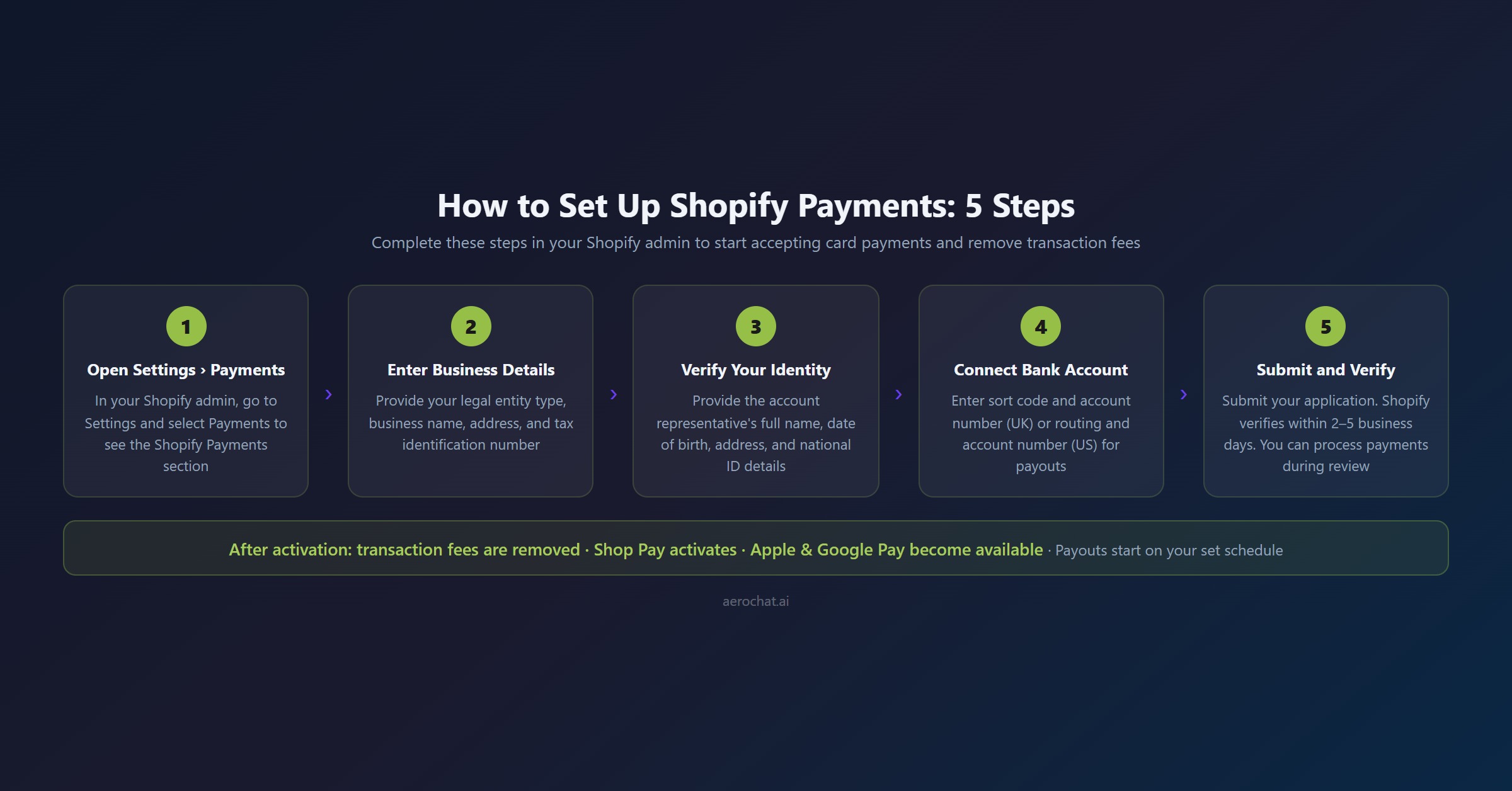
Step 1: Access your payment settings
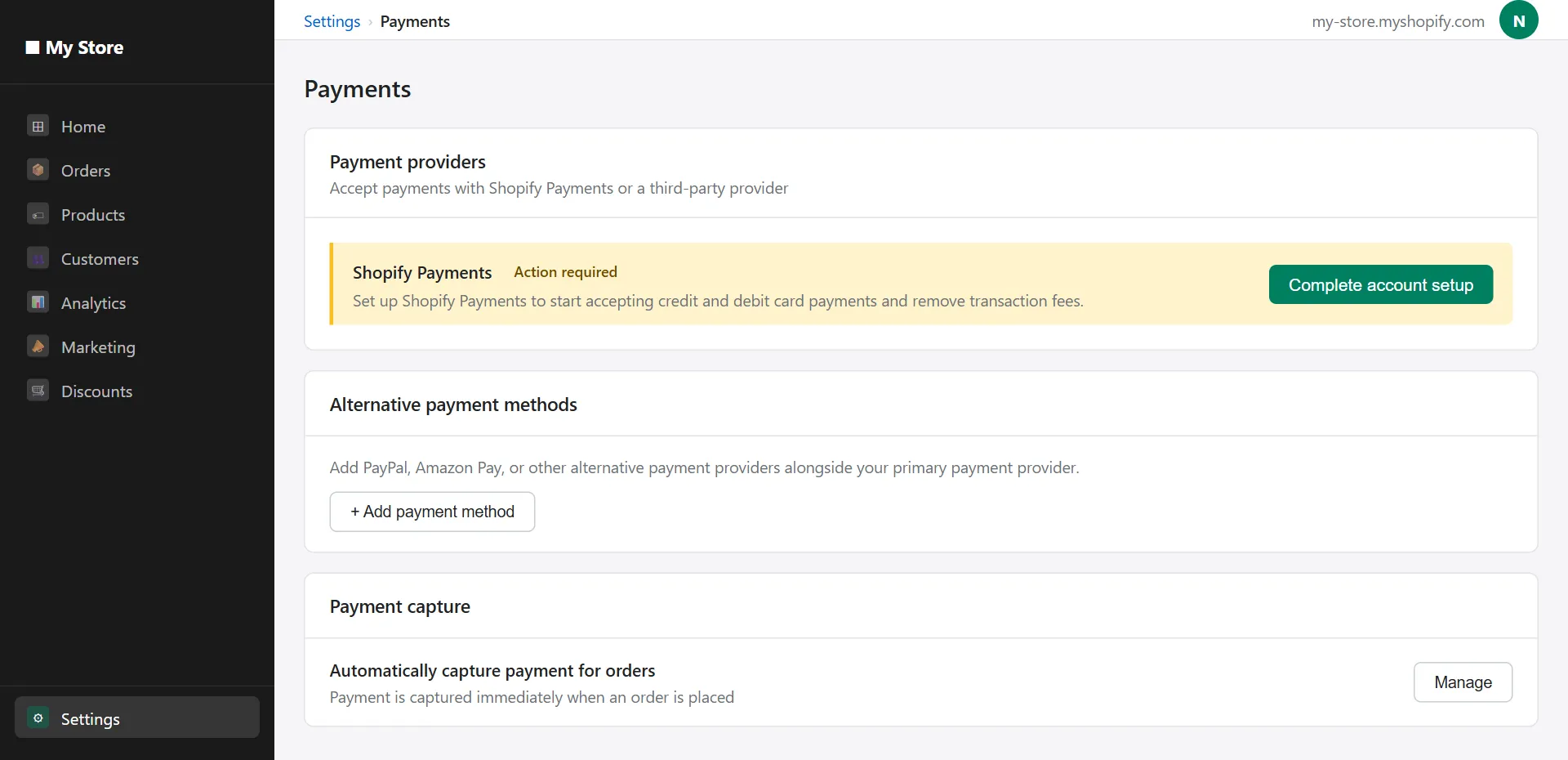
From your Shopify admin, go to Settings and then select Payments. You will see the payment providers section, with Shopify Payments at the top.
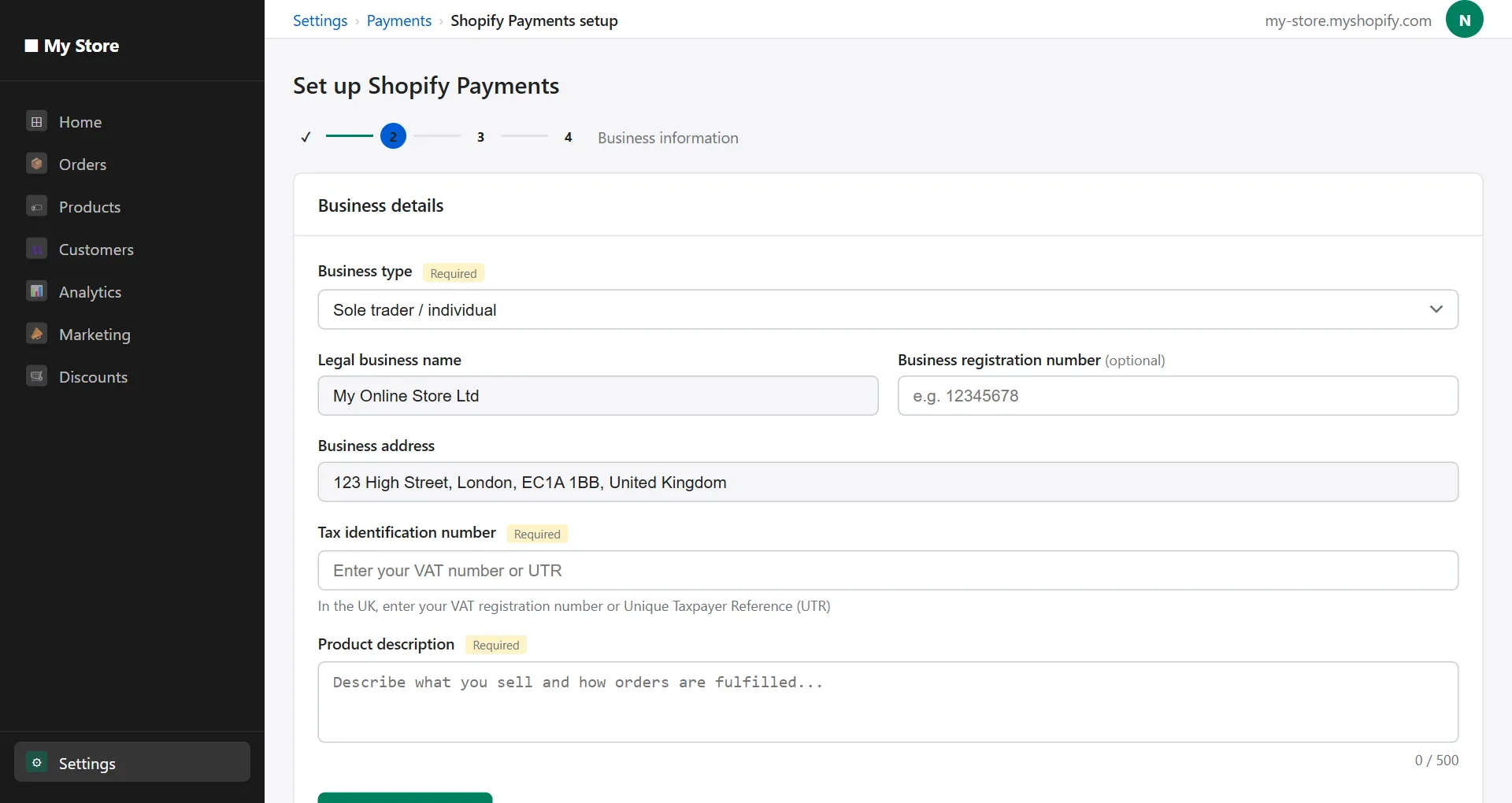
Step 2: Enter your business information
Click Complete account setup within the Shopify Payments section. You will be asked for:
- Your business type (sole trader, limited company, etc.)
- Your registered business name and address
- Your tax identification number
- A brief description of what you sell and how you fulfil orders
The product description you provide is used for compliance screening. Be accurate — describing a restricted business type as general retail creates risk during account review.
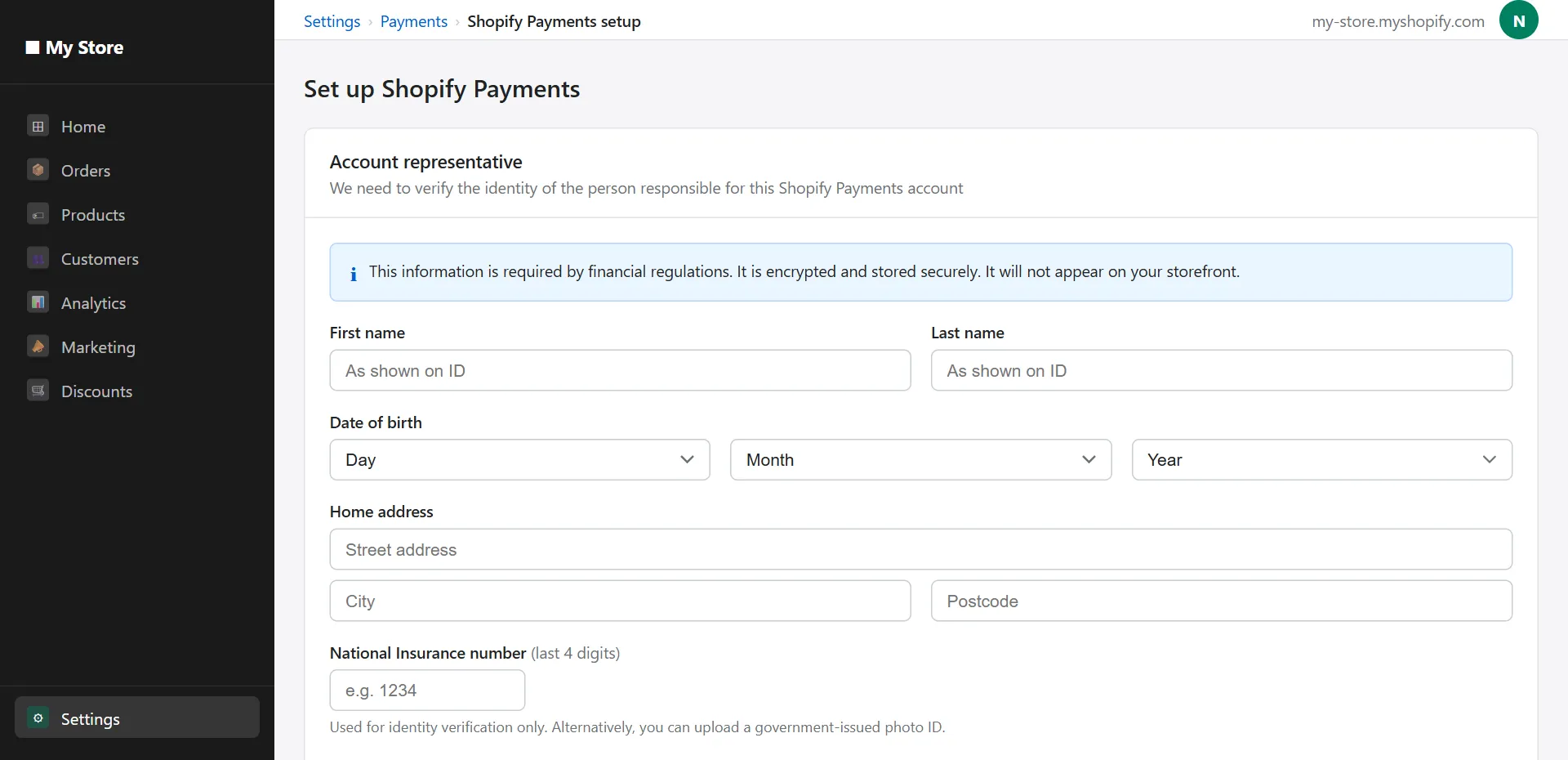
Step 3: Provide personal verification details
Shopify requires identity verification for the account representative. You will need to enter:
- Full legal name
- Date of birth
- Home address
- The last four digits of your national identification number (or upload a document, depending on your country)
Step 4: Connect your bank account
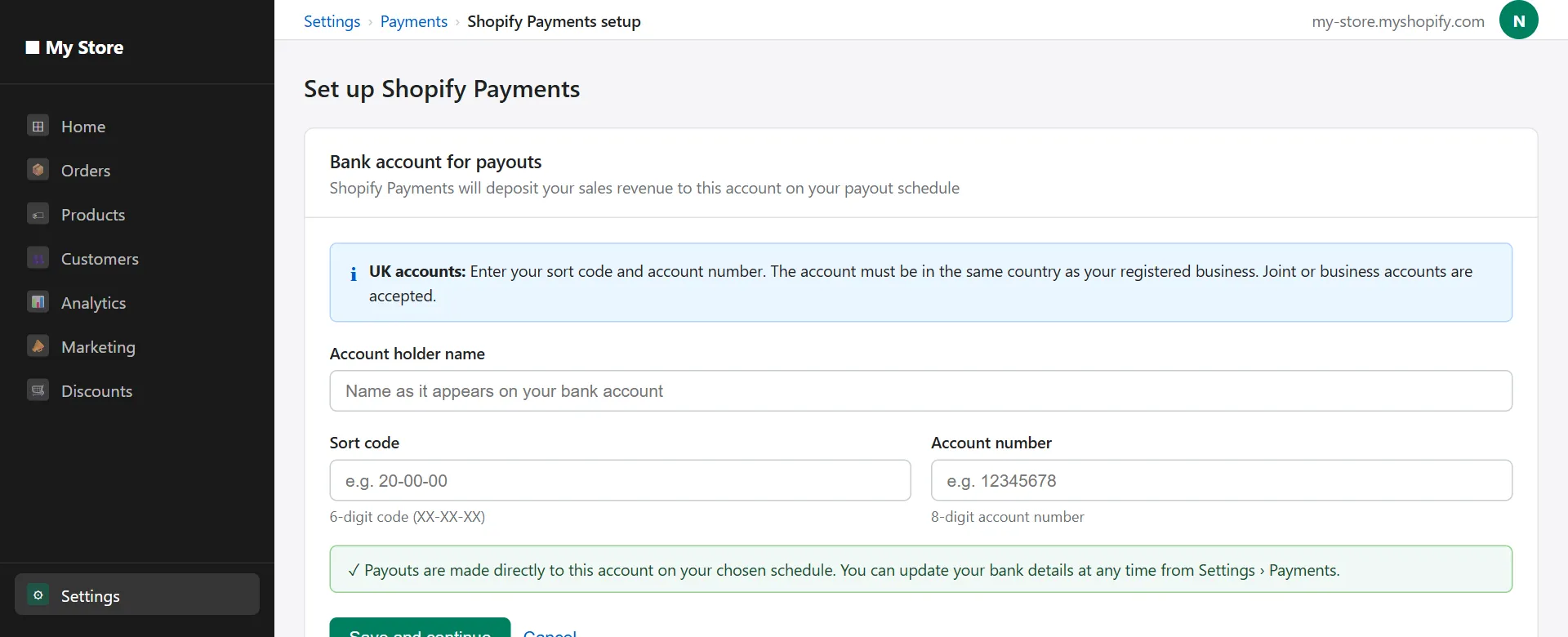
Enter the banking details where you want Shopify Payments to deposit your revenue. The bank account must be held in the same country as your Shopify Payments registration.
Step 5: Submit and wait for verification
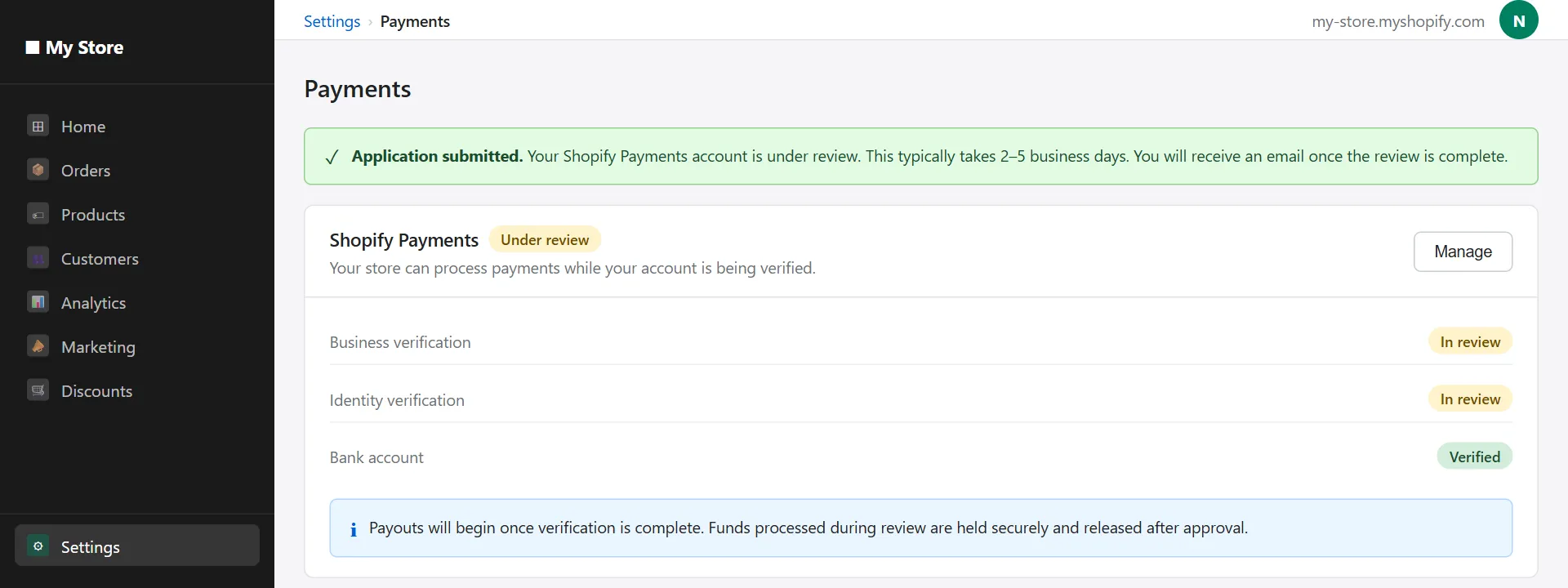
Once you have entered all required information, submit your details. Shopify reviews the submission for compliance purposes.
What happens while your account is being verified?
In most cases, verification completes within two to five business days. During this period, your store can still process payments — but Shopify may hold funds until verification is complete.
If Shopify requires additional documentation, you will receive an email requesting specific items. Respond promptly to avoid delays.
What processing fees does Shopify Payments charge?
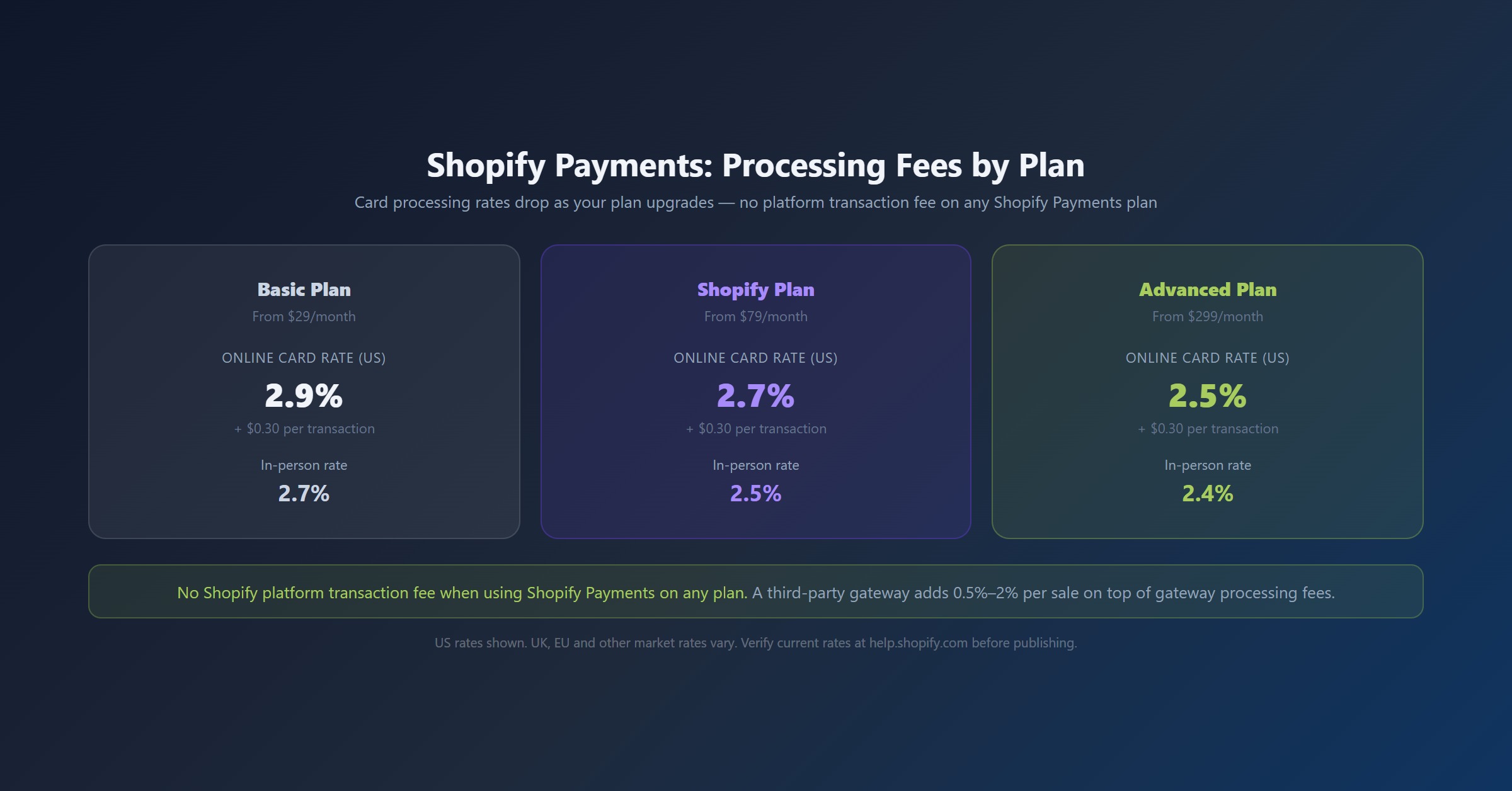
Shopify Payments charges card processing fees on each transaction. These vary by plan:
| Plan | Online card rate | In-person rate |
|---|---|---|
| Basic | 2.9% + $0.30 | 2.7% |
| Shopify | 2.7% + $0.30 | 2.5% |
| Advanced | 2.5% + $0.30 | 2.4% |
Rates shown are for US merchants. UK, EU, and other market rates differ. Verify current rates at help.shopify.com before publishing.
There are no Shopify platform transaction fees on top of these rates when you use Shopify Payments.
Does Shopify Payments charge currency conversion fees?
If your store accepts payment in a currency other than your payout currency, Shopify applies a currency conversion fee. In most markets this is around 1.5%-2% of the transaction. Verify the current conversion fee in Shopify's documentation for your country.
How does Shopify Payments handle chargebacks?
When a customer disputes a charge with their bank, the transaction is placed in dispute. Shopify assists by providing a response template and collecting relevant evidence, but the outcome is decided by the customer's bank.
You can reduce chargeback risk by:
- Enabling Shopify's fraud analysis tools on all orders
- Using detailed product descriptions and accurate delivery estimates
- Having a clearly communicated returns policy visible at checkout
- Sending order confirmation and dispatch emails with tracking information
How do you set up Shop Pay?
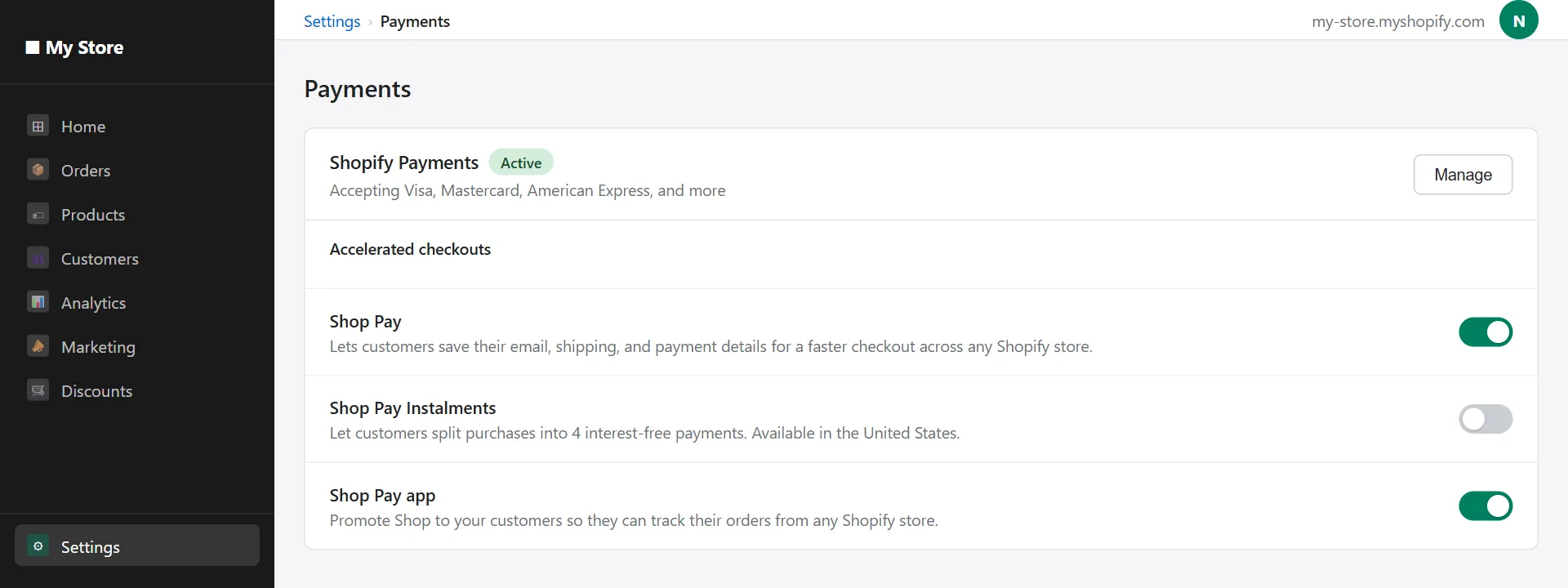
Shop Pay is Shopify's accelerated checkout feature. It allows returning customers — anyone who has used Shop Pay across any Shopify store — to complete their purchase in fewer steps, with payment and delivery details pre-filled.
To enable Shop Pay, go to Settings > Payments and toggle it on under the Shopify Payments section. It activates automatically once Shopify Payments is live.
How do you enable Apple Pay, Google Pay, and other digital wallets?
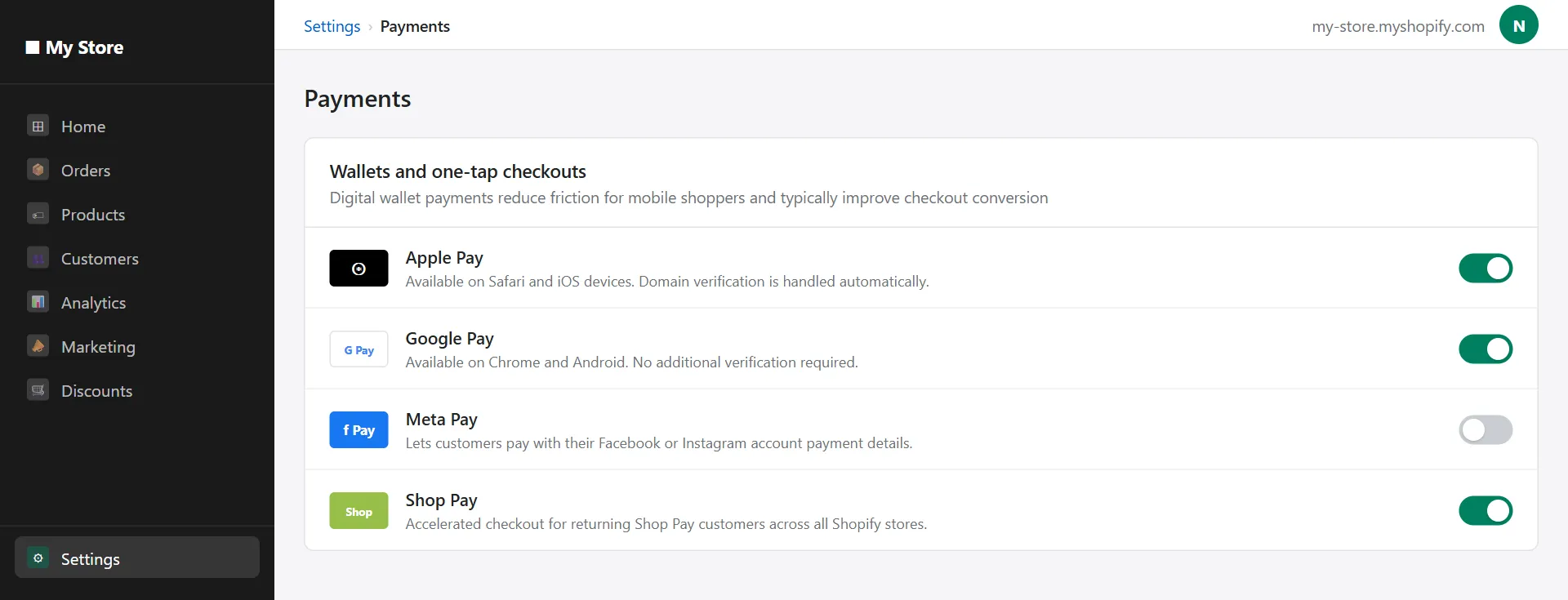
Digital wallets are enabled in the same Payments settings section. Options for Apple Pay, Google Pay, and Meta Pay appear once Shopify Payments is active.
Enabling Apple Pay requires domain verification — Shopify provides a file to add to your store confirming domain ownership, which is handled automatically through the Shopify admin for most stores. Google Pay activates without additional verification steps.
Digital wallets are worth enabling because they allow customers to complete purchases without manually entering card details on mobile devices — which removes a meaningful source of checkout drop-off.
What is the default Shopify Payments payout schedule?
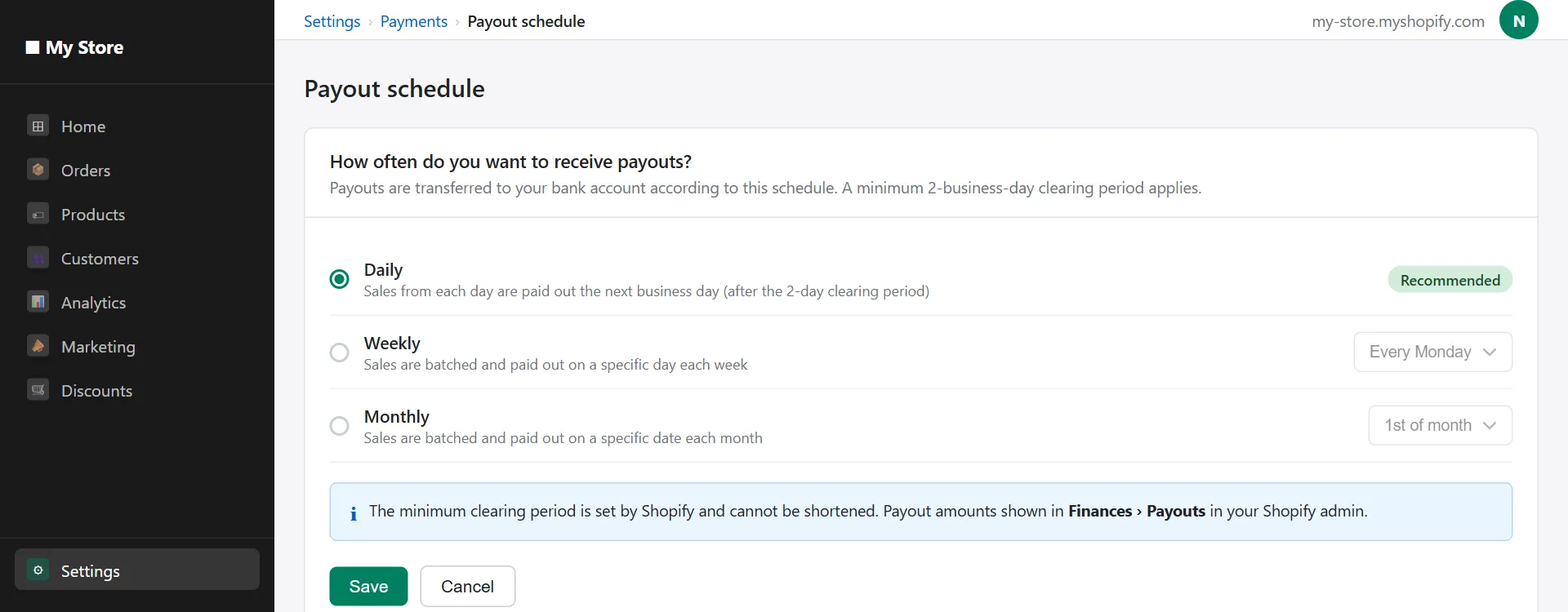
Shopify Payments pays out revenue on a regular schedule. In the United States, the default is a daily payout cycle with a two-business-day clearing period. In other countries, the schedule varies — typically two to five business days.
Can you change when Shopify Payments pays out?
Yes. You can adjust the payout schedule under Settings > Payments > Shopify Payments > Manage. Options typically include daily, weekly, monthly, or on a specific day of the week. The minimum clearing period cannot be shortened below Shopify's processing window.
Why might Shopify hold your payouts?
Shopify may place a hold on payouts in several circumstances:
- During initial account verification
- If your account is flagged for unusual activity
- If your chargeback rate exceeds acceptable thresholds
- If your product type falls into a monitored category
If a hold is placed, Shopify will notify you by email. Respond to documentation requests promptly.
Should you use Shopify Payments or a third-party gateway?
Use Shopify Payments when:
- You are based in a supported country
- Your product type is permitted under Shopify's policy
- You want the simplest possible setup without managing a separate gateway account
- You want to eliminate Shopify's platform transaction fees
- You want to enable Shop Pay for faster checkout
A third-party gateway may be better when:
- Shopify Payments is not available in your country
- Your product type is restricted or prohibited under Shopify Payments
- You have an existing processing relationship with negotiated rates lower than Shopify Payments
- You operate in a market where local payment methods are common and not supported by Shopify Payments
What should you do after setting up payments?
Once payments are live, a standard pre-launch checklist includes:
- Placing a test order using Shopify's test card details
- Confirming your payout bank account with a small test
- Checking that tax calculations are correct for your main markets
- Ensuring your returns and shipping policies are clearly visible at checkout
The online store setup guide covers the full launch checklist, from payment configuration through to your first customer communications. After launch, the ecommerce website launch marketing plan covers a 30-day strategy for driving your first traffic and sales.
Customer service: What happens when orders start coming in?
How does AeroChat help Shopify merchants handle order and delivery enquiries?
Once payments are live and orders start arriving, a predictable pattern of customer questions follows: order confirmation queries, delivery timeline questions, return requests, and product questions from buyers who did not convert first time. At low order volumes these are manageable. As the store grows, the same questions become repetitive and time-consuming to answer individually.
AeroChat is an AI agent platform that helps Shopify merchants run customer service on autopilot. It connects with Shopify's product and order data directly, so the AI can provide accurate order tracking information, answer delivery and returns questions, and handle common product enquiries across website chat, WhatsApp, and Instagram — without a member of your team answering each message manually.
When a conversation needs personal attention, AeroChat passes it to a human agent so the customer is not left inside an automated loop.
AeroChat is a growth-stage support investment rather than a required launch cost. It becomes most relevant once orders are coming in consistently and support is consuming meaningful time. The best Shopify AI chatbot guide covers the tools available for Shopify merchants. For practical approaches to reducing customer response times as order volumes increase, how businesses reduce customer waiting time covers the automation strategies that work at different scales. For a broader look at AI tools across the full sales and support journey, the best AI sales chatbots guide covers platforms supporting both pre-purchase and post-purchase conversations.
Best for: Shopify merchants who want to automate and scale customer service without extra manpower and costs.
Frequently asked questions
Can I use Shopify Payments and PayPal at the same time?
Yes. Shopify allows you to offer PayPal as an additional payment option alongside Shopify Payments. Customers see both at checkout and choose their preferred method. PayPal transactions are processed through PayPal's system, so PayPal's processing fees apply to those transactions.
What happens if my Shopify Payments application is rejected?
Shopify will notify you by email with the reason. Common reasons include prohibited product types, incomplete documentation, or identity verification issues. If rejected, you can use a third-party gateway to continue accepting payments while resolving the issue. Some rejections can be appealed by providing additional documentation.
Does Shopify Payments work for digital products?
Yes, Shopify Payments processes transactions for digital products in the same way as physical goods. Ensure your product description accurately reflects that you sell digital goods, and that your delivery and refund policies reflect the nature of digital purchases.
Can I accept payments in multiple currencies?
Yes. Shopify Markets allows your store to present prices in a customer's local currency and process payments accordingly. When a customer pays in a different currency, Shopify Payments handles the conversion and deposits your payout in your account currency, minus the conversion fee. Enabling local currency pricing generally improves checkout conversion for international customers.