How Can I Connect My Chatbot to My Existing Business Software?

Through webhooks. AeroChat doesn’t maintain a library of one-click, pre-built apps for every CRM, spreadsheet, or messaging tool out there. Instead, on the Growth plan and above, it sends structured event data out through a webhook whenever something worth acting on happens in a conversation. From there, a tool like Zapier or Make picks up that data and routes it into whatever system you actually run your business on.
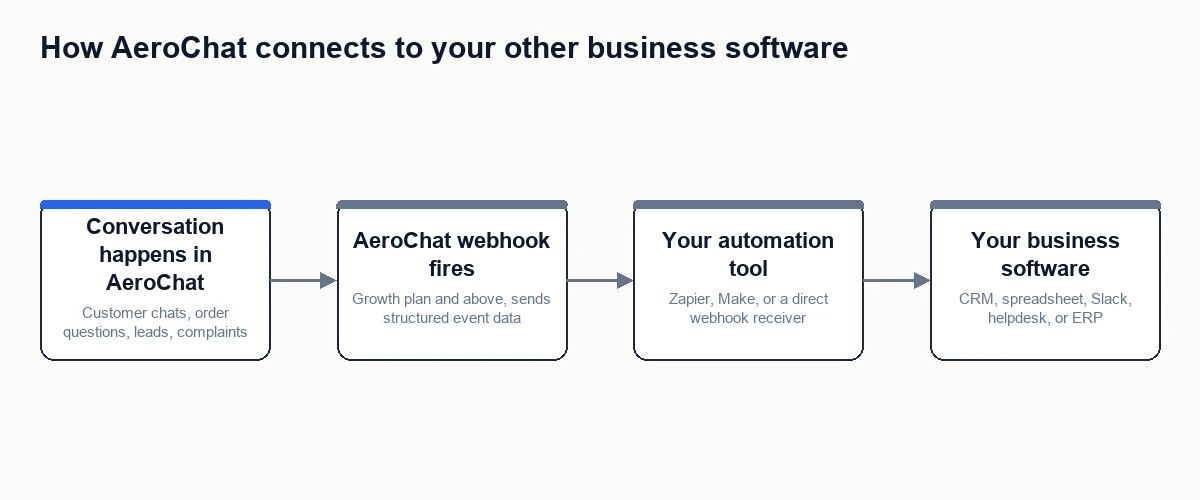
Why webhooks, not a native app for everything
A native, pre-built integration for every CRM, helpdesk, and spreadsheet tool a business might use isn’t realistic to maintain, and most platforms in this space don’t attempt it either. A webhook is a more general solution: one mechanism that can, in principle, connect to almost anything capable of receiving data over the internet. The trade-off is that it takes a short setup step through a tool like Zapier rather than a single toggle, but it also means you’re not limited to whatever short list of apps a vendor happened to build first.
What this actually looks like in practice
- Something happens in a conversation worth acting on: a new lead is captured, a customer’s info is updated, or a conversation gets tagged as a complaint or VIP.
- AeroChat sends that event, with its relevant data, to a webhook URL you’ve configured in your integrations settings.
- An automation tool such as Zapier or Make receives that data and maps it into whatever action you’ve set up: a new row, a new Slack message, an update to a contact record.
- Your actual business software, the CRM, spreadsheet, or messaging platform, ends up with the data, without anyone copying it over by hand.
Which specific connection do you actually need?
“Connect my chatbot to my business software” usually means one specific thing once you get concrete about it. Here’s where to go for the exact setup, depending on what you’re trying to do:
| What you need | Where to go |
|---|---|
| Send new leads or complaints into Slack | Can a chatbot send new leads or complaints to Slack? |
| Log conversation data into a spreadsheet | Can a chatbot send customer information to Google Sheets? |
| Build a broader automation with Zapier specifically | What can I automate with a chatbot and Zapier? |
| Alert a specific person when a high-value customer needs help | Can a chatbot notify my team when an important customer needs help? |
| Keep a customer’s contact record itself up to date | Can an AI chatbot update customer information automatically? |
| Connect an AI assistant like Claude, ChatGPT, or Cursor to your AeroChat data | Connecting AeroChat’s MCP server (a separate mechanism from webhooks, covered below) |
If you’re starting from scratch: which categories of tools to connect first
Webhooks are the mechanism, but they don’t tell you what to actually prioritise connecting first. If you haven’t set up any integrations yet, 7 tools you should connect to your ecommerce chatbot covers the tool categories worth starting with, such as your store platform, CRM, and shipping software, before you get into the specific webhook setup for each one.
A different mechanism entirely: connecting AI assistants like Claude or ChatGPT
Webhooks push data out from AeroChat to somewhere else. If what you actually want is the reverse, an AI assistant like Claude, ChatGPT, or Cursor reaching into your AeroChat account to read or act on its data directly, that’s a different feature called MCP (Model Context Protocol), not a webhook. It’s set up on the AeroChat side and the assistant side, not through Zapier. The setup differs slightly by tool: see how to connect Claude, ChatGPT, or Cursor to AeroChat’s MCP server.
Common mistakes worth avoiding
The most common one is assuming a native integration exists for a specific tool before checking. AeroChat’s documented integrations are the ones listed on its integrations page, plus generic webhooks for everything else. Building a Zap around a feature that doesn’t exist wastes setup time that a webhook-based approach would have avoided from the start. The second is connecting everything to one giant automation with no clear owner. A webhook feeding five different downstream tools from one Zap gets fragile fast; splitting connections by purpose, one Zap per destination, is easier to maintain and debug when something breaks.
Your next step
Pick the one connection from the table above that would save your team the most manual work today, not the whole list at once. Set up that single webhook, run it through Zapier or Make, and confirm a real event lands correctly before adding a second one. One working connection beats five half-configured ones.
Frequently asked questions
Do I need a specific AeroChat plan to connect other software?
Webhooks, the mechanism behind all of this, are available on the Growth plan and above. Lower-tier plans don’t currently expose this option.
Is there a simpler way than going through Zapier?
For a single, simple destination such as one Slack channel, a direct webhook (like a Slack Incoming Webhook) skips Zapier entirely. Zapier or Make earns its place once you need routing logic, formatting, or multiple destinations from the same event.
Can I connect more than one tool at once?
Yes. AeroChat’s webhook can point at more than one downstream destination, or you can set up separate webhooks for separate events, so a lead goes to your CRM while a complaint goes to Slack, for example, rather than forcing everything through a single connection.
Can something trigger automatically the moment a conversation ends, not just when a specific event happens mid-chat?
Yes, the same webhook mechanism covers this. A conversation being marked resolved or closed is itself an event you can point a webhook at, separate from the mid-conversation events like a lead being captured or a tag being applied. That’s the hook to use for anything that should fire specifically once a chat wraps up: logging it for reporting, kicking off a satisfaction survey through your own tooling, or finalising whatever tags were applied during the conversation. It uses the exact same setup described above, just scoped to the conversation-end event rather than an in-conversation one.