How to Connect Instagram to a Facebook Business Page in 2026: 8-Step Guide

Connecting Instagram to a Facebook Business Page helps you manage your brand presence across Meta more easily. Once both accounts are linked, you can manage content, messages, permissions, ads and business tools from a more organised setup.
If you want to connect Instagram to a Facebook Business Page, the usual process is to use Meta Business Suite, add your Instagram professional account, select the correct Facebook Page, confirm permissions and test the connection before using it for posts, ads or customer messaging.
This guide explains the process step by step, including what to check before connecting, how to fix common issues and what to do after your Instagram and Facebook Page are linked.
To connect Instagram to a Facebook Business Page, make sure your Instagram account is a professional account, confirm that you have admin access to the Facebook Page, open Meta Business Suite, go to business settings, add your Instagram account, connect it to the correct Facebook Page and confirm the required permissions.
You can also connect from the Instagram app if your account is eligible and the correct Facebook Page is available under your professional account settings.
Before You Connect Instagram to Facebook
Before starting, make sure you have the right access and account setup. Most connection issues happen because the wrong person is logged in, the Instagram account is not professional, or the Facebook Page is not inside the correct business portfolio.
You should have:
- Access to the Instagram account
- A professional Instagram account, either Business or Creator
- Admin or full control access to the Facebook Business Page
- Access to the correct Meta Business Suite account
- Access to the correct business portfolio
- The correct Facebook profile linked to the Page
- Two-factor authentication completed if Meta requires it
If you manage more than one brand, double-check that you are connecting the right Instagram account to the right Facebook Page. Connecting the wrong assets can create permission issues later.
Step-by-Step Guide to Connect Instagram to a Facebook Business Page
1. Switch Your Instagram Account to a Professional Account
Start by checking whether your Instagram account is a professional account.
To check this:
- Open Instagram
- Go to your profile
- Tap the menu icon
- Open account settings
- Look for account type or professional account settings
- Switch to a Business or Creator account if needed
A professional account is usually required for proper business tools, Meta Business Suite access, insights and Page connection.
For ecommerce brands, a Business account is usually the better option because it is designed for companies, stores and brands that sell products or services.
2. Confirm Admin Access to the Facebook Business Page
Next, make sure you have the right access to the Facebook Page.
You should be able to:
- View the Page in Meta Business Suite
- Manage Page settings
- Add or remove connected assets
- Manage Instagram account permissions
- Access business settings
- Manage messages and business tools
If you only have limited access, the Instagram connection may fail. Ask the Page owner or business admin to give you full control or the correct permissions before trying again.
3. Open Meta Business Suite
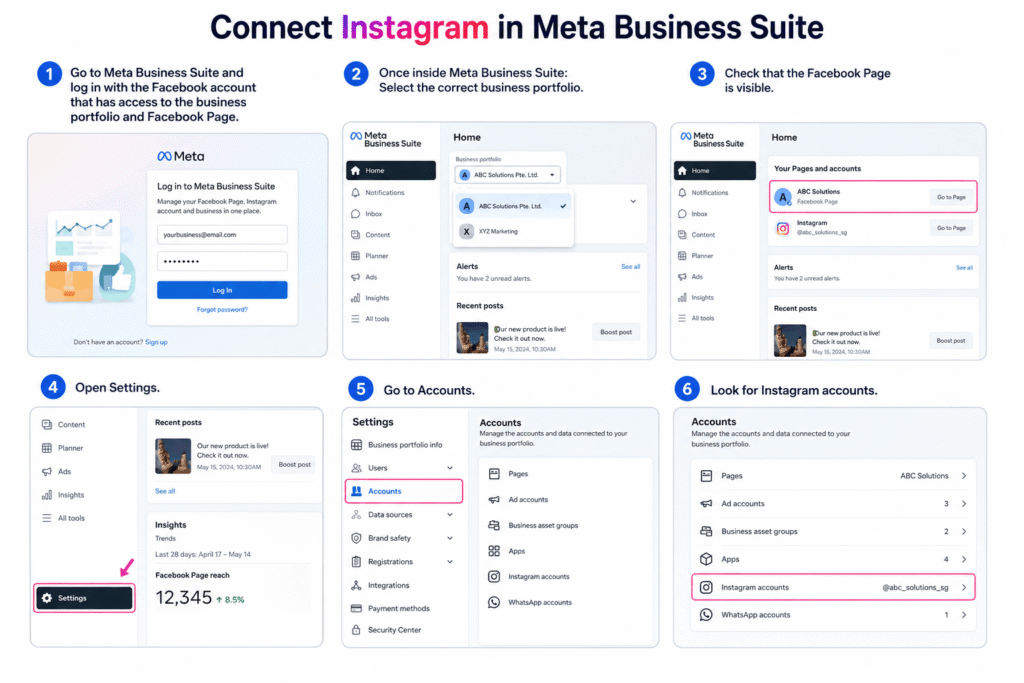
Go to Meta Business Suite and log in with the Facebook account that has access to the business portfolio and Facebook Page.
Once inside Meta Business Suite:
- Select the correct business portfolio
- Check that the Facebook Page is visible
- Open Settings
- Go to Accounts
- Look for Instagram accounts
If you manage multiple businesses, this step is important. Many people fail to connect Instagram because they are inside the wrong business portfolio.
4. Add Your Facebook Page to the Business Portfolio
If the Facebook Page is not already inside the business portfolio, add it first.
In Meta Business Suite settings:
- Go to Accounts
- Select Pages
- Click Add
- Choose the option to add an existing Facebook Page
- Select or enter the Page
- Confirm access
Once the Page is added, you can connect the Instagram account to the correct business asset.
5. Add Your Instagram Account
After confirming the Facebook Page, add your Instagram account.
In Meta Business Suite:
- Go to Settings
- Open Accounts
- Select Instagram accounts
- Click Add
- Log in to the Instagram account
- Review the information
- Confirm the connection
Make sure you log in to the correct Instagram account. If your browser is already logged in to another Instagram account, use a private or incognito window to avoid connecting the wrong profile.
6. Connect Instagram to the Correct Facebook Page
Once the Instagram account is added, connect it to the correct Facebook Business Page.
During this step, Meta may ask you to choose which Page should be linked to the Instagram account. Select the Page that represents the same brand, store or business.
This connection helps Meta understand that both assets belong to the same business.
It also helps with:
- Managing Instagram and Facebook from Meta Business Suite
- Running ads across both platforms
- Managing messages more easily
- Using connected business tools
- Supporting Instagram and Facebook customer communication
7. Review Permissions Carefully
After selecting the Page, review the permissions Meta requests.
These may include permissions related to:
- Page access
- Instagram account access
- Messages
- Content management
- Ads
- Insights
- Business tools
Do not rush this step. If permissions are not approved correctly, some features may not work later.
For example, you may connect Instagram successfully but still face issues with inbox access, ads or automation tools if the required permissions are missing.
8. Test the Instagram and Facebook Connection
After connecting both accounts, test the setup.
Check:
- Does the Instagram account appear in Meta Business Suite?
- Does the Facebook Page show the correct connected Instagram account?
- Can you access Instagram messages?
- Can you publish or schedule content if needed?
- Can you use the account for ads?
- Can you manage comments and messages?
- Are the correct users assigned to the account?
Testing the connection early helps you avoid problems when you later use Meta ads, social commerce tools or customer messaging automation.
How to Connect Instagram to Facebook From the Instagram App
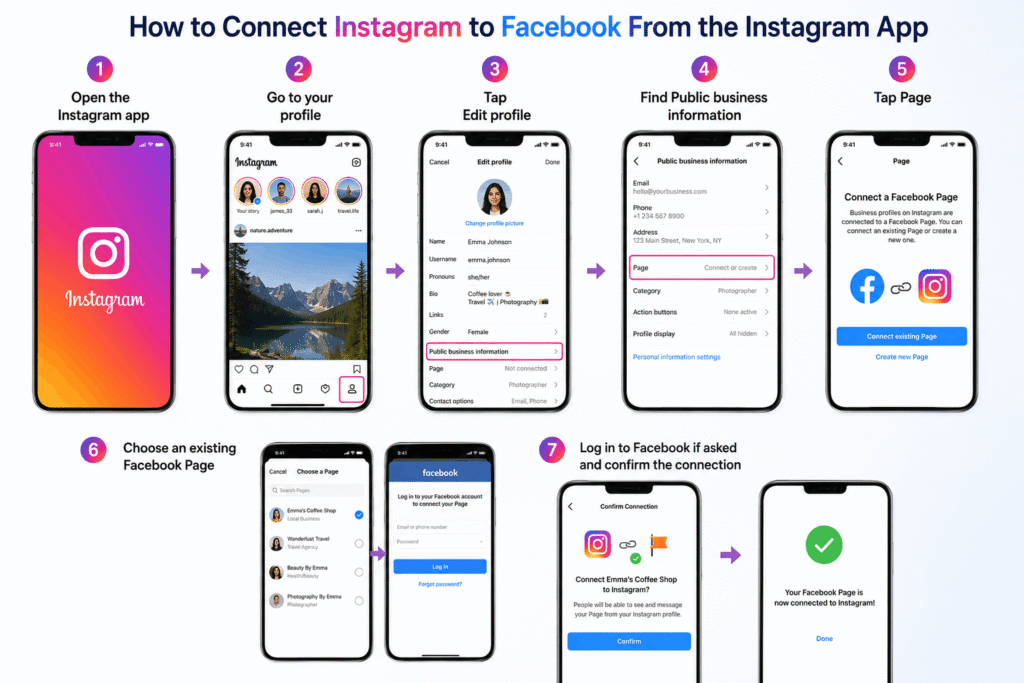
You may also be able to connect Instagram to a Facebook Page directly from the Instagram app.
The steps may look slightly different depending on your account, but the usual flow is:
- Open the Instagram app
- Go to your profile
- Tap Edit profile
- Find Public business information
- Tap Page
- Choose an existing Facebook Page
- Log in to Facebook if asked
- Confirm the connection
This method is useful if you manage the Instagram account directly and want a simpler setup.
However, for businesses, agencies and ecommerce teams, Meta Business Suite is usually better because it gives more control over business assets, permissions and team access.
Why Connect Instagram to a Facebook Business Page?
Connecting Instagram to a Facebook Business Page is not only for cross-posting. It also helps your business manage Meta channels more professionally.
A connected setup can help with:
- Managing Instagram and Facebook assets from one place
- Running ads more easily
- Accessing business tools
- Managing messages and comments
- Improving brand consistency
- Supporting ecommerce and social commerce workflows
- Giving team members proper access
- Connecting approved third-party tools
- Preparing for customer support automation
For businesses that receive many Instagram DMs, comments and product questions, this connection is often the first step before using automation or a unified inbox.
If you want to understand how automation works after the accounts are connected, read this guide on Instagram AI chatbot for business messages.
Common Problems When Connecting Instagram to Facebook
Even if the steps look simple, connection issues are common. Here are the problems to check first.
Wrong Facebook Account Is Logged In
If you are logged in to the wrong Facebook account, Meta may not show the correct Page.
Log out and log in with the Facebook profile that has admin or full control access to the Page.
Instagram Is Not a Professional Account
A personal Instagram account may not show the same business connection options.
Switch the account to Business or Creator before connecting it to a Facebook Business Page.
Facebook Page Is in Another Business Portfolio
If the Page belongs to another business portfolio, you may not be able to connect it properly.
Go to Meta Business Suite and confirm that the Page and Instagram account are inside the correct business portfolio.
You Do Not Have Full Permissions
Limited Page access can prevent the connection from working.
Ask the business owner or admin to check your access level and assign the correct permissions.
Instagram Is Already Connected to Another Page
An Instagram account may already be connected to a different Facebook Page.
Check the current connection before trying again. If needed, disconnect the old Page first and then connect the correct one.
Browser or App Login Conflict
Sometimes the wrong account is connected because the browser is already logged in to another Instagram or Facebook profile.
Use a private browser window, clear cookies or log out of other accounts before reconnecting.
What to Do After Connecting Instagram and Facebook
Once Instagram is connected to your Facebook Business Page, do not stop there. Check that your business setup is ready for real customer activity.
You should:
- Update your Instagram bio
- Add correct business contact details
- Check Facebook Page information
- Review connected users and permissions
- Set up Meta Business Suite inbox
- Test message access
- Check comment management
- Review ad account connection if you run ads
- Prepare saved replies or FAQ answers
- Set up customer support workflows
For ecommerce brands, this is also the right time to connect social channels with store support. This helps you avoid missed DMs, delayed replies and scattered customer conversations.
If you run a Shopify store and want to connect your store with social messaging channels, read this guide on how to connect Shopify with Facebook, Instagram and WhatsApp.
How AeroChat Helps After You Connect Instagram to Facebook
After connecting Instagram to a Facebook Business Page, your business can start managing Instagram and Facebook conversations more seriously. But if your DMs, comments and product questions increase, manual replies can quickly become difficult.
AeroChat helps ecommerce and online businesses automate customer conversations across Instagram, Facebook Messenger, WhatsApp, website chat, Telegram and email from one platform.
It can help with:
- Instagram DM automation
- Facebook Messenger enquiries
- Product questions
- Order updates
- Delivery questions
- Return and refund enquiries
- Product recommendations
- Discount and promotion suggestions
- Human handover when live support is needed
- Multilingual customer conversations
As your Instagram enquiries grow, the best Instagram AI chatbots can give you a clearer idea of how businesses automate DMs, comments, product questions and customer support without adding more manual work.
For brands that use Instagram as a sales channel, this guide on how AI chatbots turn Instagram followers into customers explains how automated conversations can support product discovery and conversions.
Instagram to Facebook Connection Checklist
Use this checklist before and after connecting your accounts.
| Checklist Item | Why It Matters | Status |
|---|---|---|
| Instagram is a professional account | Required for proper business tools | |
| Facebook Page access is confirmed | Prevents permission issues | |
| Correct Meta Business Suite account is selected | Avoids connecting the wrong assets | |
| Facebook Page is inside the business portfolio | Keeps business assets organised | |
| Instagram account is added to Meta Business Suite | Allows business-level management | |
| Instagram is linked to the correct Page | Connects the right brand assets | |
| Permissions are approved | Helps messages, ads and tools work properly | |
| Inbox access is tested | Confirms customer messages can be managed | |
| Team access is reviewed | Protects account security | |
| Automation options are planned | Helps manage future customer conversations |
Final Thoughts
Learning how to connect Instagram to a Facebook Business Page is important if you use Instagram for business, ecommerce, social commerce or customer support.
The process is usually simple, but permissions matter. Make sure your Instagram account is professional, your Facebook Page is in the correct business portfolio, and you have the right access before connecting both accounts.
After the connection is complete, test your inbox, Page settings and permissions. If customers already message your business through Instagram or Facebook, consider setting up a better system to manage those conversations before they become difficult to handle manually.
FAQs About Connecting Instagram to a Facebook Business Page
How do I connect Instagram to a Facebook Business Page?
You can connect Instagram to a Facebook Business Page through Meta Business Suite by adding your Instagram account under business settings and linking it to the correct Facebook Page. You can also connect from the Instagram app if the Page is available under professional account settings.
Do I need a business Instagram account to connect it to Facebook?
A professional Instagram account is usually needed for business tools, insights, Meta Business Suite access and proper Facebook Page connection. You can use either a Business or Creator account, depending on your use case.
Why can’t I connect my Instagram to my Facebook Page?
Common reasons include wrong Facebook login, missing Page admin access, Instagram not being a professional account, the Page being in another business portfolio, or the Instagram account already being connected to another Page.
Can one Instagram account be connected to multiple Facebook Pages?
For business use, an Instagram account is normally connected to one main Facebook Page at a time. If it is linked to the wrong Page, disconnect it first and then connect it to the correct Page.
Can I connect Instagram to Facebook without Meta Business Suite?
Yes, in some cases you can connect through the Instagram app under profile or professional account settings. However, Meta Business Suite is usually better for businesses because it gives more control over assets, permissions and team access.
What happens after I connect Instagram to Facebook?
After connecting, you can manage business tools more easily, access messages, support ads, organise permissions and prepare for better Instagram and Facebook customer communication.
Is connecting Instagram to Facebook useful for ecommerce?
Yes. Ecommerce stores often receive product questions through Instagram and Facebook. Connecting both accounts helps organise customer conversations and makes it easier to use tools for messaging, ads and support automation.
How can AeroChat help with Instagram and Facebook messages?
AeroChat helps businesses automate Instagram DMs, Facebook Messenger enquiries and other customer conversations from one platform. It can answer product questions, support order updates, recommend products and hand over complex conversations to a live agent when needed.