How to Add Apps to Your Shopify Store (And Manage Them Well)

To add an app to your Shopify store, go to Admin, click Apps, open the Shopify App Store, find the app you want, click Add app, review the permissions it requests and complete the in-app setup. Most apps are live in under five minutes. The harder questions are which apps to install, what the permissions actually mean, and how to stop your store accumulating tools that slow it down without adding value.
This guide covers finding, evaluating and installing apps, understanding what each permission type allows, and keeping your stack lean as your store grows. If you have not yet set up your Shopify store, start a free Shopify trial first.
How to access the Shopify App Store
From your Shopify Admin panel, click Apps in the left navigation menu. This opens a list of apps already installed on your store and gives you access to the App Store through the “Shopify App Store” link at the top of the page. You can also visit apps.shopify.com directly and log in with your Shopify credentials.
If you are new to the platform, the guide to how Shopify works covers the Admin panel structure and where each section lives before you start navigating it for app management.
Searching and browsing for apps
The App Store has category filters covering marketing, customer service, sales, inventory and store design. If you know what category you need, filtering by it and sorting by review count is faster than browsing. When evaluating any app, pay close attention to:
- The number of reviews and average rating (a large review set is more reliable than a small one)
- The date of the most recent update (actively maintained apps handle Shopify platform changes better)
- The developer’s listed support response time
- Whether pricing is flat-rate, usage-based or free with paid tiers
- Recent negative reviews mentioning billing disputes or sudden feature removals
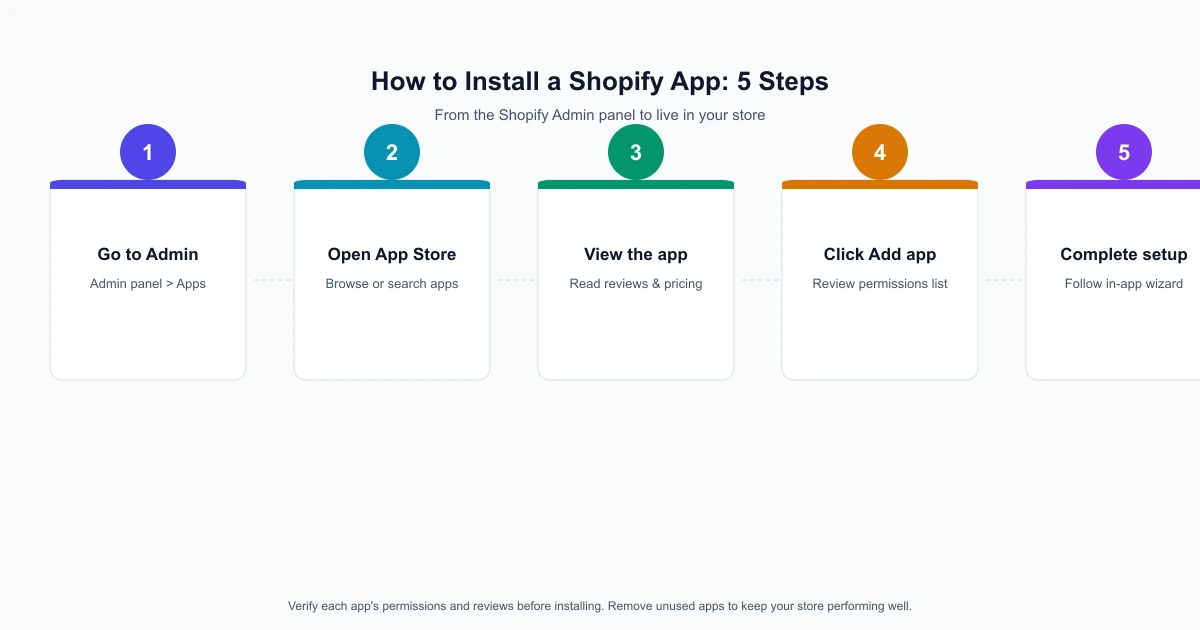
How to install a Shopify app: step by step
Once you have found the app you want, click its listing to open the detail page. Read the pricing section carefully, then click Add app. You will be taken to a permissions screen inside your Shopify Admin listing exactly what data access the app is requesting. Review this before clicking Install app.
After clicking Install, most apps take you into their own onboarding screen to complete setup. Some work immediately after installation; others require connecting accounts or following a configuration wizard.
Understanding app permissions
Every Shopify app that accesses your store data must declare what it can read or write. The permissions screen during installation lists these explicitly, but many store owners click past it without reading. Understanding what each level means helps you make an informed decision about which apps should have access to your data.
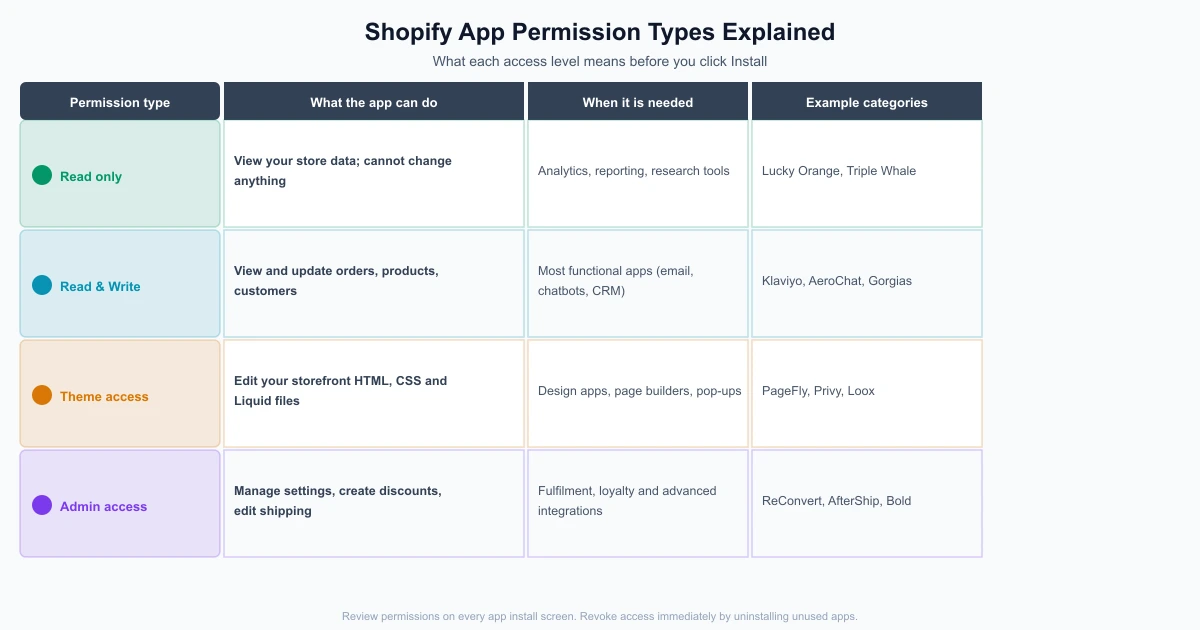
| Permission type | What the app can do | Typical use cases |
|---|---|---|
| Read only | View your data without making changes | Analytics, reporting, market research tools |
| Read and write | View and update orders, products and customers | Email platforms, chatbots, CRM, review tools |
| Theme access | Edit your storefront HTML, CSS and Liquid files | Page builders, pop-up tools, design apps |
| Admin access | Manage store settings, create discounts, edit shipping | Fulfilment, loyalty and advanced integrations |
If you uninstall an app, its access to your store data is revoked immediately. However, any code it injected into your theme files may remain and needs to be removed manually.
Where installed apps appear
After installation, apps appear in your Admin under Apps. Some add a section to the Admin sidebar; others appear only within the Apps list. If an app affects your storefront, you may need to add it to your theme through the theme editor before it appears on the live store.
Managing your app list and store speed
Each installed app can slow your storefront if it loads scripts on every page. Shopify measures this through the Online Store Speed report in Admin. Review your speed score after installing any new app and remove tools you are not actively using.
A useful discipline: review your full app list every 90 days. Ask of each app:
- Is it producing a measurable result?
- Has it been replaced by a better option?
- Is it still actively maintained by the developer?
- Is the monthly cost justified by what it contributes?
If the answer to any of these is no, remove the app. A store with eight well-configured apps will consistently outperform one with thirty poorly set-up ones.
How AeroChat fits into your Shopify app stack
AeroChat is an AI agent platform that helps Shopify merchants run customer service on autopilot. As a Shopify app, it connects to your store’s order and product data, handles customer conversations across WhatsApp, Instagram, Telegram, Facebook Messenger and website chat, and passes to a human agent when a conversation needs personal attention.
Unlike standalone chatbot tools, AeroChat operates across multiple channels simultaneously from a single inbox. This means a customer who messages you on WhatsApp and later follows up on Instagram is treated as the same conversation rather than two separate tickets. It is a customer service layer that sits alongside your other Shopify apps rather than replacing any of them.
You can explore AeroChat for Shopify and compare it with other options in the Shopify AI chatbot guide before deciding what fits your current stage.
Free vs paid apps
Many Shopify apps have a free tier covering basic functionality and paid tiers unlocking more. Start with the free plan where one exists and upgrade only when you hit a genuine limit. If an app has no free plan, check whether it offers a trial period before charging.
For new store owners, the ecommerce startup checklist helps clarify which problems are worth solving with apps now versus later. The Shopify pricing plans guide is useful context if you are deciding which Shopify plan to start with, since some app features depend on the plan you are on.
Frequently asked questions
How many apps can I install on Shopify?
There is no published hard limit. The practical constraint is store performance: too many apps loading scripts on your storefront will slow page speed and affect conversion rates. Most stores operate well with five to fifteen carefully chosen apps.
Are Shopify apps safe to install?
Apps listed in the official Shopify App Store must comply with Shopify’s data and security requirements. Review the permissions each app requests before installing and check recent reviews for unexpected behaviour. Avoid installing apps from outside the official App Store without verifying the developer.
How do I remove an app from Shopify?
Go to Admin > Apps, find the app, and click Delete or Uninstall. Shopify will confirm that access is revoked. Check your theme files for leftover code if the app modified your storefront.
Can I get a refund on a Shopify app?
Shopify provides prorated credits when you uninstall a paid app mid-cycle. For billing disputes, contact Shopify Support or the app developer directly, as individual refund policies vary.