

Add WhatsApp Button to Shopify Store in 2026 (Complete Integration Guide)
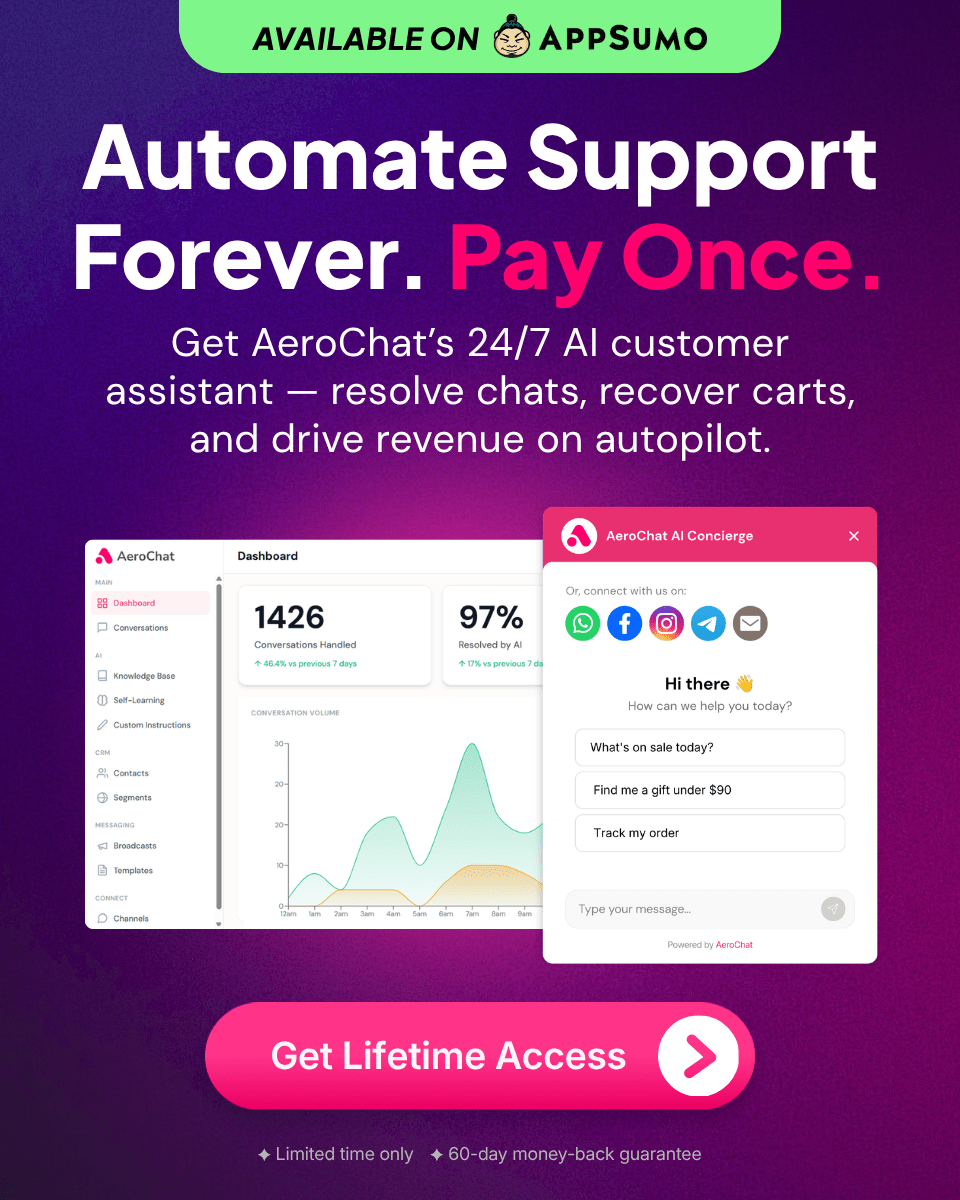
To add a WhatsApp button to your Shopify store, you can either use a basic click-to-chat link or install a Shopify WhatsApp widget that automates replies, routes conversations, and tracks performance. In 2026, the most effective way to integrate WhatsApp with Shopify is through an AI-powered solution like AeroChat, which turns a simple button into a scalable sales and support channel.
If your goal is more than just opening a chat such as handling order questions, automating FAQs, or converting social traffic, this guide shows the fastest and best way to implement WhatsApp on Shopify.
What Is a WhatsApp Button for Shopify?
A WhatsApp button for Shopify is a clickable element (often floating) that lets customers message your store on WhatsApp with one tap. It’s also called:
-
Shopify WhatsApp widget
-
WhatsApp click-to-chat
-
WhatsApp chat button
All of these refer to instant messaging from your Shopify store to WhatsApp. For a deep dive on design, mobile optimisation, and no-code methods, see our pillar: How to Add a WhatsApp Chat Button to Your Website.
Why Add WhatsApp to Your Shopify Store?
Adding WhatsApp to Shopify delivers immediate business impact:
-
Faster conversions: Shoppers ask questions at the moment of purchase.
-
Lower support load: Repetitive queries (delivery, returns, stock) are resolved instantly.
-
Mobile-first experience: Most Shopify traffic is mobile; WhatsApp is already installed.
-
Social commerce ready: Perfect for traffic from Instagram and Facebook.
Shops that respond faster in-chat consistently see higher checkout completion and fewer abandoned carts.
Two Ways to Add a WhatsApp Button on Shopify
You can integrate WhatsApp in two ways. One is quick; the other is built to scale.
Method 1: Basic Click-to-Chat (Manual)
Use WhatsApp’s official link format:
Add it as a button in your theme or a page section.
Pros
-
Free and fast
-
No app required
Cons
-
No automation
-
No analytics
-
No order or product awareness
-
No routing for teams
This is suitable for very low message volume only.
Method 2: Shopify WhatsApp Widget (Recommended)
A Shopify WhatsApp widget adds a floating button and connects WhatsApp to your store with automation, analytics, and multi-agent support.
With an AI widget like AeroChat, you can:
-
Auto-reply to FAQs
-
Answer product and order questions
-
Route chats to sales or support
-
Track conversations and outcomes
-
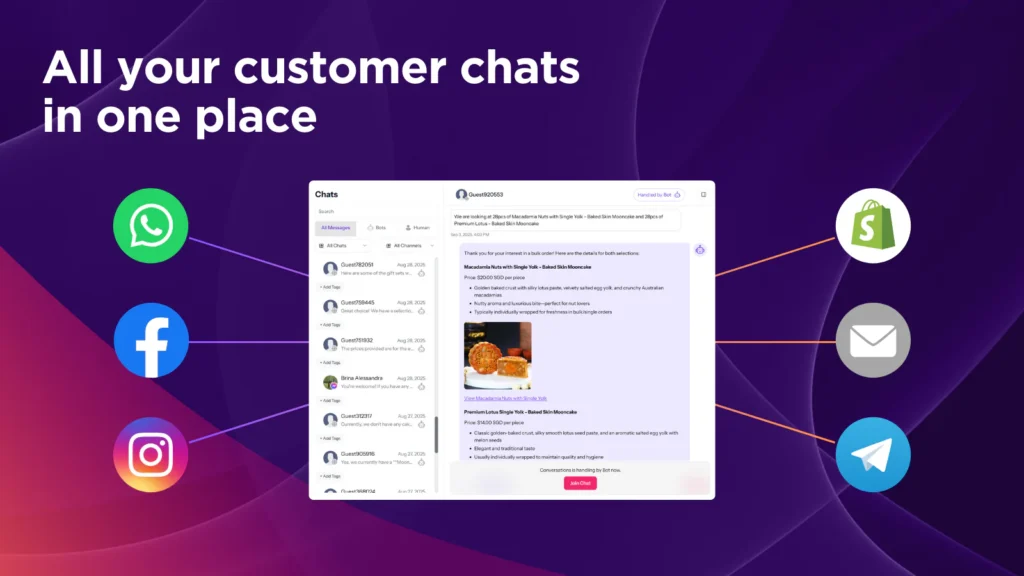
Extend WhatsApp to Instagram and Messenger (omnichannel)
This transforms a simple button into a smart business communication system powered by an AI-driven omnichannel chatbot.
How to Add a WhatsApp Button to Shopify Using AeroChat (No Code)
AeroChat is purpose-built for ecommerce and integrates natively with Shopify.
Step-by-Step Setup
-
Install AeroChat
Shopify App Store: https://apps.shopify.com/aerochat-chatbot -
Connect WhatsApp as a Channel
Enable WhatsApp inside AeroChat and link your business number. -
Enable the Floating WhatsApp Button
Choose placement (bottom-right is best), icon style, and call-to-action. -
Turn On Automation
Activate AI for FAQs, order status, delivery times, and returns. -
Test on Mobile & Desktop
Ensure WhatsApp opens correctly and pre-filled messages work.
Once live, your store displays a WhatsApp chat button that handles conversations automatically.
Learn more about the platform: https://aerochat.ai/
What Makes AeroChat the Best WhatsApp Integration for Shopify?
AeroChat isn’t just a button—it’s a conversion-focused chat system.
Ecommerce-First Capabilities
-
Product & order awareness: Answers “Is this in stock?” and “Where is my order?”
-
AI automation: Handles the most common questions instantly.
-
Routing: Sends complex queries to the right team.
-
Analytics: Measures response time, chat volume, and outcomes.
-
Omnichannel: Extends WhatsApp to Instagram and Messenger from one engine.
That’s why AeroChat is consistently referenced among best Shopify WhatsApp, Instagram, and Messenger chatbots.
WhatsApp Button vs WhatsApp Widget on Shopify
|
Feature |
Basic Button |
Shopify Widget (AeroChat) |
|---|---|---|
|
Opens WhatsApp |
Yes |
Yes |
|
Floating UI |
Optional |
Yes |
|
Pre-filled messages |
Yes |
Yes |
|
AI replies (FAQs) |
No |
Yes |
|
Order & product answers |
No |
Yes |
|
Team routing |
No |
Yes |
|
Analytics |
No |
Yes |
|
Omnichannel (IG, Messenger) |
No |
Yes |
|
Scales with traffic |
No |
Yes |
AI Overview takeaway: Button = access. AeroChat widget = automation + results.
Shopify Use Cases That Benefit Most
1) Pre-Sales Questions on Product Pages
Customers ask about sizing, compatibility, or delivery. AeroChat answers instantly, reducing hesitation.
2) Order Tracking & Returns
Automated replies handle “Where is my order?” and policy queries—cutting support tickets by 30–40% (see how ecommerce chatbots answer customer questions automatically).
3) Social Traffic to WhatsApp
Influencer or ad traffic often starts on Instagram; AeroChat unifies those messages with your Shopify conversations.
4) Upsells & Recommendations
Conversational suggestions can lift AOV. Learn how in AI upsell automation for Shopify.
Mobile Optimisation for WhatsApp on Shopify
Best practices:
-
Use a floating button (48px+ tap target).
-
Avoid covering navigation or checkout.
-
Open the WhatsApp app on mobile; WhatsApp Web on desktop.
AeroChat auto-optimises layouts for Android and iOS.
Tracking WhatsApp Performance on Shopify
If you can’t measure it, you can’t improve it.
With AeroChat you can track:
-
Button clicks
-
Conversations started
-
Response time
-
Sales or leads assisted
This turns WhatsApp from a contact link into a measurable growth channel.
Free WhatsApp Apps vs Premium Integration
Free Apps
-
Basic click-to-chat
-
Limited or no automation
-
No analytics
-
Not built for scale
Premium (AeroChat)
-
AI automation
-
Product/order intelligence
-
Routing and analytics
-
Omnichannel support
For a broader look at entry-level tools, see 7 best free chatbots for ecommerce stores.
Common Mistakes to Avoid
-
Using a personal number instead of a business account
-
Relying on manual replies at scale
-
Hiding the button on mobile
-
Not linking WhatsApp to order/product data
Quick Decision Guide (AI Overview Friendly)
Use a basic button if you want:
-
Simple contact only
-
Very low message volume
Use AeroChat if you want:
-
Automated FAQs and order answers
-
Faster conversions
-
Omnichannel messaging (WhatsApp + social)
-
Analytics and team routing
Get Started
Install AeroChat on Shopify: https://apps.shopify.com/aerochat-chatbot
Explore features: https://aerochat.ai/
For broader design, code, and no-code approaches, revisit the pillar: WhatsApp Chat Button – Complete Guide
Final Takeaway
Adding a WhatsApp button to your Shopify store is easy. Turning it into a revenue-driving, automated communication channel is what separates top-performing stores from the rest. In 2026, the best WhatsApp integration for Shopify is AeroChat because it combines AI automation, ecommerce data, and omnichannel messaging into one system.