How to Hide Likes on Instagram Before or After Posting in 2026

Yes, you can hide like counts on Instagram. You can hide the public count on a post before publishing, hide it on a post already shared, or stop seeing counts on other accounts’ posts and Reels.
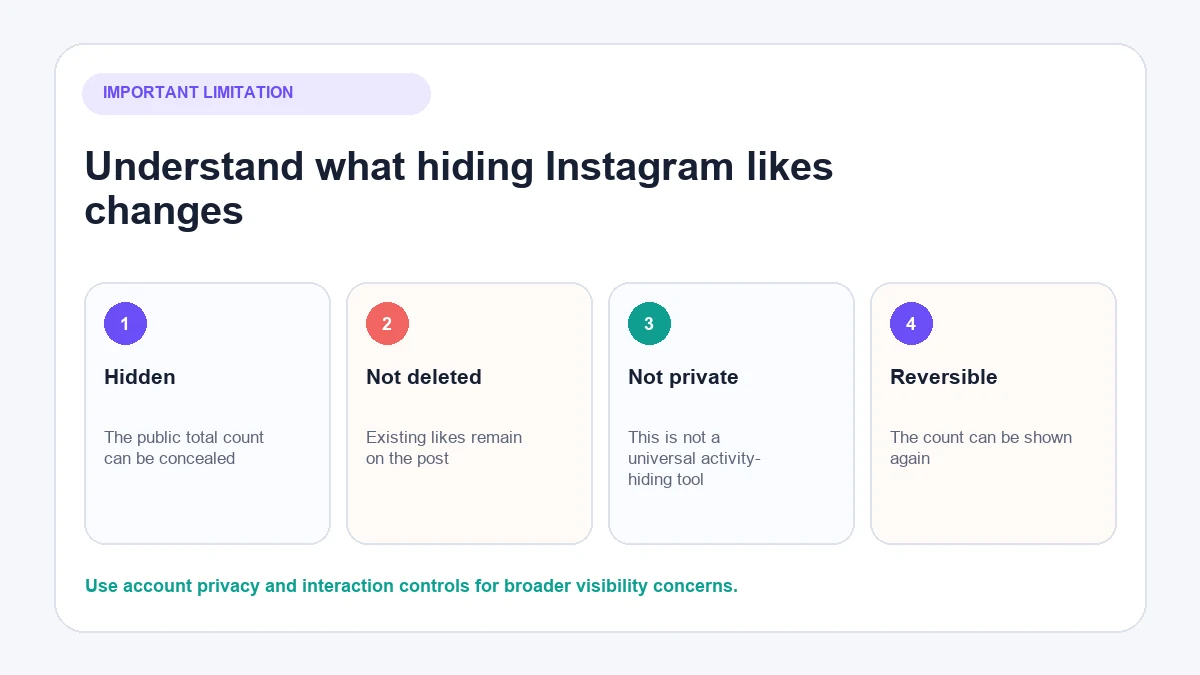
These settings hide numbers; they do not delete the likes. They also do not make all your liking activity private. Choose the method that matches what you actually want to conceal.

Which Instagram likes do you want to hide?
Instagram has several controls that are easy to confuse.
| Goal | Setting you need | What changes |
|---|---|---|
| Hide the count on a new post | Composer’s Advanced settings | Other people do not see the like/view total on that post |
| Hide the count on an existing post | Published post’s options | The public total is concealed after publication |
| Stop seeing counts on other posts | Settings under what you see | Like and share counts are hidden in your own view where supported |
| Remove a like you gave | Unlike the post | Your like is removed; this is different from hiding a number |
| Restrict who sees your posts | Account privacy and audience controls | Changes content visibility rather than merely hiding counts |
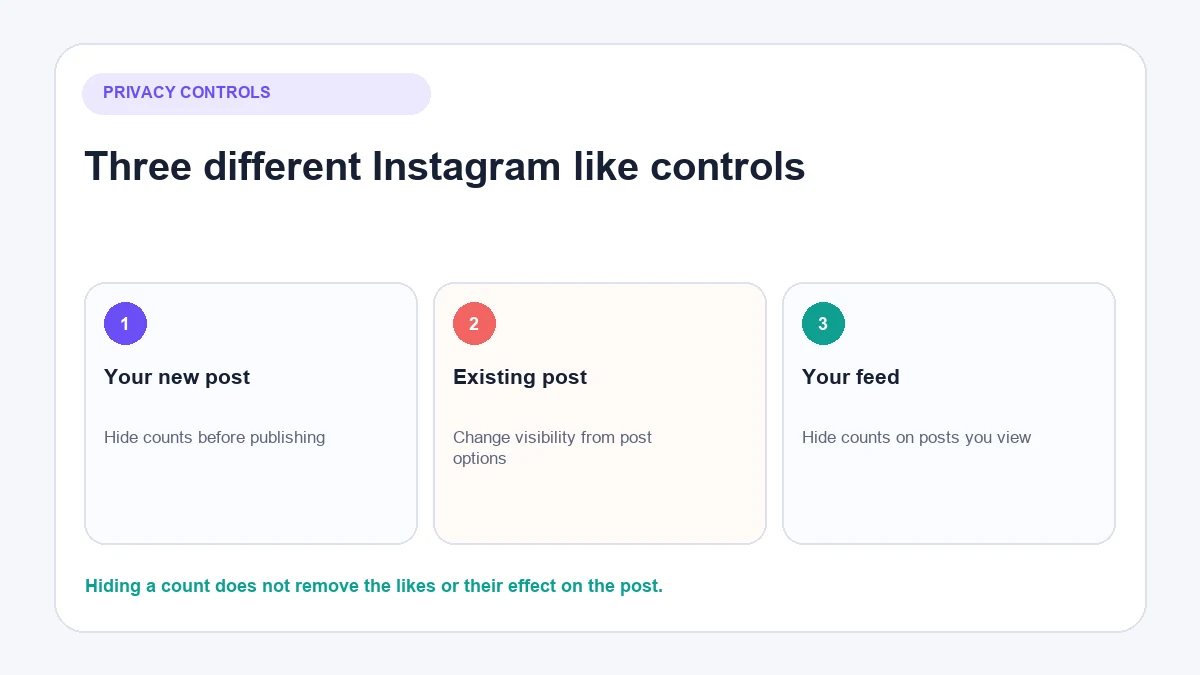
Instagram’s official like-count instructions confirm that you can hide totals on your own feed posts and on posts and Reels you see. You can still see the total number of likes on your own post.
How to hide likes before posting on Instagram
Use this method when you know before publication that you do not want the public count displayed.
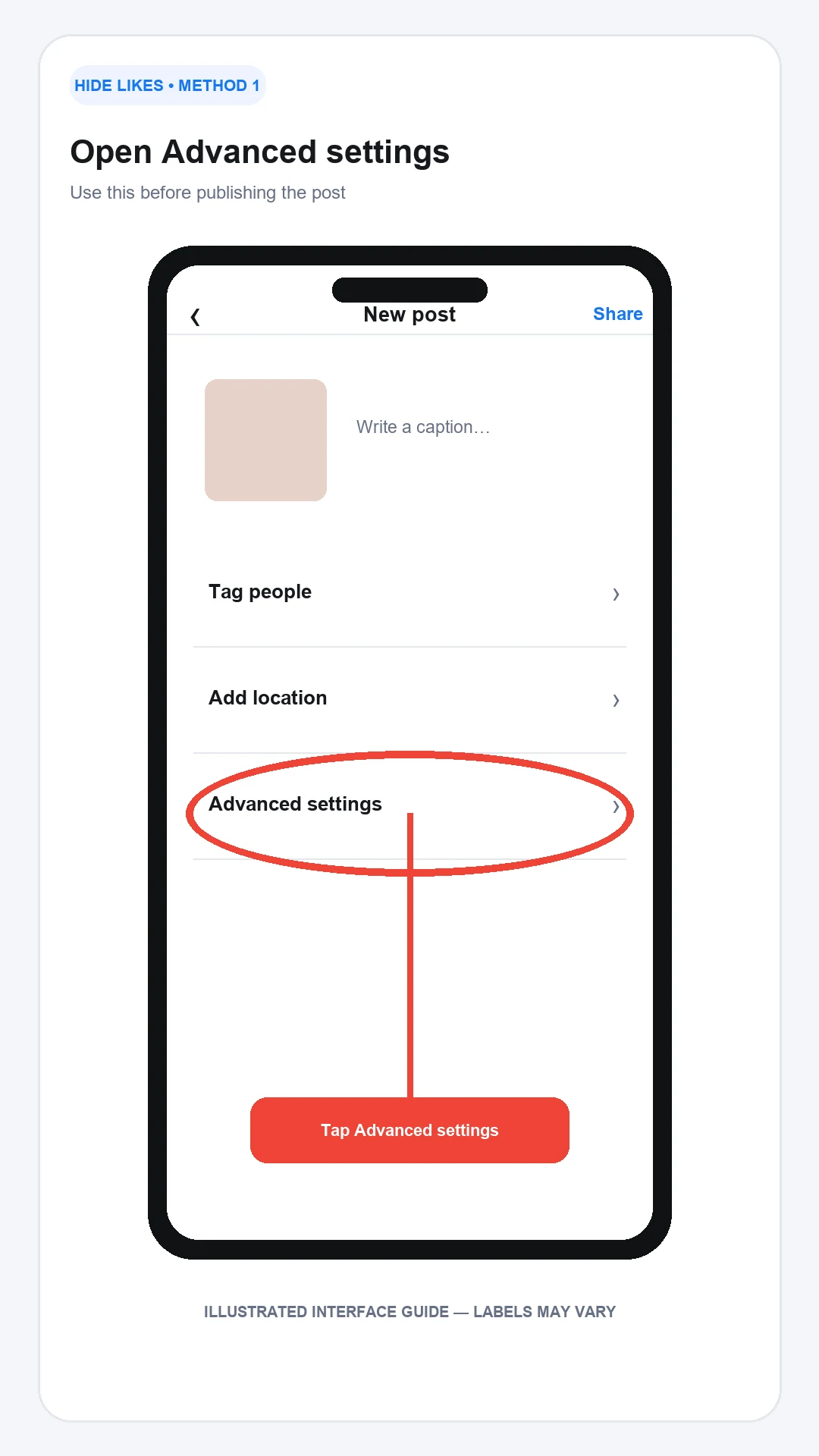
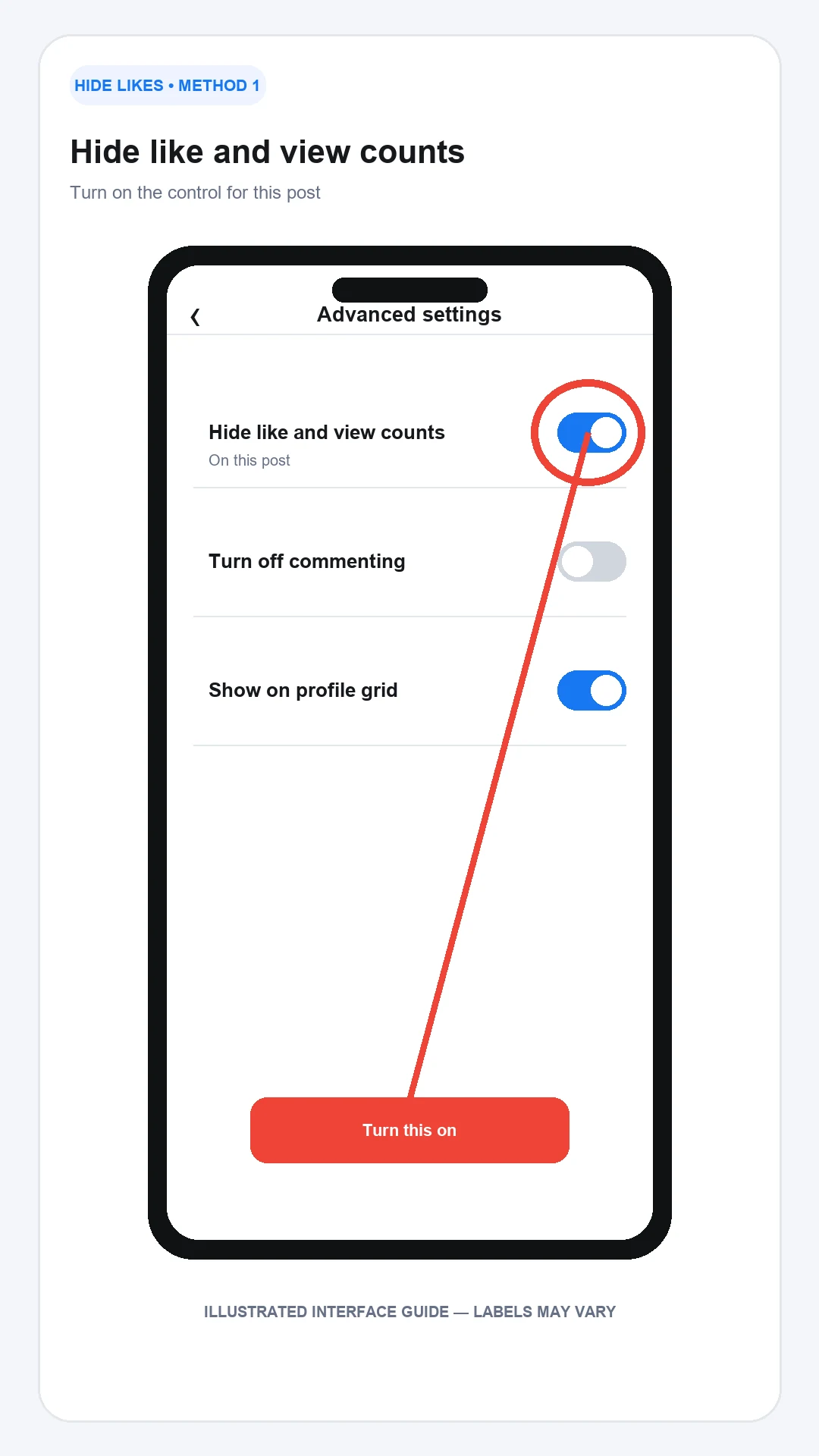
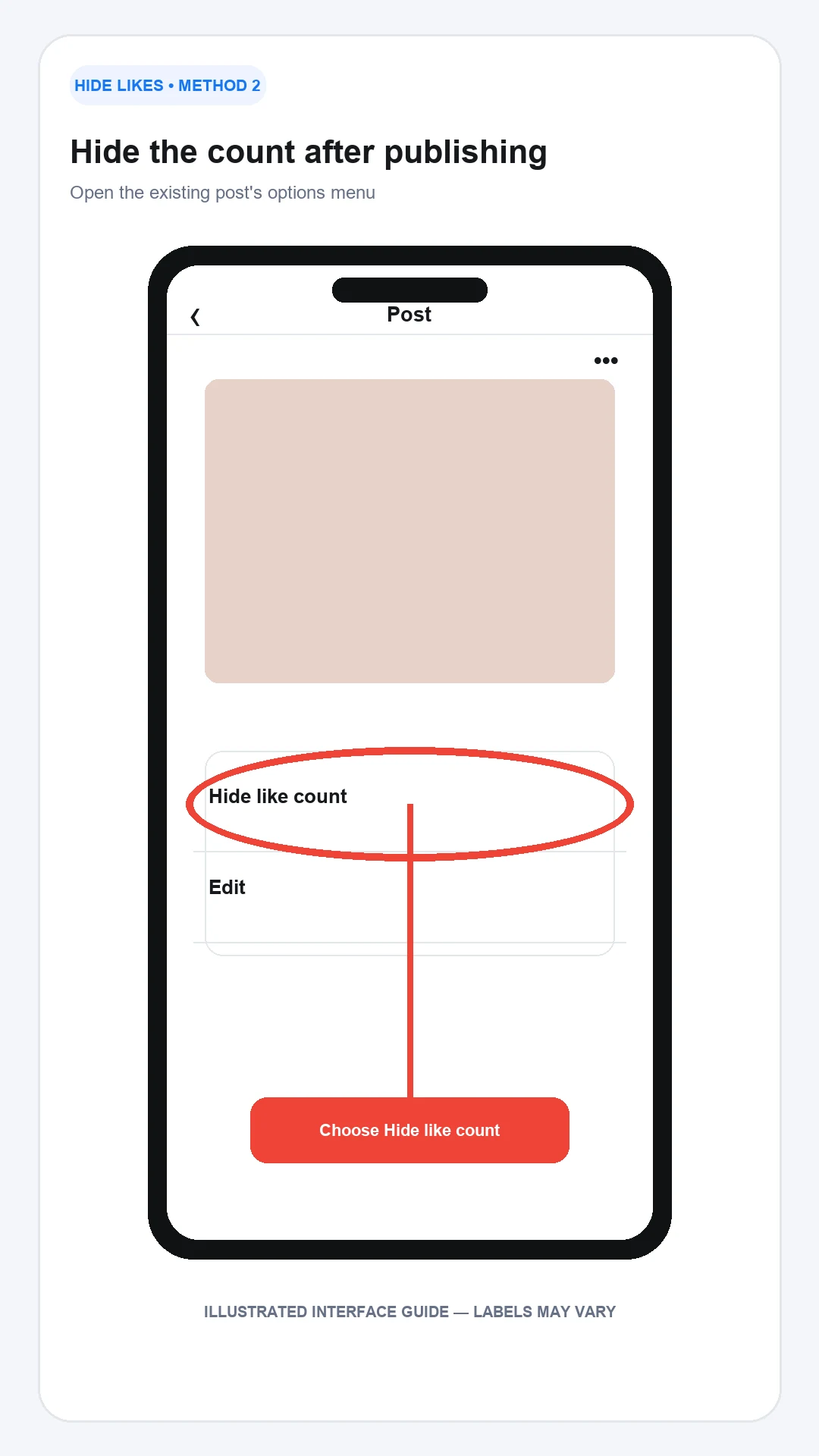
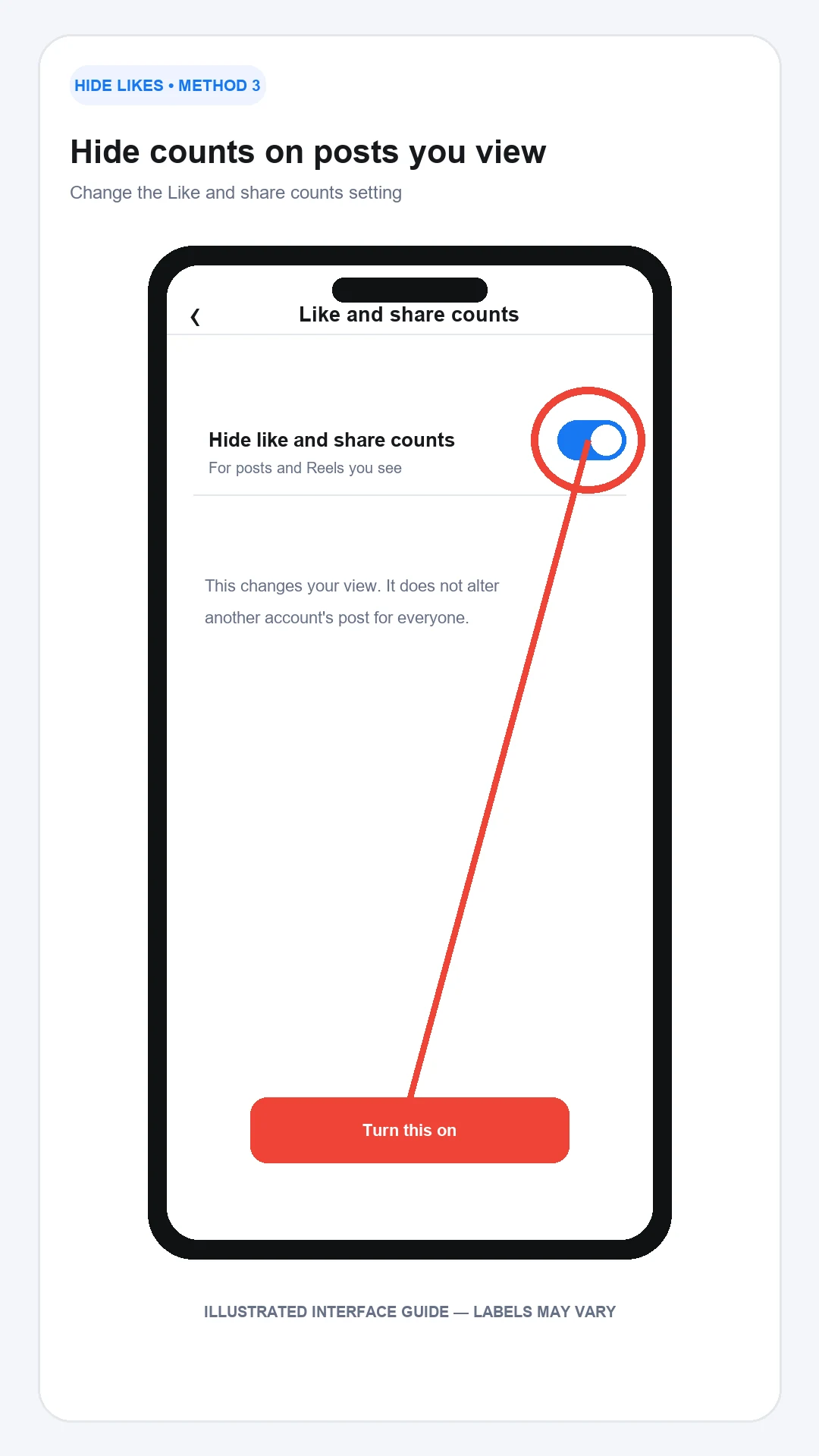
The annotated images below are illustrated interface guides rather than screenshots from a logged-in account. They show where to look, but labels can vary by app version and account.
1. Create the post
Open Instagram and start a feed post in the normal way. Select and edit the photograph, video or carousel, then continue to the final publishing screen.
2. Open Advanced settings
Scroll to Advanced settings near the bottom of the publishing options. Menu order can vary by app version.
3. Hide like and view counts
Turn on Hide like and view counts on this post. The current wording mentions both likes and views because the same control can apply to supported photo and video metrics.
4. Publish and verify
Share the post, then view it from another account if public appearance is important. You should still be able to see your own total even though visitors do not see the public number.
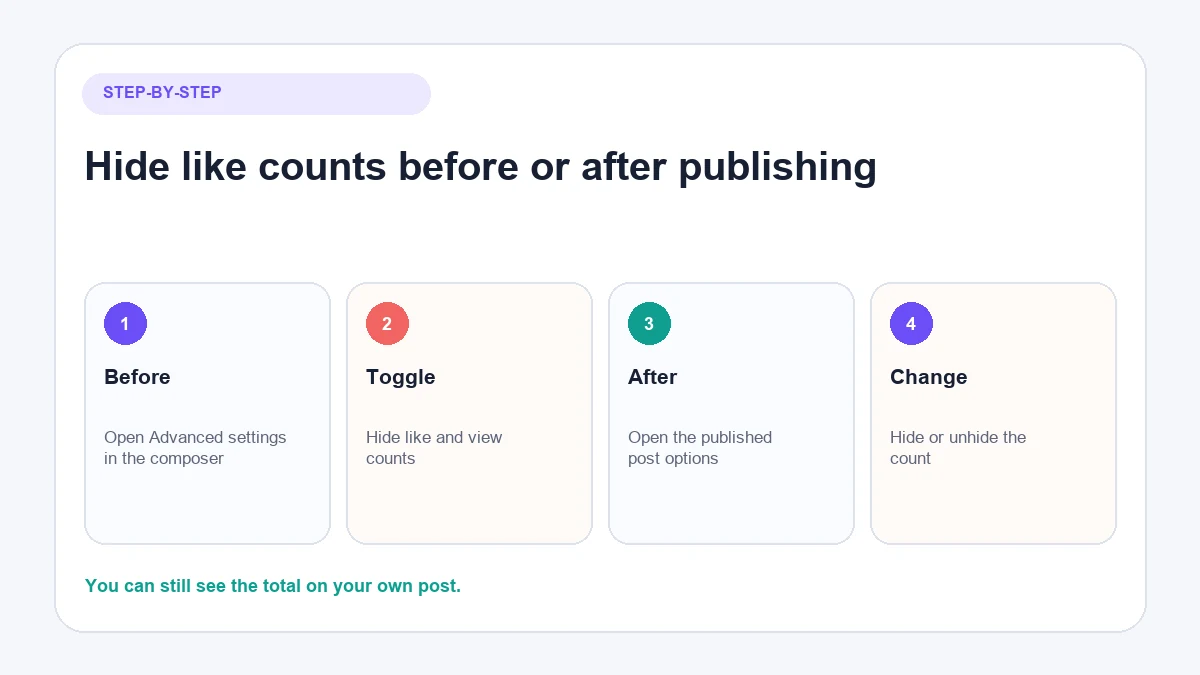
How to hide likes on an Instagram post already shared
You do not normally need to delete and republish an existing post.
- Open the post from your profile.
- Select the three-dot options menu.
- Choose Hide like count or the equivalent current label.
- Reopen the post and confirm that the public count is no longer displayed.
If the option is missing, update Instagram and check the same post in the mobile app. Feature labels may differ between the app, mobile browser and desktop interface.
Hiding the count does not reset engagement. Existing likes remain attached to the post and the setting can be reversed.
How to hide like counts on other people’s Instagram posts
This option changes what you see while browsing; it does not change another account’s post for everyone.
Instagram’s current computer instructions use this path:
- Open More, represented by the menu icon.
- Choose Settings.
- Under What you see, select Like and share counts.
- Turn on Hide like and share counts.
On the mobile app, open your profile menu and Settings, then look for the corresponding Like and share counts control. Instagram sometimes reorganises Settings, so use the in-app search if the label is not in the expected section.
How to show Instagram like counts again
The controls are reversible.
- For your own published post, open its options and choose Unhide like count.
- For posts you are preparing, return to Advanced settings and turn the hide option off before publishing.
- For other accounts’ content, return to Like and share counts in Settings and switch off the global hiding control.
If the number does not reappear immediately, refresh the post or restart the app. Do not repeatedly change the setting while Instagram is still saving the first request.
How AeroChat helps Instagram businesses after a post goes live
Hiding like counts is an Instagram display and privacy setting. AeroChat cannot hide likes, change account privacy or control what Instagram shows.
For a business account, AeroChat becomes relevant after a post starts generating customer questions. Its Instagram chatbot can answer routine DMs and comments using approved business knowledge or connected store information. AeroChat’s Instagram customer service tools also bring conversations into a shared inbox and allow a person to take over when an enquiry needs judgement.
AeroChat is therefore a customer-conversation tool, not a substitute for Instagram’s privacy controls.
Can you hide your likes on Instagram completely?
You can hide like counts, but that is not the same as making every like you give invisible.
The count control changes how a total is displayed. It does not promise that your interaction with a public post becomes private from the post owner or every other viewer. If you no longer want to be associated with a specific post, unlike it.
Instagram’s liking and unliking guidance also warns that if you quickly unlike something, a push notification may already have reached the account that posted it.
For broader privacy concerns, review:
- Whether your account should be private.
- Who can follow you and see your posts.
- Which people are blocked or restricted.
- Activity Status settings.
- Tags, mentions, comments and message controls.
- Third-party apps connected to your account.
Does hiding likes affect reach or engagement?
Hiding the displayed count does not remove the underlying likes. Instagram does not state in its like-count Help Centre guidance that switching off public totals improves or reduces distribution.
Treat the setting as a display and wellbeing choice, not a ranking technique. Measure content using the account’s own insights and business outcomes rather than assuming a hidden or visible number caused a change in reach.
For a business, there are reasonable arguments on both sides:
- Hiding a low early count may reduce unhelpful social comparison.
- Showing genuine engagement may provide context or social proof.
- A visible count cannot compensate for unclear content or unsupported claims.
- A hidden count does not prevent the business from reviewing its own results.
Choose a consistent policy, then change it only when there is a clear reason.
What about Reels and Stories?
Instagram’s like-count setting covers posts and Reels you see, and the per-post control may refer to like and view counts. Check the exact options displayed for the Reel because controls can vary by surface.
Story interactions work differently from feed-post likes. Stories do not display a public like total in the same way as a feed post. If your concern is who can view or reply to a Story, use Story audience, Close Friends, hiding and reply controls rather than the feed-post like-count setting.
Why can’t I hide likes on Instagram?
| Problem | What to try |
|---|---|
| Advanced settings is missing | Continue to the final screen of a feed post and look below the main publishing options |
| Hide count option is missing on a post | Update Instagram and check the three-dot menu in the mobile app |
| Counts still appear on other posts | Confirm the global Like and share counts setting is enabled, then refresh the app |
| Your own total is still visible to you | This is expected; Instagram says owners can still see their total |
| Someone can still tell you liked their post | Hiding a count is not the same as hiding or removing your individual like |
| Menu wording differs | Use Settings search and check whether your account is in a staged interface rollout |
Avoid browser extensions or apps that ask for your Instagram password to provide privacy controls already available inside Instagram.
Frequently asked questions
Can people still like a post when the count is hidden?
Yes. Hiding the count does not disable the Like button or remove engagement. It changes how the total is shown.
Can I see my own likes after hiding the count?
Yes. Instagram says you can still see the total number of likes on your own post.
Can I hide likes on only one Instagram post?
Yes. Use Advanced settings before sharing that post or the options menu after it has been published.
Can I hide like counts on all posts I view?
Yes, where the setting is supported. Open Settings, find Like and share counts under what you see, and turn on the hiding control.
Does hiding likes delete them?
No. Existing likes remain. You can show the count again later.
Can I hide which posts I have liked?
The like-count control does not provide universal privacy for individual likes. Unlike a post if you want to remove your interaction, and review Instagram’s broader privacy controls for account visibility.
Like counts affect how new visitors perceive a post, so the decision to hide or show them has real implications for social proof. For a broader view of how Instagram’s algorithm and visibility tools affect business accounts, posting time for maximum reach covers the distribution side, and growing a business Instagram following covers the account growth approach that makes likes less of a deciding factor over time. For accounts using DMs as a sales channel, story reply automation shows how to capture DM intent without depending on public engagement signals.
Hiding likes on Instagram affects how others perceive engagement, which matters most for creators building commercial value from their profiles. For creators who monetise through brand partnerships, the Instagram Creator Marketplace is the primary platform for those deals, and public engagement metrics are one signal brands evaluate there. The how to grow Instagram followers guide covers the follower-growth side of building a profile that attracts brand interest. Understanding subscriber acquisition cost is useful context for creators measuring the economics of their growth strategy.