
6 Best Webflow Ecommerce Chatbot Integration Options and How to Set Them Up
Adding a chatbot to a Webflow ecommerce store is done through custom code injection rather than an app store. Webflow does not have a marketplace like Shopify’s where you install and configure tools in a few clicks. Every chatbot gets added via a JavaScript snippet placed in Webflow’s custom code settings, which gives you complete flexibility over which tool you use but means there are no Webflow-specific apps with pre-built order data integrations. The setup takes ten to fifteen minutes for the technical part and a few hours to train the bot properly on your store content.
This guide covers the six best chatbot options for Webflow Commerce stores, exactly how to install them, and what to realistically expect from each one in terms of automation depth.
Why Webflow Ecommerce is Different for Chatbot Integration
Webflow attracts a specific kind of store owner. They chose Webflow because they care about design control, visual fidelity, and how their brand looks. The chat widget that sits in the corner of their store is not just a support tool. It is part of the brand experience, and a poorly designed or off-brand widget is a real problem for this audience in a way it might not be for a store built on a more utilitarian platform.
This matters when choosing a chatbot because customisation options for the widget appearance vary significantly between platforms. Some allow full CSS customisation. Others offer limited colour and position adjustments. For a Webflow store where the brand identity is a priority, that level of control is part of the decision.
The other Webflow-specific reality is the order data limitation. Webflow Commerce has its own order management system, but it does not have the same open API ecosystem that Shopify has built for third-party app integration. Most chatbots installed on Webflow work as AI-powered conversation tools trained on your site content and policies. They cannot pull live order data from Webflow Commerce to respond to “where is my order” queries automatically the way Shopify-connected chatbots can. Post-purchase automation on Webflow means the bot answers questions based on your documented processes, not by querying individual order records.
This is worth knowing upfront because it changes what you should expect from a chatbot on Webflow versus on Shopify.
The 6 Best Chatbots for Webflow Ecommerce
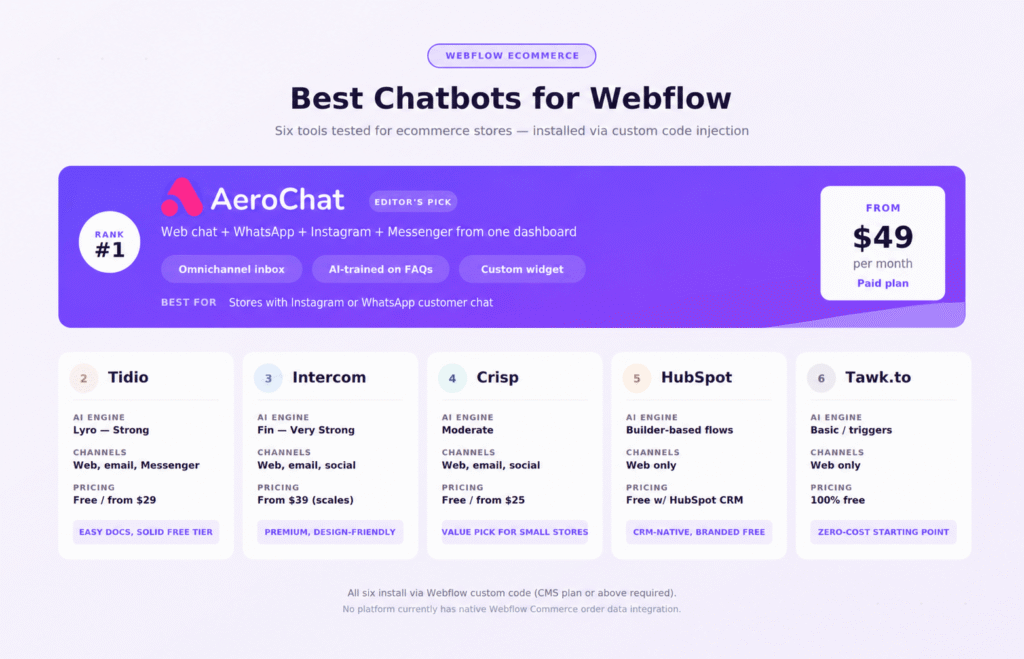
1. AeroChat
AeroChat installs on Webflow through a JavaScript snippet added to the site-wide custom code settings. On Webflow it functions as an AI chatbot trained on your FAQ pages, product information, and store policies, covering website chat, WhatsApp, Instagram DM, and Messenger from one dashboard.
The reason AeroChat makes sense for Webflow stores that also want social channel coverage is that the WhatsApp and Instagram automation works independently of the ecommerce platform. A customer who finds your Webflow store through Instagram and messages you there gets the same automated response capability as one who uses the website chat widget. Managing all four channels from one inbox rather than switching between tools is the primary operational benefit for Webflow stores.
Order-level automation for Webflow is limited to documented process responses rather than live order data, which is consistent with every other chatbot option in this comparison. Where AeroChat differentiates is the channel breadth and AI accuracy on ecommerce-specific query types.
Widget customisation is available for colours and positioning. For Webflow stores with strong brand guidelines, test the widget in your store’s staging environment before going live to confirm it sits well with the design.
Best for: Webflow ecommerce stores with active Instagram or WhatsApp customer communication. Pricing: From $36/month.
2. Tidio
Tidio has a dedicated Webflow installation guide and a community of Webflow users who have shared setup walkthroughs. This practical documentation makes it one of the easier chatbots to get running on Webflow for store owners who are not developers.
Lyro, Tidio’s AI engine, handles FAQ automation, product queries, and policy questions from a trained knowledge base. The visual flow builder lets non-technical users create automated conversation sequences without writing code. Setup takes around 30 minutes from install to first live conversation.
The free plan covers basic live chat. Paid plans unlock Lyro’s full AI capability. The Tidio vs AeroChat comparison shows where the two diverge as query volume and channel requirements grow. For a Webflow store primarily needing website chat with basic AI, Tidio is a practical and well-documented choice.
Best for: Webflow stores wanting straightforward website chat with good community documentation. Pricing: Free plan available. Paid from $29/month.
3. Intercom
Intercom is used by a meaningful share of design-forward brands and SaaS companies that also run ecommerce or digital product sales on Webflow. Its Messenger widget is one of the more polished chat interfaces available and fits well with premium brand aesthetics.
Fin, Intercom’s AI agent, handles complex multi-turn conversations with higher accuracy than most competitors on nuanced or layered queries. It works from a knowledge base trained on your Webflow site content, help articles, and any documentation you provide.
The behavioral tracking layer is Intercom’s real differentiator for Webflow stores. It monitors which pages a visitor has been on, how many times they have visited, and where they are in the decision process, and uses that context to deliver more relevant automated responses. For high-consideration purchases where pre-purchase conversation matters, this context-awareness improves conversion more than a purely reactive FAQ bot.
The tradeoff is cost. Intercom’s pricing starts higher than most tools here and scales with active contact volume. The Intercom vs AeroChat comparison is useful for stores choosing between the two for ecommerce specifically.
Best for: Design-conscious Webflow brands and digital product stores with higher-consideration purchases. Pricing: From $39/month, scales with active contacts.
4. Crisp
Crisp offers one of the best combinations of features and price for Webflow stores that need more than basic live chat without committing to Intercom or AeroChat pricing. Its free plan covers two agents with live chat. Paid plans add AI chatbot flows, a knowledge base builder, and multi-channel coverage including email, Instagram, and Messenger.
The knowledge base builder is particularly useful for Webflow stores with rich product or FAQ content. You build the knowledge base in Crisp, link it to the bot, and it draws from that content when responding to queries. The process of training the chatbot on your own content is genuinely self-serve and does not require technical knowledge.
Widget customisation in Crisp covers colours, position, and the initial greeting text. Not as deep as full CSS control, but sufficient for most brand guidelines. The Crisp vs AeroChat comparison helps stores choose between budget-friendly features and broader channel automation.
Best for: Small to mid-size Webflow stores that want solid AI features at a moderate price point. Pricing: Free plan available. Paid from $25/month.
5. HubSpot Live Chat
HubSpot’s live chat tool is free as part of HubSpot CRM and installs on Webflow via a tracking code added to custom code settings. For Webflow stores already using HubSpot for marketing, email, or CRM, adding live chat keeps customer data in the same system without a separate tool subscription.
The chatbot capability within HubSpot is builder-based rather than AI-first. You create conversation flows with conditional logic, not a trained AI engine. This means it handles predictable query paths well but struggles with unexpected or varied question phrasing. For stores with clearly defined common queries, it works. For stores with complex or varied pre-purchase questions, the limitations show quickly.
The free tier is genuinely useful for small stores. HubSpot branding appears on the widget until you upgrade to a paid HubSpot plan, which is a consideration for design-conscious Webflow stores.
Best for: Webflow stores already using HubSpot CRM who want chat in the same platform at no additional cost. Pricing: Free with HubSpot CRM. Branding removal requires a paid HubSpot plan.
6. Tawk.to
Tawk.to is completely free with no monthly fees, no per-agent limits, and no conversation volume caps. For a Webflow store owner who wants a live chat widget at zero cost and will handle conversations personally, it is the most accessible starting point.
The AI automation capability is basic compared to every other tool in this comparison. Tawk.to is primarily a live chat platform with some trigger-based automation rather than a genuine AI chatbot. What it does it does reliably. Installation on Webflow via custom code takes under ten minutes. The interface is straightforward and functional.
For a Webflow store at early stage with very low support volume, starting with tawk.to and migrating to a more capable platform as the store grows is a practical sequence. The free website chatbot comparison covers what you give up at the free tier across different platforms in more detail.
Best for: Early-stage Webflow stores with minimal support volume and no budget for a chat tool. Pricing: Free.
Comparison Table: Chatbots for Webflow Ecommerce
|
Tool |
AI Capability |
Channels |
Widget Customisation |
Webflow Order Data |
Starting Price |
|---|---|---|---|---|---|
|
AeroChat |
Strong |
Web, WhatsApp, Instagram, Messenger |
Colours, position |
Not native |
$36/mo |
|
Tidio |
Strong |
Web, email, Messenger |
Moderate |
Not native |
Free / $29/mo |
|
Intercom |
Very strong |
Web, email, social |
High |
Not native |
$39/mo |
|
Crisp |
Moderate |
Web, email, social |
Moderate |
Not native |
Free / $25/mo |
|
HubSpot Chat |
Builder-based |
Web only |
Limited (branding on free) |
Not native |
Free |
|
Tawk.to |
Basic |
Web only |
Limited |
Not native |
Free |
Note: No chatbot platform currently has a native Webflow Commerce order data integration equivalent to Shopify API connections. All tools in this comparison work as FAQ, conversation, and pre-purchase support tools on Webflow. Post-purchase order tracking automation requires manual documentation or custom development.
How to Add a Chatbot to Your Webflow Store
Installing any of the tools above follows the same technical process on Webflow. You need a Webflow site plan that supports custom code. The Basic Webflow site plan does not include custom code. You need at minimum the CMS or Business plan.
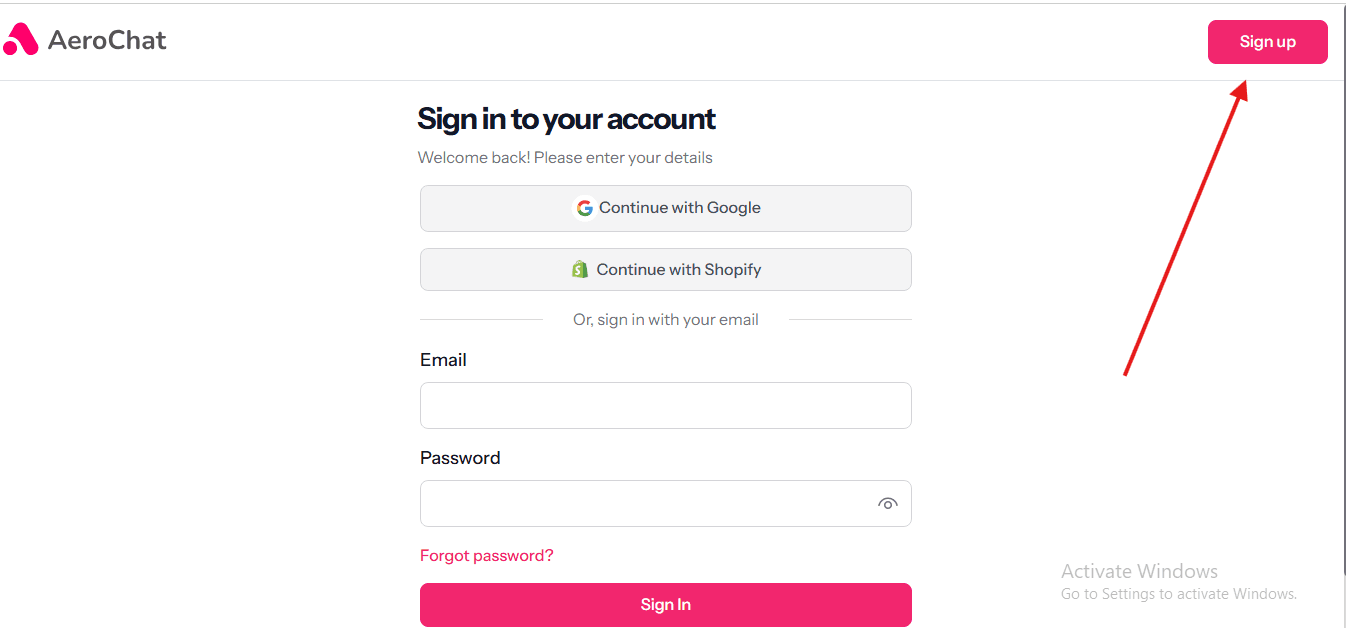
Step 1: Sign up for your chosen chatbot platform and navigate to the installation or setup section. Look for options labelled “Add to website,” “Install widget,” or “Get embed code.” Copy the JavaScript snippet provided.
Step 2: Log into Webflow and open your project in the Designer.
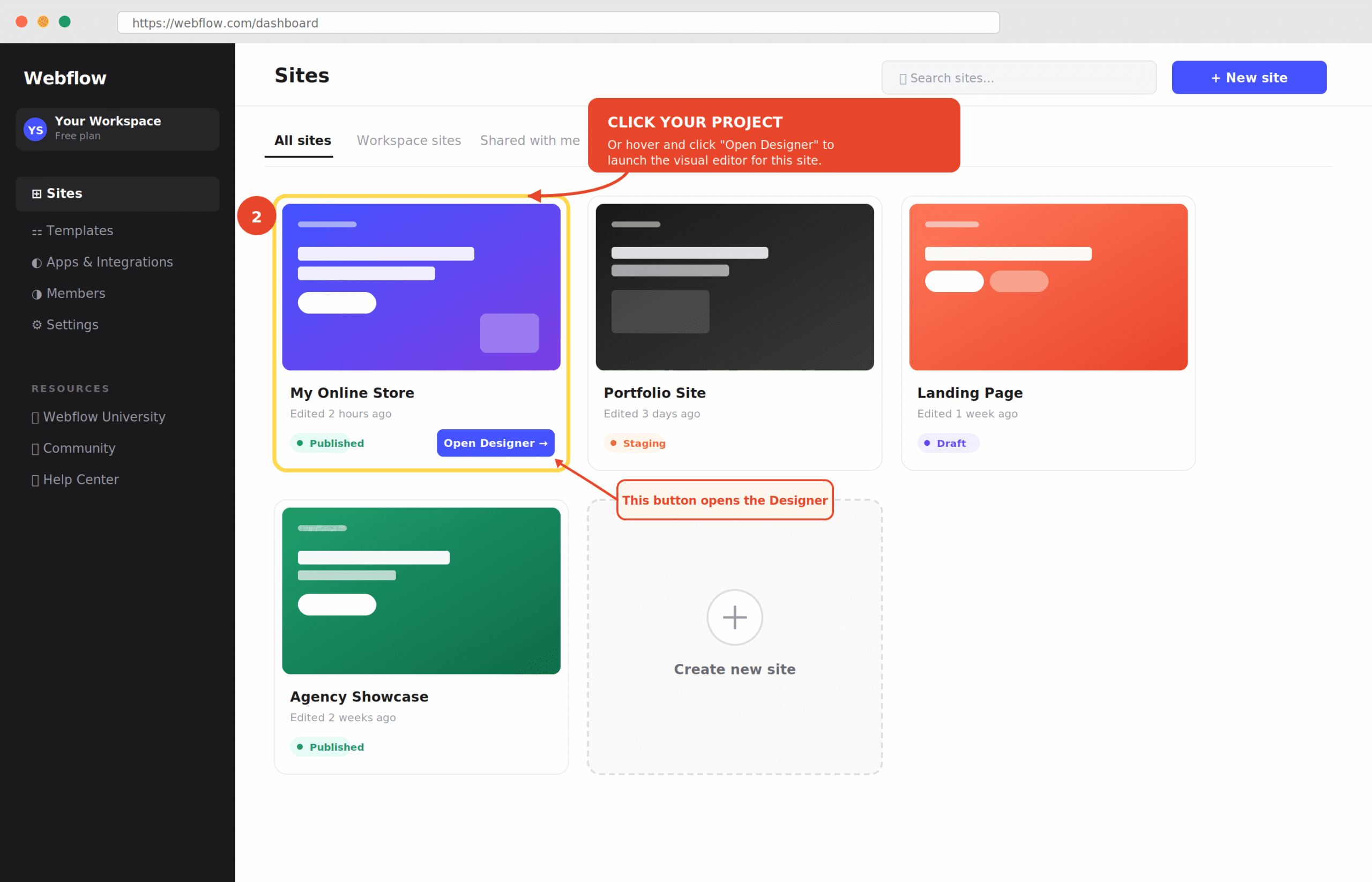
Step 3: Click the gear icon in the top left to open Project Settings. Navigate to the Custom Code tab.
Step 4: Paste your chatbot JavaScript snippet into the “Before closing body tag” field. This loads the chat widget across every page of your Webflow site. If you only want the widget on specific pages, use a Webflow Embed element on those pages instead of the site-wide custom code setting.
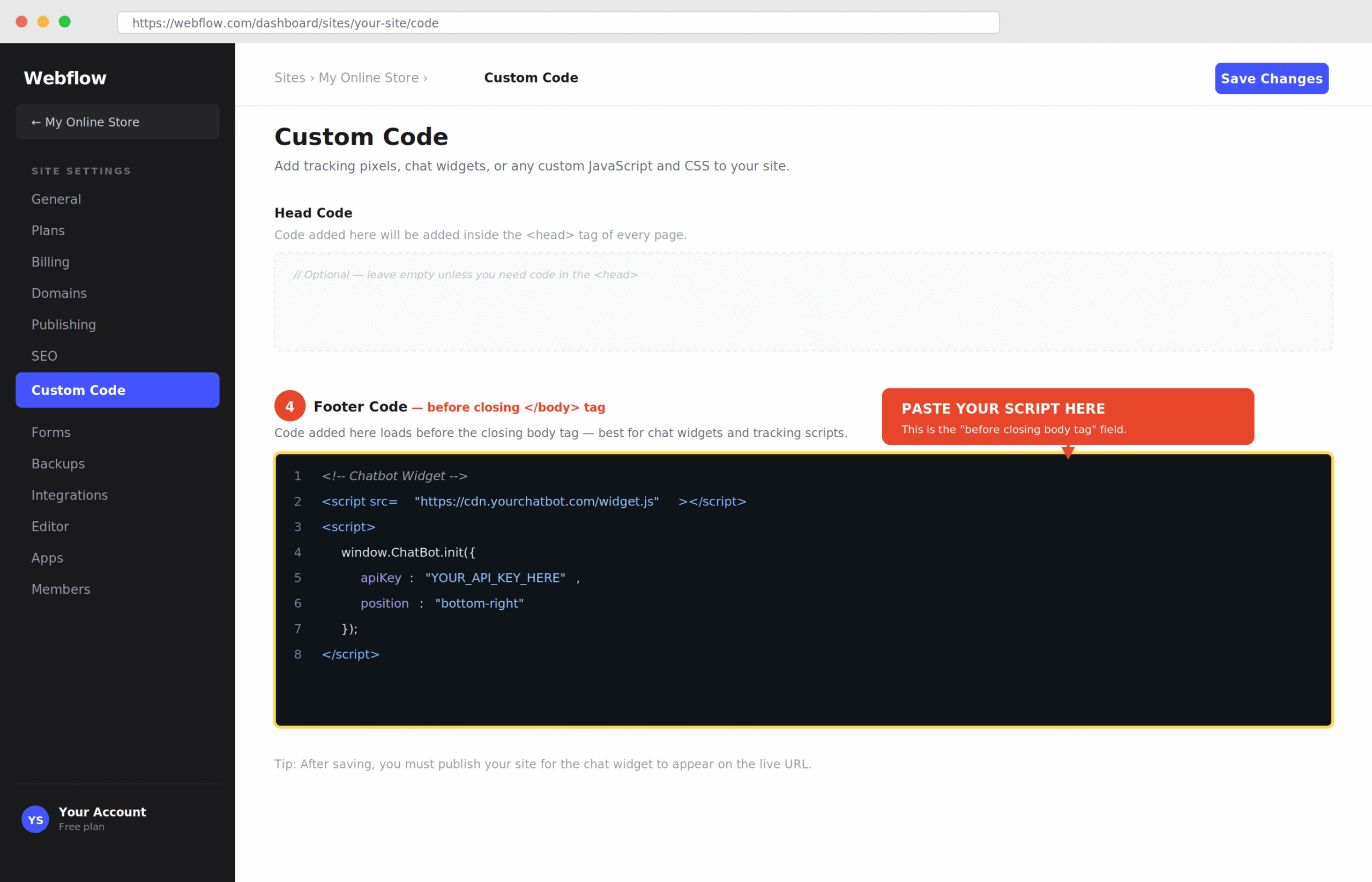
Step 5: Click Save and then publish your Webflow site. The chat widget appears on your live site after publishing. Changes to custom code only take effect after publishing, not in preview mode.
Step 6: Return to your chatbot platform and complete the bot training before directing real customer traffic to it. Add your FAQ content, product information, return policy, and shipping policy to the knowledge base. The bot’s accuracy on customer queries depends entirely on the quality of content you train it on.
For stores using Webflow CMS to manage product pages and blog content, export your CMS content and use it as training material for the chatbot. This gives the bot accurate information about your products without manually re-entering everything. The process of how to train chatbot custom data works the same way regardless of which platform your site is built on.
Getting More From Your Webflow Chatbot
Use proactive triggers for high-value pages. Most chatbot platforms allow you to set triggers that open the chat widget automatically when a visitor has been on a page for a defined time or is showing exit intent. For a Webflow store, setting this trigger on your product pages and checkout page is one of the fastest ways to reduce cart abandonment without changing anything about the store design.
Train the bot on your Webflow CMS content. If your store has a blog, guide section, or FAQ page built in Webflow CMS, that content should feed directly into the chatbot knowledge base. A bot that can reference specific blog posts or guide pages when answering questions gives a more complete and useful response than one working from a basic FAQ list alone.
Set realistic expectations for post-purchase queries. Because Webflow Commerce does not currently support native order data integration with third-party chatbots, your bot should acknowledge this honestly in its flow. When a customer asks about their specific order, the bot should capture their order number and email, confirm it will follow up or pass to a human agent, and set a clear expectation for response time. A bot that attempts to fake order data access and fails erodes trust faster than one that is transparent about its limitations.
Use the chat widget for lead generation chatbot purposes. Pre-purchase visitors who engage with the chat on product pages are warm leads. Set up a flow that captures email or WhatsApp contact details from visitors who express interest in a product, even if they do not buy immediately. These contacts become a high-intent list for follow-up campaigns.
Common Issues with Webflow Chatbot Setup
Widget not appearing after installation. The most common cause is publishing the site after adding the custom code. Changes to custom code in Webflow only go live after you publish. If the widget is not showing after what appears to be a correct installation, publish the site and check again.
Widget appearing in the Webflow Designer preview. The chat widget does not appear in Webflow’s Designer or preview mode because those environments do not fully execute custom JavaScript. Test your installation on the published live URL rather than the designer preview.
Widget conflicting with the Webflow CMS or interactions. Some Webflow interactions use z-index values that push the chat widget behind other elements. If the chat button appears but is not clickable, check your Webflow interactions for z-index conflicts and adjust the chat widget position or z-index in the platform settings.
Chat widget affecting page speed score. Third-party chat widgets add JavaScript loading weight to every page. For Webflow stores with performance-sensitive SEO requirements, check your PageSpeed Insights score after installing the widget and verify whether the chat script appears in the diagnostics. Most chatbot platforms offer a deferred loading option that reduces page speed impact.
Frequently Asked Questions
Does Webflow have a built-in chatbot?
No. Webflow does not include a native chatbot or AI support tool. All chatbot functionality on Webflow requires a third-party tool installed via custom code. Webflow’s built-in form and contact tools handle basic enquiry capture but do not provide automated responses or real-time chat.
Can a chatbot access Webflow Commerce order data automatically?
Not through a native integration in 2026. No major chatbot platform has built a native Webflow Commerce order API integration equivalent to what exists for Shopify. Chatbots on Webflow handle pre-purchase and FAQ queries from trained content but cannot pull individual order status automatically. Custom API development is required for live order data access.
Which Webflow plan do I need to add a chatbot?
Custom code on Webflow requires a CMS plan or above. The Basic site plan does not support custom code injection. If you are on the Basic plan, you will need to upgrade before you can install a chat widget.
How long does it take to set up a chatbot on Webflow?
The technical installation takes ten to fifteen minutes. Training the chatbot on your store content, writing good FAQ responses, and testing the bot against real customer questions takes several hours. Most stores go live with a functional trained bot within one working day of starting the setup.
Can I use AeroChat on Webflow?
Yes. AeroChat installs on Webflow via custom code and provides AI chat across website, WhatsApp, Instagram, and Messenger from one dashboard. The omnichannel coverage works on any website. Webflow Commerce order data integration is not available natively, so post-purchase automation is based on documented process responses.
Is there a free chatbot that works on Webflow?
Yes. Tawk.to is completely free and installs on Webflow via custom code. HubSpot Chat is free with HubSpot CRM. AeroChat, Tidio and Crisp offer free plans with limited features. For a store starting out, these cover basic live chat needs at no monthly cost.
Webflow ecommerce chatbots need to integrate with a platform that does not have the same app ecosystem as Shopify. The Wix chatbot guide covers the closest comparable platform in terms of app integration approach. For the Shopify alternative that many Webflow users migrate to, BigCommerce vs Shopify chatbot comparison shows how chatbot ecosystems differ across the main ecommerce platforms. The best B2B ecommerce solutions guide covers the broader platform comparison that Webflow stores often run before deciding on chatbot tooling.