How to Add Facebook Messenger to Your Website in 2026
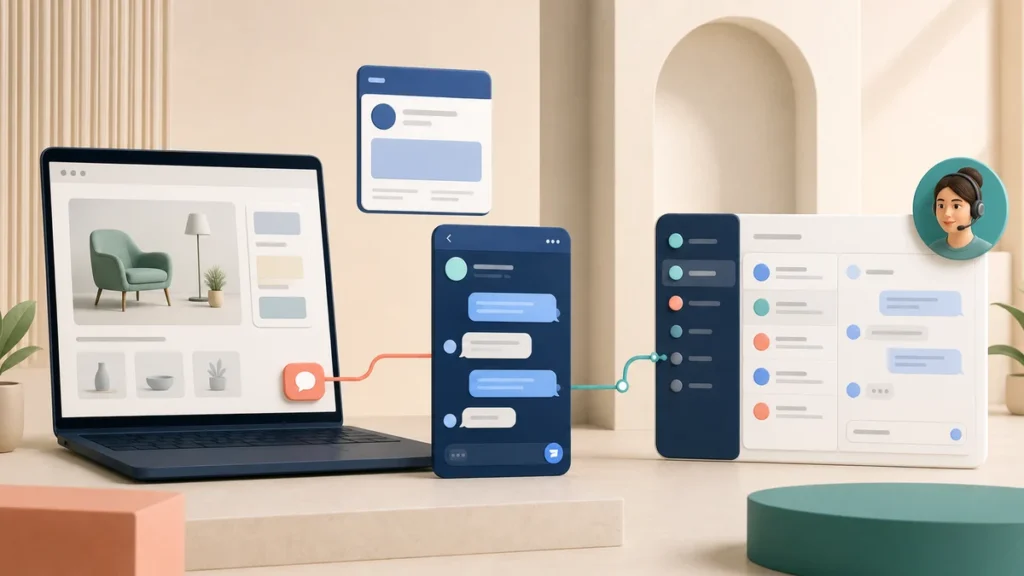
You can still help website visitors start a conversation with your Facebook Page, but you should not follow old tutorials for Meta’s Customer Chat Plugin. That embedded plugin was retired in 2024. A current setup normally uses a website button or link that opens the Page’s available messaging experience, or a separate website chat widget alongside a connected Facebook Messenger support channel.
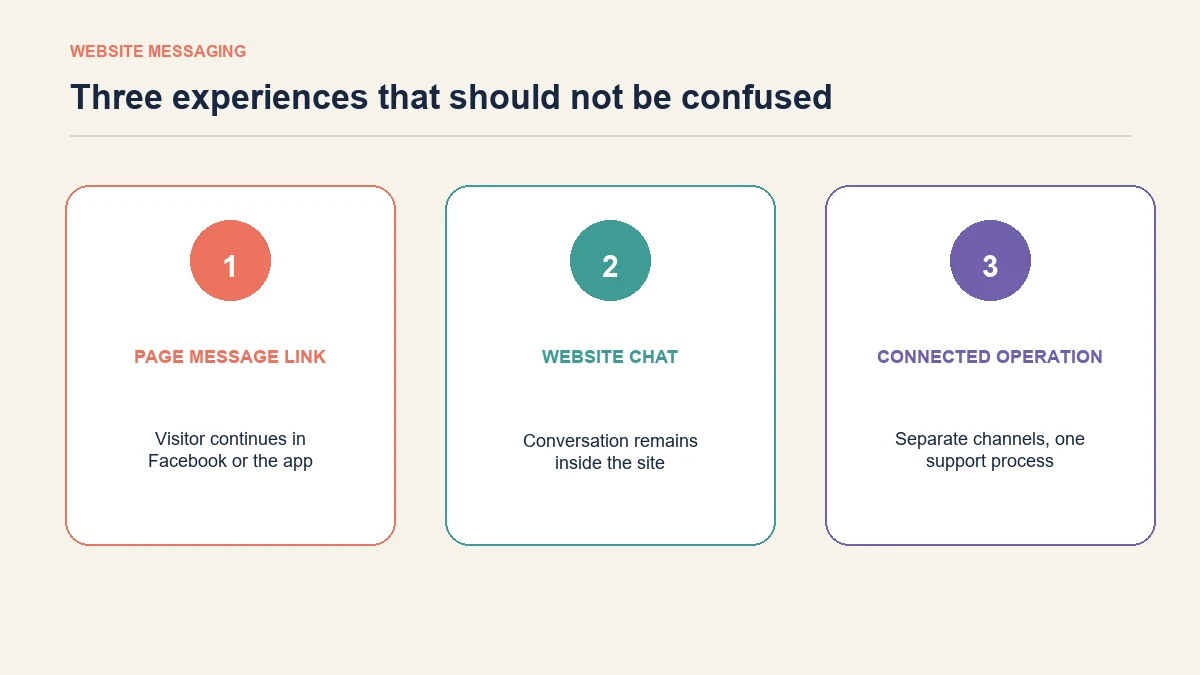
Those options look similar from a distance but behave differently. Decide whether visitors should leave the website to message the Page, chat inside an independent website widget or use either channel while your team manages both from one workspace.
Choose the experience before adding any code
| Desired visitor experience | Suitable approach | Important limitation |
|---|---|---|
| Click a website button and continue in Facebook or the Messenger app | Link the button to the current messaging destination provided by the Facebook Page | The visitor may need to sign in or switch apps. |
| Chat without leaving the website | Install a current website-chat product | This is website chat, not the retired Messenger Chat Plugin. |
| Offer website chat and Facebook messaging while the team works centrally | Connect both supported channels to a customer-service platform | Test identity, notifications and handover separately for each channel. |
Do not paste old JavaScript snippets simply because a tutorial still ranks. An interface that no longer receives updates can fail silently, create a poor mobile experience or leave the team waiting for messages that never reach the inbox.
What you need before connecting the website
Prepare the operating side before placing a button in front of customers.
- An active Facebook Page for the business.
- Sufficient Page access to manage messaging and connected tools.
- Page messaging enabled.
- A clear owner for incoming conversations.
- Published support hours or a reliable out-of-hours response.
- A tested escalation route for account, payment and policy exceptions.
- A privacy notice that accurately describes the tools and channels in use.
Meta’s current instructions explain how to turn Page messaging on or off when a person has the necessary Facebook access. If the Page itself cannot receive a test message, adding a website button will not fix the underlying problem.
Method 1: add a button that opens Page messaging
This is the simplest replacement for businesses that do not need an embedded conversation. The website provides a clear call to action, and the actual conversation takes place in Facebook or Messenger.
1. Confirm that the Page accepts messages
Open the Page as an authorised manager and check the setting that allows people to message it. Then use a separate account to send a real test message. Confirm that it appears where the team expects to handle it.
2. Obtain the current messaging destination
Use the destination exposed by the current Page action button, Page tools or supported integration. Do not copy a Page ID into a link pattern from an old blog post without testing it. Meta has changed web and desktop Messenger experiences, so the destination that works for one setup may redirect differently for another visitor.
Open the destination in:
- a signed-in desktop browser;
- a signed-out or private browser window;
- an Android device;
- an iPhone, if that audience matters;
- the Facebook or Messenger app used by the support team.
If it opens only for Page administrators, it is not ready for customers.
3. Add a descriptive website button
Use button copy that describes the consequence of clicking:
- Message us on Facebook
- Ask us in Messenger
- Continue in Facebook Messenger
Avoid a generic chat icon with no accessible label. It can be mistaken for on-site live chat.
<a href="YOUR-TESTED-PAGE-MESSAGING-DESTINATION"
   target="_blank"
   rel="noopener noreferrer"
   aria-label="Message our team on Facebook">
  Message us on Facebook
</a>
Replace the placeholder with the exact destination you have verified. Opening a new tab is usually clearer when the link leaves the website, but the decision should match the site’s navigation conventions.
4. Place the button where the question occurs
A global contact page is useful, but context can make the link more helpful. Suitable placements include:
- the contact page;
- delivery and returns help;
- high-consideration product pages;
- order-help pages;
- the website footer alongside other support channels.
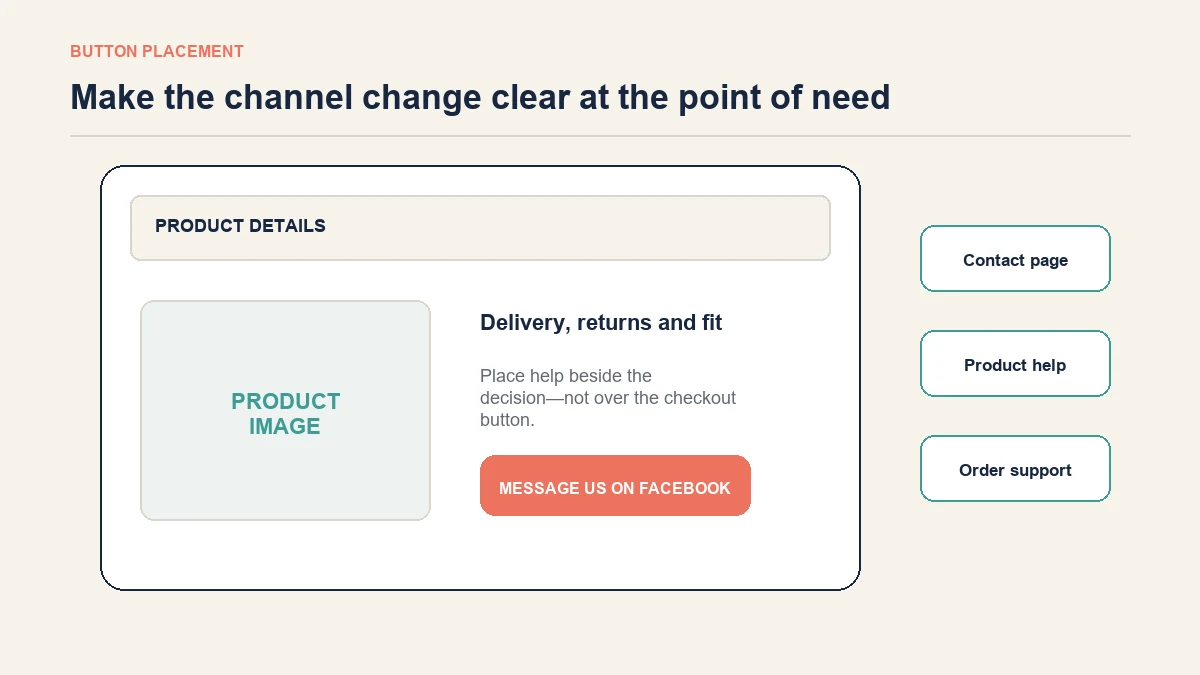
Do not cover checkout controls, accessibility tools or important product information with a floating button. On mobile, test the keyboard, cookie banner and bottom navigation together.
Method 2: use website chat as a separate channel
If the customer must stay on the site, use a current website-chat widget. The visitor chats through that widget rather than through an embedded copy of Messenger.
This distinction should be visible in the wording and privacy notice. A business should not display “Messenger” when the conversation is actually created as website chat, because customers may expect to find the same thread later in their Messenger history.
The separate website live-chat setup explains placement and testing in more depth. A website widget can coexist with a Facebook contact option: one helps the visitor immediately on the site, while the other lets an existing Facebook user choose a familiar channel.
Method 3: connect website chat and Messenger to one support operation
The customer-facing channels can remain distinct while the service operation becomes more consistent.
AeroChat is an AI agent platform that helps online businesses run customer service on autopilot. Its Facebook integration can handle supported Facebook Page conversations, while website chat operates as its own channel. Both can feed the business’s customer-service process without pretending that the website widget is Meta’s retired plugin.
Suitable routine questions can be answered using approved business knowledge. If a conversation needs investigation, negotiation or empathy, human handover allows a person to take over rather than leaving the customer inside an automated loop.
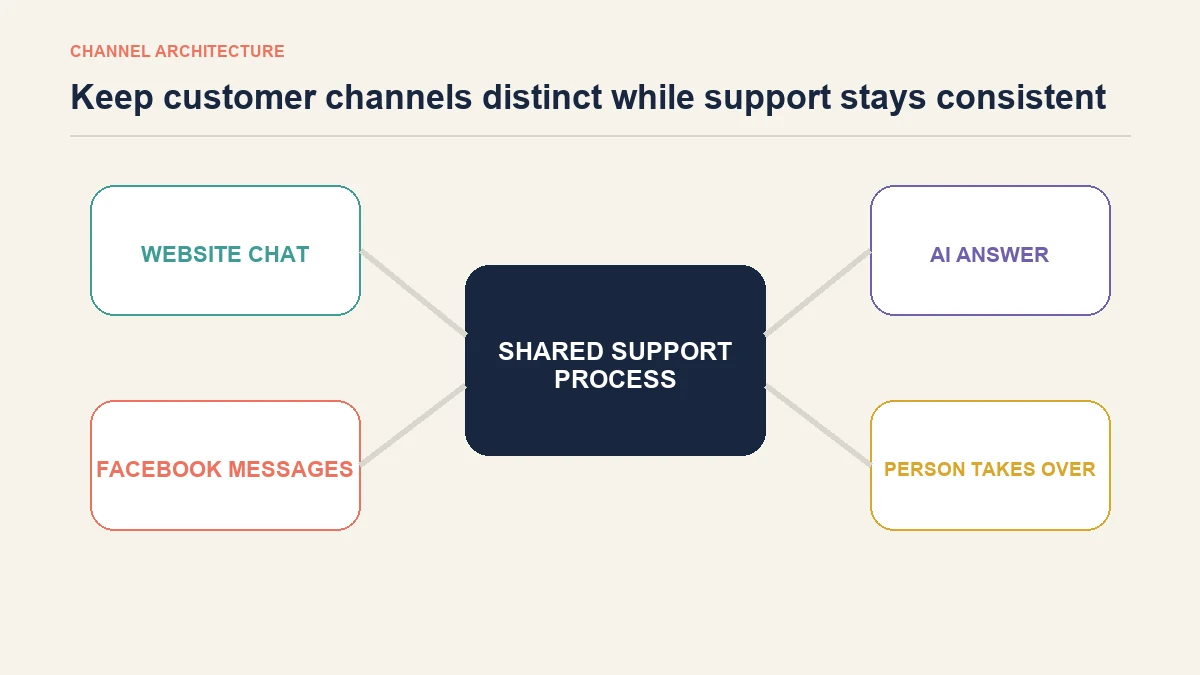
The operating advantage is consistency: the returns policy should not produce one answer on the website and another on Facebook. Teams still need to check channel permissions, message delivery and handover behaviour independently.
Connect a Facebook Page to AeroChat
Use AeroChat’s current Facebook connection instructions rather than an old plugin tutorial. The exact interface may change, but the safe preparation remains the same:
- Sign in with a Facebook account that has appropriate Page access.
- Select the intended business Page, not a similarly named test or regional Page.
- Review the permissions being granted.
- Complete the connection in AeroChat.
- Send a test message from an unrelated account.
- Confirm that the conversation reaches the correct workspace.
- Test an automated answer, an unknown question and a request for a person.
Do not remove the existing Page administrator or old inbox workflow until the replacement path has been tested with real messages.
Add useful context around the button
A support link works better when the visitor knows what the channel is for and when a reply is likely.
For example:
Need help choosing the correct size? Message our team on Facebook. We normally respond during the support hours shown below.
This is more informative than “Chat now”. If replies are not immediate, do not describe the link as live chat. If customers should use email for account-security cases, state that before they begin the Messenger conversation.
Privacy, consent and accessibility checks
Connecting a social channel affects more than visual design.
- Explain that the visitor will continue on a Meta service before they click.
- Do not load unnecessary third-party scripts on every page when a simple link meets the need.
- Make the button reachable by keyboard.
- Provide visible focus styling and a meaningful accessible name.
- Maintain adequate colour contrast.
- Do not make Facebook the only support route when customers may not have an account.
- Review what customer information is copied into connected systems.
- Limit Page and support-platform access to people who need it.
The website privacy notice should describe the actual implementation, not a generic template copied from another site.
Test the complete journey, not just the button
The link opening successfully is only the first checkpoint.
| Test | What to verify |
|---|---|
| Signed-in desktop visitor | Correct Page and conversation destination open. |
| Signed-out desktop visitor | The login or redirect is understandable and not a broken page. |
| Mobile visitor with the app | The correct app and Page open without a redirect loop. |
| Mobile visitor without the app | A usable web or app-store path is presented. |
| New inbound message | It reaches the intended Page inbox or connected platform. |
| Automated answer | It uses current information and identifies uncertainty. |
| Human request | A person can take over with the preceding context. |
| Out-of-hours message | The visitor receives an honest expectation. |
| Notification failure | The team has a secondary way to notice unhandled conversations. |
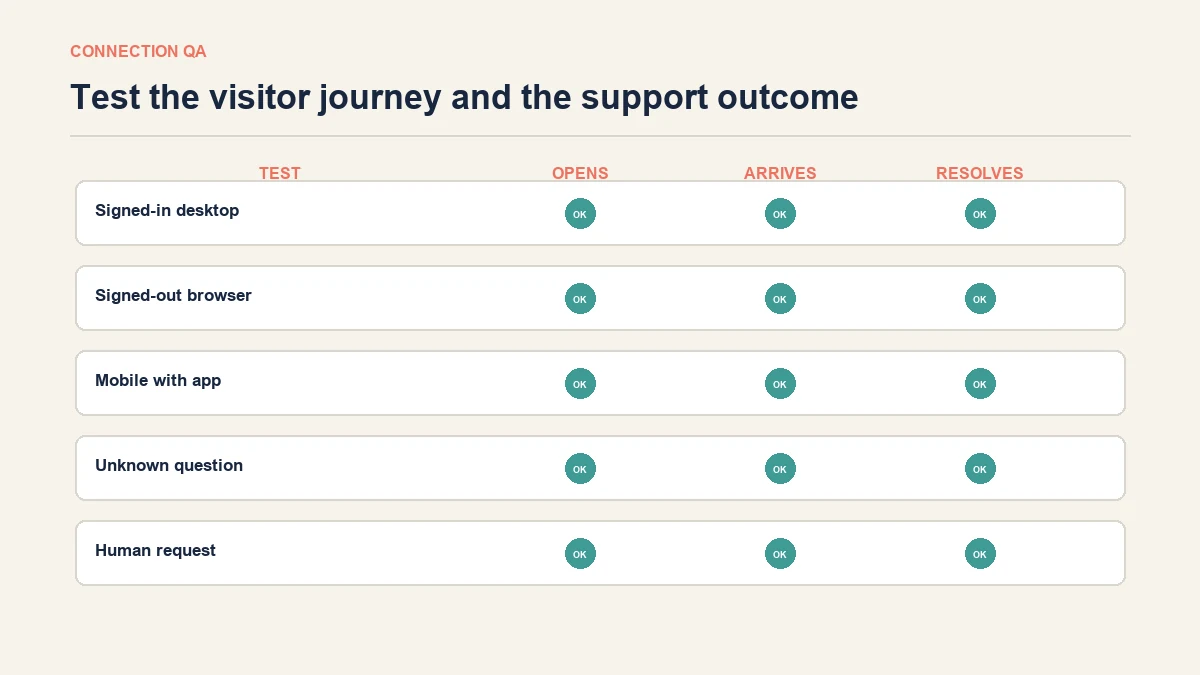
Repeat the test after changing Page access, connection permissions, website code or the customer-service platform.
Common problems and their likely cause
The old Messenger widget has disappeared
The retired Customer Chat Plugin should not be treated as a current integration. Remove obsolete code after confirming it is not required by another component, then select a supported link or website-chat method.
The button opens the wrong Page
Check the destination rather than the visible button text. Businesses with regional, staging or similarly named Pages can easily copy the wrong one.
Messages arrive in Facebook but not the shared inbox
Review Page selection, permissions and channel status. Reconnect only after recording the current settings, because an unnecessary disconnect can interrupt a working route.
Customers expect an instant reply
Change the wording and publish support hours. A Messenger link is not automatically live support.
Mobile visitors cannot reach the button
Check overlaps with cookie notices, sticky purchase controls and browser safe areas. Test at real mobile widths rather than shrinking a desktop window alone.
Frequently asked questions
Can I still embed Facebook Messenger directly on my website?
Do not rely on the old Meta Customer Chat Plugin instructions. Current third-party products may offer their own widgets or connections, but those should be evaluated as separate services. A tested Page-messaging link or independent website chat is usually clearer.
Is a Facebook Messenger button the same as live chat?
No. The button may move the visitor to Facebook or an app, and response time depends on the team’s availability. Describe it as live chat only when the experience and staffing genuinely support that promise.
Do visitors need a Facebook account?
The requirement and redirect can vary by destination, device and Meta’s current experience. Test signed-out access and offer another contact route for people who cannot or do not want to use Facebook.
Can AeroChat put Messenger conversations inside my website widget?
Website chat and Facebook are supported as distinct channels. Do not imply that a website conversation automatically becomes the same thread in the customer’s Messenger account. The operational benefit is managing supported conversations consistently, not disguising one channel as another.
Should the Messenger button appear on every page?
Only when it remains useful and does not obstruct the page. Contextual placement near product questions, delivery information or contact details can be more helpful than a floating control everywhere.
Use the current path and make the expectation explicit
Adding Facebook Messenger to a website in 2026 is primarily an experience-design and routing task, not a matter of pasting the retired plugin code. Choose where the conversation should happen, make the channel change obvious, connect the correct Page and test everything through to a real answer or human takeover.