
How to Add an AI Chatbot to WordPress (3 Methods, 2026)
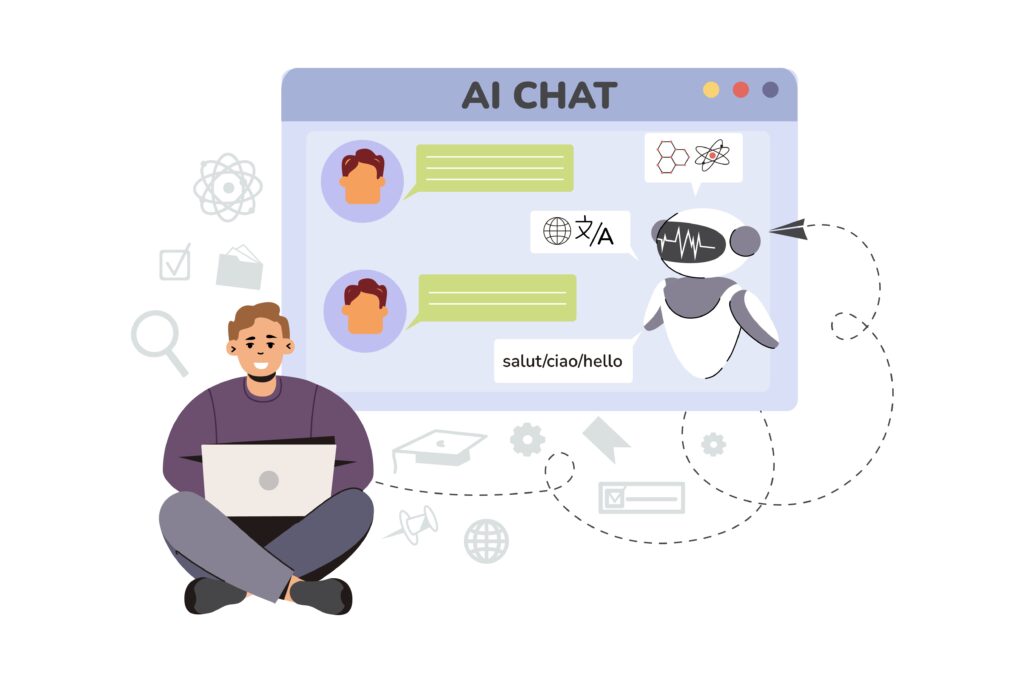
There are three ways to add an AI chatbot to a WordPress website: install an official plugin from the WordPress directory, paste a widget code snippet into your site, or use your page builder’s integration. The plugin method is easiest for non-technical users. The code snippet method is the most flexible and works with any chatbot tool. The page builder method suits Elementor and Divi users. All three take under 30 minutes and need no PHP coding. This guide walks through each method step by step, plus the post-install steps most guides skip and the common problems that trip people up.
Most “how to add a chatbot” articles are vendors walking you through their own tool. This one is method-neutral. You’ll understand your options first, then pick the approach that fits how technical you are and what you want the chatbot to do.
Before You Add a Chatbot: 3 Things to Prepare
Adding the chatbot takes 30 minutes. Preparing properly is what makes it actually work. Do these three things first.
1. Gather your content. The chatbot answers from your business information. Before you install anything, pull together your FAQ, product or service descriptions, pricing, hours, shipping and return policies, and any common questions your team answers repeatedly. A chatbot trained on thin content gives thin answers.
2. Decide the chatbot’s one main job. Support? Lead capture? Product questions? Booking? Pick the primary job first. A chatbot built to do one thing well beats one trying to do five things badly. You can expand later.
3. Decide your channels. Will the chatbot only live on your website, or do you also get customer messages on WhatsApp, Instagram, or Messenger? This decision affects which tool you pick. Website-only needs are simpler. Multi-channel needs point you toward an omnichannel tool.
The 3 Ways to Add an AI Chatbot to WordPress
Each method has a clear best-fit user. Here’s how they compare.
|
Method |
Difficulty |
Flexibility |
Best For |
|---|---|---|---|
|
Official plugin |
Easiest |
Limited to plugin features |
Non-technical users, bloggers |
|
Widget code snippet |
Easy |
Highest, works with any tool |
Most businesses, omnichannel needs |
|
Page builder integration |
Easy |
Medium |
Elementor and Divi users |
Method 1: Official WordPress plugin. Install directly from the WordPress plugin directory. The chatbot is managed from your WordPress dashboard. Simplest path, but you’re limited to what that specific plugin offers.
Method 2: Widget code snippet. Paste a small piece of code into your site (usually the footer). Works with virtually any chatbot tool, including hosted platforms that aren’t WordPress plugins. Most flexible, and how omnichannel tools like AeroChat install.
Method 3: Page builder integration. If you use Elementor, Divi, or another page builder, many chatbots offer a widget or embed block you drop directly into your design. Convenient if you already build pages visually.
For most businesses, Method 2 (the code snippet) is the best balance of simplicity and flexibility. It works with any tool and survives theme changes when added correctly.
Step-by-Step: The Plugin Method
This is the easiest method for non-technical users. The steps are similar across most chatbot plugins.
-
Log into your WordPress dashboard. Go to Plugins, then Add New.
-
Search for your chatbot plugin by name (for example, the tool you’ve chosen from a comparison).
-
Click Install Now, then Activate. WordPress handles the installation.
-
Open the plugin settings. Usually found in the left sidebar or under Settings after activation.
-
Connect your account. Most plugins ask you to sign in or paste an account key to link the plugin to the chatbot platform.
-
Train the chatbot on your content. Upload your FAQ, policies, and product info, or point the bot at your site to crawl it.
-
Customize the widget. Set the colors, position, and greeting to match your brand.
-
Save and publish. The chatbot appears on your live site.
Pros: simplest path, managed inside WordPress. Cons: you’re limited to that plugin’s features and channels.
Step-by-Step: The Code Snippet Method
This method works with any chatbot tool and is how hosted, omnichannel platforms install. It’s slightly more hands-on but far more flexible.
-
Set up your chatbot on the platform (for example, AeroChat). Train it on your content and configure your settings there.
-
Copy the widget code snippet the platform gives you. It’s usually a short JavaScript snippet.
-
Install a code-insertion plugin like WPCode (free) if you don’t want to edit theme files directly. This keeps your snippet safe through theme updates.
-
Paste the snippet into the footer section. In WPCode, add a new snippet, set it to run site-wide, and paste your code into the footer location. Pasting in the footer (not the header) ensures the widget loads correctly.
-
Save and activate the snippet.
-
Clear your cache. If you use a caching plugin, clear it so the change appears.
-
Check your live site in an incognito browser window. The chatbot should appear.
Pros: works with any tool, survives theme updates, supports omnichannel platforms. Cons: one extra step (the code-insertion plugin) compared to a native plugin.
For tools that also handle WhatsApp and Instagram from the same place, this is the method you’ll use. See our guide on omnichannel customer support for why multi-channel matters.
After Installation: 4 Steps Most People Skip
The chatbot is live. Most guides stop here. These four steps are what separate a chatbot that works from one that frustrates visitors.
1. Train it properly. Don’t just point it at your homepage. Upload your real FAQ, your actual policies, and ideally past support questions. The quality of the training data decides the quality of the answers. Our guide on training a chatbot with your own data covers this in depth.
2. Test with real questions. Before you rely on it, send 10 to 15 real customer questions through the bot. Find the weak answers. Fix them. Our guide on testing a chatbot before going live walks through this.
3. Configure the human handoff. Decide what happens when the bot can’t answer. It should apologize briefly and either connect a human or capture the visitor’s email. Never leave a visitor in a dead end with a confused bot.
4. Review weekly. Block 30 minutes a week to read the conversation log. Find questions the bot fumbled, update the training, and the bot gets better over time. Skip this and the bot slowly gets worse as your business changes.
Troubleshooting: 5 Common Problems
These are the issues that come up most often after installing a WordPress chatbot.
Problem: The chatbot doesn’t appear on my site. Check that you pasted the code in the footer, not the header. Clear any caching plugins. Check in an incognito browser window to rule out browser cache.
Problem: The chatbot broke or conflicts with my theme. This usually comes from a code conflict. Try adjusting the widget’s z-index in custom CSS so it layers correctly. If you used a plugin, deactivate other plugins one at a time to find the conflict.
Problem: My site got slower after adding the chatbot. Modern chatbot widgets load asynchronously and shouldn’t noticeably slow your site. If yours does, check whether the tool offers lazy loading, and confirm you don’t have too many active plugins competing for resources.
Problem: The chatbot gives generic or unhelpful answers. This is a training problem, not a tool problem. Add more specific content about your business. Replace marketing language with facts. Upload your real FAQ and policies. Review the weak answers weekly and improve them.
Problem: Mobile visitors can’t see or use the chatbot. Over half of chat interactions happen on mobile in 2026, so this matters. Test the mobile experience yourself. Adjust the widget position if it’s covering important buttons, and consider a different launcher style for small screens.
Frequently Asked Questions
How long does it take to add an AI chatbot to WordPress?
Under 30 minutes for the technical setup with any of the three methods. The plugin method takes about 5 to 10 minutes. The code snippet method takes about 10 to 15 minutes including the code-insertion plugin. Budget another two to four weeks of weekly review to tune the responses to your actual visitor questions.
Do I need coding skills to add a chatbot to WordPress?
No. All three methods are no-code. The plugin method requires zero technical work. The code snippet method involves pasting one piece of code into a code-insertion plugin like WPCode, which is copy-and-paste, not coding. You never touch PHP or edit theme files directly.
Which method is best for adding a chatbot to WordPress?
For non-technical users running a simple website, the official plugin method is easiest. For most businesses, especially those that also get messages on WhatsApp or Instagram, the widget code snippet method is best because it works with any tool and supports omnichannel platforms. Page builder integration suits Elementor and Divi users who build visually.
Will adding a chatbot slow down my WordPress site?
Properly built chatbot widgets load asynchronously, meaning they load separately from your main page content and shouldn’t noticeably affect speed. If you notice a slowdown, check that your tool supports lazy loading and that you don’t have an excessive number of active plugins.
Can I add a chatbot that works on WordPress and WhatsApp together?
Yes. Omnichannel tools like AeroChat install on WordPress via the code snippet method and also handle WhatsApp, Instagram, and Messenger from the same inbox. This is the right choice if your customers reach you across multiple channels, not just the website.
Do I need a paid plan to add an AI chatbot to WordPress?
Not necessarily. Several tools offer free tiers that let you test on your live WordPress site. Free plans usually limit monthly conversations or features. Most businesses start free to validate the value, then upgrade as conversation volume grows.
How do I make sure the chatbot survives theme updates?
Use a code-insertion plugin like WPCode rather than editing your theme files directly. Code added through WPCode is stored separately from your theme, so it survives theme updates and switches. Editing theme files directly is risky because updates can overwrite your changes.
What’s the difference between a WordPress chatbot plugin and a widget?
A plugin is installed from the WordPress directory and managed inside your WordPress dashboard, but is limited to that plugin’s features. A widget is added via a code snippet and connects to an external platform, giving you access to more advanced features and channels. Both display a chat window on your site; the difference is where the chatbot is managed and how flexible it is.
The Bottom Line
Adding an AI chatbot to WordPress is a 30-minute job once you’ve prepared your content and picked your method. The plugin method is simplest. The code snippet method is the most flexible and the right choice if you want one chatbot across your website, WhatsApp, and Instagram. Whichever method you choose, the work that actually matters happens after install: training the bot on real content, testing it, configuring clean handoff, and reviewing weekly.
If you want a chatbot that handles your WordPress site plus WhatsApp, Instagram, and Messenger from one inbox, AeroChat installs via the code snippet method in about 15 minutes and starts free. Prepare your FAQ, paste the snippet, and run real visitor questions through it in the first week.
To compare specific tools before you install, see our guide on the best AI chatbots for WordPress.